
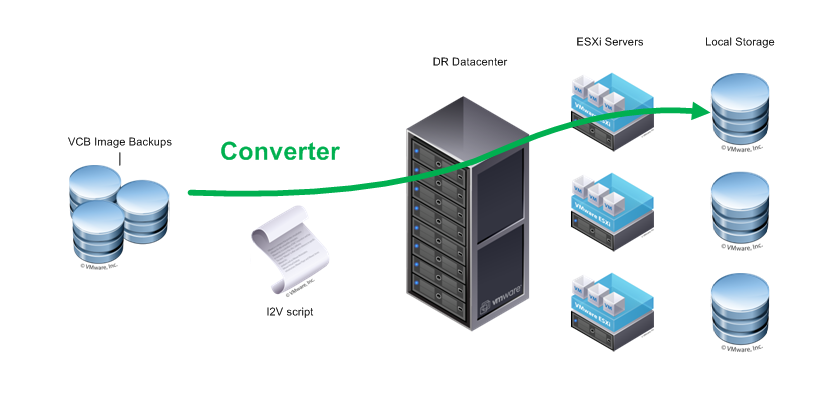
With VMware vCenter you get a feature-rich free product called VMware vCenter Converter. One of the things you can do with the Convertor product is to read disk images created by VMware Consolidated Backup and import them in a vCenter. In the current release the Convertor doesn’t come with any support for the PowerCLI automation tools but that doesn’t mean we can’t use the Convertor from our PowerShell scripts.In our environment we needed to be able to import VCB disk images of guests into our Disaster Recovery center, which is build around a number of ESXi servers, each using one or more local datastores . Since we do this at regular intervals (more than once !), we wanted to automate this process.
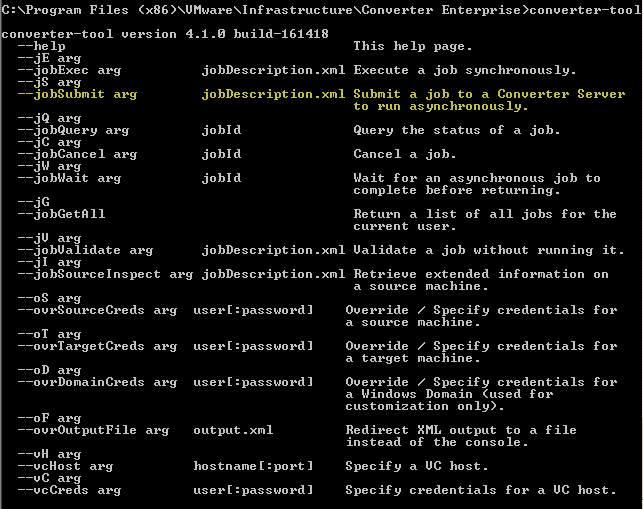
 The Converter product comes with a number of DOS commands. We used the converter-tool command in our script. Looking at the syntax, we see that the command requires an XML file as input for the -jobsubmit parameter.
The layout of the XML file is, afaik, not documented, but by looking at the generated XML files from successful Converter jobs it was not too difficult to deduce most of the required nodes and their attributes.
The script has some additional features:
- The imported guests are connected to a specified portgroup. We use this to connect these guests to an isolated portgroup, so that an accidental start of the guest doesn’t cause any problems.
- The name of the imported guests contains the time stamp. This allows us to generate unique names and allows us to clean up older imports.
- The script has a very simple target selection algorithm. It looks for the ESXi server that has the most free disk space on it’s local datastore.
- The generated XML file, which is used for the Converter job, is saved for reference.
The script shows a very specific case of using the Converter from a PowerShell script, but I’m sure it can easily be adapted for other types of Converter jobs. Enjoy !
kaviarasan
hi, i need to automate vmware converter tool using any script. This script need to do p2v without user intervention kindly suggest me on this.
David Maldonado
I realize this is 4 years old. But has anyone found a way to automate converter standalone jobs yet?
LucD
Hi David, afaik there hasn’t been progress with that I’m afraid.
Si
I’ve been trying…. check out my thread about it here: https://communities.vmware.com/message/2302976
akamac
@LucD
Hi, Luc.
I was looking for how to automate vm export from vCenter with Converter Standalone and finally stumbled on this pretty old post. Tried to find example xml files for converter-cli but hadn’t managed to. Do you have any tips how to perform this trick with the current 5.1 version?
TIA
chayes
Hi, I ran across this thread while looking for a means to schedule regular p2v jobs. This is certainly impressive and extensive. While looking for a simple solution, I looked in the current stand-alone and plugin VM converter packages, and I don’t believe I see a means to schedule (the same job) to repeat. I don’t see the ability @ all in the stand-alone, and the plugin, while providing the capability to schedule through the vCenter scheduler, does not appear to offer the ability to copy the whole converter job–to schedule future jobs. Please tell me that I am missing something.
chayes
Hi, I ran across this thread while looking for a way to schedule vm converter jobs. This certainly looks like a way to go, but does anyone know if anything has changed in the converter product (stand-alone or the plugin)–to allow for repeatable, schedule-able jobs?
It looks like @ current, the stand-alone does not appear to have scheduler capabilities (out of the box), and the plugin, which using the vCenter scheduler, does not allow the ability to copy the whole converter job (it only copies the scheduler shell of the job), for the ability to schedule the p2v job, regularly.
Thanks in advance!
oleg
Great outstanding stuff!!!
But let me ask you few questions…
Where should I see the generated XML files from successful Converter jobs? I was going to use it as help (I need to import VM form one VC to another), but could not see any xml files anywhere…
Also, any advices for script that will import VM from one VC to another will be really appreciated.
Thank a lot!
LucD
Thanks Oleg.
The XML files created by the Converter jobs can be found in C:\Documents and Settings\All Users\Application Data\VMware\VMware Converter Enterprise\jobs on a Windows 2003 server.
On a Windows 2008 server that would be C:\ProgramData\VMware\VMware Converter Enterprise\jobs.
In the XML file you have the “source” and “dest” sections.
With those you should be able to connect to both Virtual Centers.
If you do one job with the Converter GUI you should be able to see in the XML file how the parameters have to provided.
Luc.
Alan Renouf
Very cool
Wade H.
Great stuff Luc!