
One of the feature requests that came up in several emails I received for my dvSwitch series, was how to get and set the network adapters of virtual guests. In the current PowerCLI version the Get-NetworkAdapter and Set-NetworkAdapter cmdlets can not handle portgroups on dvSwitches.
That is why I created the following two functions, called Get-dvSwNetworkAdapter and Set-dvSwNetworkAdapter.
The script
In the functions I tried to emulate the existing Get-NetworkAdapter and Set-NetworkAdapter cmdlets.
Update March 21st 2010
Mike Laverick reported some problems with the original functions when an array of objects was passed as an argument. I have rewritten both functions to handle parameter arrays correctly.
Update June 3rd 2010
Glenn Sizemore, winner of the 2010 Scripting Games, reworked the functions so that they now work with a standard vSwitch and a dvSwitch! See dvSwitchNetworkAdapter for Glenn’s code.
|
1 2 3 4 5 6 7 8 9 10 11 12 13 14 15 16 17 18 19 20 21 22 23 24 25 26 27 28 29 30 31 32 33 34 35 36 37 38 39 40 41 42 43 44 45 46 47 48 49 50 51 52 53 54 55 56 57 58 59 60 61 62 63 64 65 66 67 68 69 70 71 72 73 74 75 76 77 78 79 80 81 82 83 84 85 86 87 88 |
function Get-dvSwNetworkAdapter{ param([parameter(Mandatory = $true, ValueFromPipeline = $true)][VMware.VimAutomation.Client20.VirtualMachineImpl[]]$VM ) process{ $VM | Get-View | %{ $vmObj = $_ $vmObj.Config.Hardware.Device | where {"VirtualEthernetCard","VirtualVmxnet" -contains $_.GetType().BaseType.Name} | %{ $net = $_ New-Object PSObject -Property @{ MacAddress = $net.MacAddress WakeOnLanEnabled = $net.WakeOnLanEnabled NetworkName = &{ if($net.Backing.GetType().Name -eq "VirtualEthernetCardNetworkBackingInfo"){ (Get-View $_.Backing.network).Name } else{ ($vmObj.Network | %{Get-View $_} | where{$_.Key -eq $net.Backing.Port.PortgroupKey}).Name } } Type = $net.GetType().Name ParentId = $vmObj.MoRef.Type + "-" + $vmObj.MoRef.Value ConnectionState = New-Object PSObject -Property @{ Connected = $net.Connectable.Connected StartConnected = $net.Connectable.StartConnected } Id = $vmObj.MoRef.Type + "-" + $vmObj.MoRef.Value + "/" + $net.Key Name = $net.DeviceInfo.Label } } } } } function Set-dvSwNetworkAdapter{ param([parameter(Mandatory = $true, ValueFromPipeline = $true)][PSCustomObject[]]$NetworkAdapter, [parameter(Mandatory = $true)][string]$NetworkName, [switch]$StartConnected, [switch]$Connected ) process{ $NetworkAdapter | %{ $netAdapter = $_ $vm = Get-View $netAdapter.ParentId $esx = Get-View $vm.Runtime.Host $newNet = $esx.Network | %{Get-View $_} | where {$_.Name -eq $NetworkName} $spec = New-Object VMware.Vim.VirtualMachineConfigSpec $dev = New-Object VMware.Vim.VirtualDeviceConfigSpec $dev.operation = "edit" $dev.device = $vm.Config.Hardware.Device | where {$_.GetType().Name -eq $netAdapter.Type -and $_.MacAddress -eq $netAdapter.MacAddress} # Determine backing type switch($newNet.GetType().Name){ "Network" { $dev.device.backing = New-Object VMware.Vim.VirtualEthernetCardNetworkBackingInfo $dev.device.backing.deviceName = $NetworkName } "DistributedVirtualPortgroup" { $dev.device.Backing = New-Object VMware.Vim.VirtualEthernetCardDistributedVirtualPortBackingInfo $dev.device.backing.port = New-Object VMware.Vim.DistributedVirtualSwitchPortConnection $dev.device.backing.port.switchUuid = (Get-View $newNet.Config.DistributedVirtualSwitch).Uuid $dev.device.backing.port.portgroupKey = $newNet.Config.Key } } if($Connected -ne $null){ $dev.Device.Connectable.Connected = $Connected } if($StartConnected -ne $null){ $dev.Device.Connectable.StartConnected = $StartConnected } $spec.deviceChange += $dev $taskMoRef = $vm.ReconfigVM_Task($spec) $task = Get-View $taskMoRef while("running","queued" -contains $task.Info.State){ $task.UpdateViewData("Info") } $returnNetworkAdapter = $netAdapter $returnNetworkAdapter.NetworkName = $NetworkName $returnNetworkAdapter.ConnectionState.StartConnected = $dev.Device.Connectable.StartConnected $returnNetworkAdapter.ConnectionState.Connected = $dev.Device.Connectable.Connected $returnNetworkAdapter } } } |
Annotations
Line 2: The Get-dvSwNetworkAdapter function requires a single parameter, the virtual machine for which you want to get the network adapter information.
Line 5: With the Process block the function can act as a filter. In other words, the function can be used in a pipeline construct.
Line 6: This loop takes care if the VM parameter is an array.
Line 8: The Where-Object filter only allows virtual devices that have the basetype VirtualEthernetCard or VirtualVmxnet to enter the script block that follows. By using the basetype the script doesn’t have to test all the derived objects.
Line 10: The returned information will be in a PSObject. The PSObject has the same properties that are present in the NetworkAdapterImpl that is returned by the Get-NetworkAdapter cmdlet.
Line 13-19: The network name has to be retrieved from different properties depending on the fact if the card is connected to vSwitch portgroup or to a dvSwitch portgroup.
Line 23-26: The ConnectionState property, which is a ConnectInfo object with the Get-NetworkAdapter cmdlet, contains a PSObject. But the property names and the values are the same.
Line 27: The Id property is constructed from the Id of the virtual machine and the device key of the network card. This is the same as what the Get-NetworkAdapter cmdlet returns.
Line 36-37: The Set-dvSwNetworkAdapter function has two required parameters. A network adapter object, as is returned by the Get-dvSwNetworkAdapter cmdlet, and the name of the portgroup to which the adapter shall be connected. Notice that the NetworkAdapter parameter can be passed via the pipeline.
Line 38-39: The function has two optional switch parameters, StartConnected and Connected.
Line 41: With the Process block the function can act as a filter. In other words, the function can be used in a pipeline construct.
Line 43: This loop takes care if the NetworkAdapter parameter is an array.
Line 47: This construct looks up the new portgroup to which the network adapter will be connected.
Line 48-67: These lines prepare the parameters for the ReconfigVM_Task method that is used to change the portgroup to which the network card is connected.
Line 52: The script copies the VirtualDevice object into the VirtualMachineConfigSpec object. This action minimises the data that will have to be entered into the properties. On March 26th 2010 I have added the condition that the MAC address should correspond as well. Otherwise there could eventually be multiple NICs that fit the condition. Rich, thanks for the discovery and the correction.
Line 55: Depending if the new portgroup is on a vSwitch or on a dvSwitch, the Backing property of the VirtualDevice is of a different type.
Line 68-73: These lines take care of the StartConnected and Connected switches.
Line 78-80: This is the “standard” loop to wait for the completion of a Task method.
Line 85: The function returns the new network adapter information through a PSObject. Similar to what the Get-dvSwNetworkAdapter function does.
Usage
Some sample use cases of the two functions.
Getting adapter information
Similar to the Get-NetworkAdapter cmdlet you can retrieve information from the network adapter(s).
|
1 2 3 |
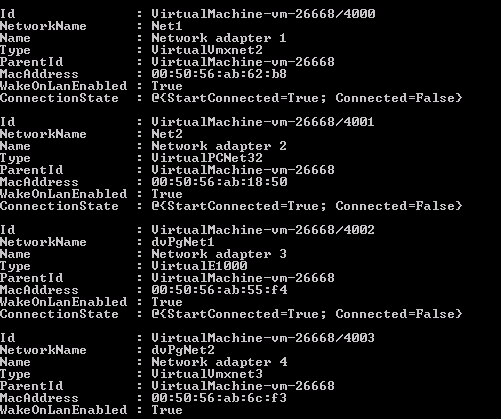
$vmName = "MyGuest" Get-dvSwNetworkAdapter -VM (Get-VM $vmName) |
Returns something like this
Changing the adapters
To change the portgroup of a network adapter you can use something like this
|
1 2 3 |
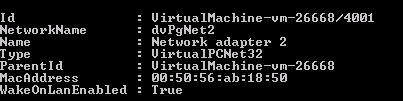
$vmName = "MyGuest" Get-dvSwNetworkAdapter -VM (Get-VM $vmName) | where {$_.NetworkName -eq "Net2"} | Set-dvSwNetworkAdapter -NetworkName "dvPgNet2" |
And the changed network adapter will be returned.
The functions can handle calls of the following formats
|
1 2 3 4 5 6 7 8 |
Get-VM -Name "MyVm1" | get-dvSwNetworkAdapter | Set-dvSwNetworkAdapter -NetworkName "dvPgNet2" Get-VM -Name "MyVm*" | get-dvSwNetworkAdapter | Set-dvSwNetworkAdapter -NetworkName "dvPgNet2" Get-dvSwNetworkAdapter -VM (Get-VM MyVm1) | Set-dvSwNetworkAdapter -NetworkName "dvPgNet2" Get-dvSwNetworkAdapter -VM (Get-VM MyVm*) | Set-dvSwNetworkAdapter -NetworkName "dvPgNet2" Get-dvSwNetworkAdapter (Get-VM MyVm) | Set-dvSwNetworkAdapter -NetworkName "dvPgNet2" Get-dvSwNetworkAdapter (Get-VM MyVm*) | Set-dvSwNetworkAdapter -NetworkName "dvPgNet2" Get-dvSwNetworkAdapter (Get-VM MyVm*) | Set-dvSwNetworkAdapter -NetworkName "dvPgNet2" -StartConnected:$true Get-dvSwNetworkAdapter -VM (Get-VM MyVm1) | Set-dvSwNetworkAdapter -NetworkName "dvPgNet2" -Connected:$true -StartConnected:$true |
Conclusion
I hope these two functions come in handy in your work with dvSwitches.
And a word of warning, the two functions don’t perform any error checking whatsoever. If you pass no network adapter object to the Set-dvSwNetworkAdapter function, it will fail ! Same if you pass the name of a non-existing portgroup name.
Ed
Luc,
I was looking to use this to migrate several hundred VMs but the latest powercli includes several new fields. How would this be written for the current version of powercli? Or, how can I get powercli to build a NetworkAdapter from this?
JJ
Hello,
Is there anyway to call this using get-view instead of get-vm?
I’m trying to applied to all machines in the dvswitch but only to a determined hosts.
Regards,
JJ
shashi
Hello ,
First of all thanks for providing the script . Its very handy . But when I run the script it changes port group as expected but the NIC status would be disconnected . I.e . Connected and Connect at poweron checkbox are unchecked. Could you please help me to fix this .
thanks in advance !!!..
Batuhan
Hi, I know this is an old thread but this script has been great use to me. It works great, assigns the dvSwitch to the VM fine, but the script enters an infinite loop of errors after the configuration is done. The VM works fine, the network adapter is changed fine. The error is:
Exception calling “UpdateViewData” with “1” argument(s): “”
At line:83 char:25
+ $task.UpdateViewData <<<< ("Info")
+ CategoryInfo : NotSpecified: (:) [], MethodInvocationException
+ FullyQualifiedErrorId : DotNetMethodException
I am using this with PowerCLI 5 latest release. Maybe something deprecated as this is an old script. I tried to use the "Set-NetworkAdapter" command but it does not work with dvSwitch networks. Any help appreciated, thanks.
Ionut Nica
Hi,
Did anything change with the introduction of powercli 4.1.1? do we still need these functions to get/set network information?
we have not upgraded to 4.1.1 yet so I was wondering about that.
Thanks
Ionut
LucD
@Ionut, no not really, in PowerCLI 4.1 and 4.1.1 some existing cmdlets were extended with dvSwitch functionality. See the PowerCLI changelog. and search for ‘distributed’.
Drunky
@LucD
Great 🙂
at now i have to pars each vmx file of every vm (with help of awk/sed/grep ) on esx side, removing such lines as
ethernet0.dvs.switchId = “1d a1 2c 50 6d 7a ea 59-d0 cd b9 8a d2 a3 2d 37”
ethernet0.dvs.portId = “133”
ethernet0.dvs.portgroupId = “dvportgroup-367”
ethernet0.dvs.connectionId = “1842595141”
adding one line
ethernet0.networkName = “temp”
register those vm’s with your function “register-vm” and only after that changing portgroup from “temp” to what i need “dvportgroup”
and all of it is a part of “SRM on scripts” ^_^
Drunky
@Drunky
Never mind, i found the problem
Unfortunately if you removing VM from inventory and than add it back (no matter form GUI or by your great function register-vm), it (VM) comes back with no (blank) portgroup, when using distributed switch
LucD
@Drunky, thanks for the feedback.
I’ll check if I can do something with the Register-VMX function for this.
Drunky
Hi Luc. Trying to use your function, but getting strange error
Get-VMHost | Get-Datastore -name “CX3_virtual_lab_lun2” | get-vm | Get-dvSwNetworkAdapter
Get-View : ?? ??????? ????????? ???????? ??? ????????? “VIObject”. ???????? ?????? ??? ???
?? ???????? NULL. ??????? ?? ?????? ????????, ?? ??????? ???????? NULL, ????? ???? ???????
?? ?????????? ???????.
C:\Scirpts5.ps1:158 ????:17
+ $VM | Get-View <<<< | %{
+ CategoryInfo : InvalidData: (:) [Get-View], ParameterBindingValidationExce
ption
+ FullyQualifiedErrorId : ParameterArgumentValidationError,VMware.VimAutomation.ViCor
e.Cmdlets.Commands.DotNetInterop.GetVIView
Jorgen
Luc, look at this site https://blogs.vmware.com/vipowershell/2010/07/output-type-changes-in-powercli-41.html
>> In PowerCLI 4.1 we changed the namespaces in which output types live. This was done to improve the internal structure and enable other VMware teams to write cmdlets for the products they develop.
This explains the error Alex had.
LucD
@Jorgen, that is correct and that is what I said in my previous reply.
The problem is that there is no method that I know to have it both ways.
The script is for PowerCLI 4.1 or for PowerCLU 4.0u1 and earlier.
In the long run I suspect I will have to update all the scripts for PowerCLI 4.1.
VM-PRO
@LuCD, thanks so much for all your scripts…amazingly helpful for quite a while now!
Started receiving an error with get-dvsnetworkadapter to the likes of:
Unable to find type [VMware.VimAutomation.Client20.VirtualMachineImpl[]]: make sure that the assembly containing this type is loaded.
At :line:2 char:116
+ param([parameter(Mandatory = $true, ValueFromPipeline = $true)][VMware.VimAutomation.Client20.VirtualMachineImpl[]] <<< VMware.VimAutomation.ViCore.Impl.V1.VirtualDevice.VirtualDeviceImpl
on the following page:
https://blogs.vmware.com/files/typemapping—powercli-4.0.1-to-4.1-1.txt
After making that change the script works again. Appears VMware updated some object typing in 4.1.
Thanks and good scripting!
LucD
@VM-PRO, glad you like the script.
You are correct. The types have changed in PowerCLI 4.1.
For now, I was planning to leave the scripts in the PowerCLI 4.0.1 format.
I was hoping VMW would come with a more global solution then just a translation table.
Roey Azroel
Hi LucD!
There is a way to import/export DVS configuration? (Include the PortGroup names, configuration and the UUID of the DVS)
Thanks!
LucD
Hi Roey, as a matter of fact I’m looking into such functionality.
But I couldn’t find a simple way of doing that (yet).
Z
I keep getting this error when running the script:
Get-Process : Cannot evaluate parameter ‘Name’ because its argument is specified as a script block and there is no input. A script block cannot be evaluated without input.
I’m calling the function with your supplied example:
$vmName = “TestSrv”
Get-dvSwNetworkAdapter -VM (Get-VM $vmName)
Any idea why I’m getting this?
Thanks!
LucD
Hi Z, I tried several variations in several environments but I couldn’t reproduce the problem.
Could you perhaps tell me how you run the script ? From the PowerCLI prompt, PowerShell Plus, PowerShell v2 ISE, EcoShell, PowerGUI… ?
And which PowerShell and PowerCLI version you are using ?
Rich
Hi – Your scripts have always been a serious help. With the Set-dvSwNetworkAdapter script and a VM with multiple NICs I was getting this error on line 52:
Exception setting “Device”: “Cannot convert the “System.Object[]” value of type “System.Object[]” to type “VM
ware.Vim.VirtualDevice”.”
because both NICs were getting returned.
I fixed it by modifying the line to:
$dev.device = $vm.Config.Hardware.Device | where {$_.GetType().Name -eq $netAdapter.Type -and $_.MacAddress -eq $netAdapter.MacAddress}
Just wanted to let you know/see if there was something I was doing wrong.
Thanks
LucD
Rich, thanks for finding this bug and providing a correction.
The post has been updated.
Alex
@LucD
Luc – That was it. Works great now. Thank you.
Alex
Hi – Thanks for providing this script. I’m getting the following error when I attempt to load the above functions. I also tried to include these functions in my $profile, but still get the same error. I’m able to run other powercli cmdlets successfully. Any suggestions?
Thanks.
[vSphere PowerCLI] C:\Powershell scripts> & ‘C:\Powershell scripts\dvSw.ps1’
Unable to find type [parameter(Mandatory = $true, ValueFromPipeline = $true)]:
make sure that the assembly containing this type is loaded.
At C:\Powershell scripts\dvSw.ps1:2 char:65
+ param([parameter(Mandatory = $true, ValueFromPipeline = $true)][ <<<< VMw
are.VimAutomation.Client20.VirtualMachineImpl[]]$VM
LucD
Alex, are you running PowerShell v2 RTM ?
On the Scripting Guy blog you can see how to check.
The script requires PowerShell v2 RTM.