
Some time ago I published the Export-Xls function to the world in my Beyond Export-Csv: Export-Xls post. And it has been one of the more popular functions on my blog.

Just before Christmas 2012 I got a comment from Gilbert where he informed me that he had written an Export-Xlsx function and had borrowed some of the parameters that were on the original Export-Xls function. We exchanged a couple of emails with suggestions and ideas, and yesterday the finalised Export-Xlsx function was posted on Gilbert’s ITPilgrims blog (which you should follow btw) in his Export-Xlsx post.
In this post I will publish this new Export-Xlsx function with some annotations, and I will also show how you can now export your data in the order you want, provided you’re using PowerShell v3.
The script
|
1 2 3 4 5 6 7 8 9 10 11 12 13 14 15 16 17 18 19 20 21 22 23 24 25 26 27 28 29 30 31 32 33 34 35 36 37 38 39 40 41 42 43 44 45 46 47 48 49 50 51 52 53 54 55 56 57 58 59 60 61 62 63 64 65 66 67 68 69 70 71 72 73 74 75 76 77 78 79 80 81 82 83 84 85 86 87 88 89 90 91 92 93 94 95 96 97 98 99 100 101 102 103 104 105 106 107 108 109 110 111 112 113 114 115 116 117 118 119 120 121 122 123 124 125 126 127 128 129 130 131 132 133 134 135 136 137 138 139 140 141 142 143 144 145 146 147 148 149 150 151 152 153 154 155 156 157 158 159 160 161 162 163 164 165 166 167 168 169 170 171 172 173 174 175 176 177 178 179 180 181 182 183 184 185 186 187 188 189 190 191 192 193 194 195 196 197 198 199 200 201 202 203 204 205 206 207 208 209 210 211 212 213 214 215 216 217 218 219 220 221 222 223 224 225 226 227 228 229 230 231 232 233 234 235 236 237 238 239 240 241 242 243 244 245 246 247 248 249 250 251 252 253 254 255 256 257 258 259 260 261 262 263 |
Function Export-Xlsx { <# .SYNOPSIS Exports data to an Excel workbook .DESCRIPTION Exports data to an Excel workbook and applies cosmetics. Optionally add a title, autofilter, autofit and a chart. Allows for export to .xls and .xlsx format. If .xlsx is specified but not available (Excel 2003) the data will be exported to .xls. .NOTES Author: Gilbert van Griensven Based on https://www.lucd.info/2010/05/29/beyond-export-csv-export-xls/ .PARAMETER InputData The data to be exported to Excel .PARAMETER Path The path of the Excel file. Defaults to %HomeDrive%\Export.xlsx. .PARAMETER WorksheetName The name of the worksheet. Defaults to filename in $Path without extension. .PARAMETER ChartType Name of an Excel chart to be added. .PARAMETER Title Adds a title to the worksheet. .PARAMETER SheetPosition Adds the worksheet either to the 'begin' or 'end' of the Excel file. This parameter is ignored when creating a new Excel file. .PARAMETER ChartOnNewSheet Adds a chart to a new worksheet instead of to the worksheet containing data. The Chart will be placed after the sheet containing data. Only works when parameter ChartType is used. .PARAMETER AppendWorksheet Appends a worksheet to an existing Excel file. This parameter is ignored when creating a new Excel file. .PARAMETER Borders Adds borders to all cells. Defaults to True. .PARAMETER HeaderColor Applies background color to the header row. Defaults to True. .PARAMETER AutoFit Apply autofit to columns. Defaults to True. .PARAMETER AutoFilter Apply autofilter. Defaults to True. .PARAMETER PassThrough When enabled returns file object of the generated file. .PARAMETER Force Overwrites existing Excel sheet. When this switch is not used but the Excel file already exists, a new file with datestamp will be generated. This switch is ignored when using the AppendWorksheet switch. .EXAMPLE Get-Process | Export-Xlsx D:\Data\ProcessList.xlsx .EXAMPLE Get-ADuser -Filter {enabled -ne $True} | Select-Object Name,Surname,GivenName,DistinguishedName | Export-Xlsx -Path 'D:\Data\Disabled Users.xlsx' -Title 'Disabled users of Contoso.com' .EXAMPLE Get-Process | Sort-Object CPU -Descending | Export-Xlsx -Path D:\Data\Processes_by_CPU.xlsx .EXAMPLE Export-Xlsx (Get-Process) -AutoFilter:$False -PassThrough | Invoke-Item #> [CmdletBinding()] Param ( [Parameter(Position=0,Mandatory=$True,ValueFromPipeline=$True)] [ValidateNotNullOrEmpty()] $InputData, [Parameter(Position=1)] [ValidateScript({ $ReqExt = [System.IO.Path]::GetExtension($_) ( $ReqExt -eq ".xls") -or ( $ReqExt -eq ".xlsx") })] $Path = (Join-Path $env:HomeDrive "Export.xlsx"), [Parameter(Position=2)] $WorksheetName = [System.IO.Path]::GetFileNameWithoutExtension($Path), [Parameter(Position=3)] [ValidateSet("xl3DArea","xl3DAreaStacked","xl3DAreaStacked100","xl3DBarClustered", "xl3DBarStacked","xl3DBarStacked100","xl3DColumn","xl3DColumnClustered", "xl3DColumnStacked","xl3DColumnStacked100","xl3DLine","xl3DPie", "xl3DPieExploded","xlArea","xlAreaStacked","xlAreaStacked100", "xlBarClustered","xlBarOfPie","xlBarStacked","xlBarStacked100", "xlBubble","xlBubble3DEffect","xlColumnClustered","xlColumnStacked", "xlColumnStacked100","xlConeBarClustered","xlConeBarStacked","xlConeBarStacked100", "xlConeCol","xlConeColClustered","xlConeColStacked","xlConeColStacked100", "xlCylinderBarClustered","xlCylinderBarStacked","xlCylinderBarStacked100","xlCylinderCol", "xlCylinderColClustered","xlCylinderColStacked","xlCylinderColStacked100","xlDoughnut", "xlDoughnutExploded","xlLine","xlLineMarkers","xlLineMarkersStacked", "xlLineMarkersStacked100","xlLineStacked","xlLineStacked100","xlPie", "xlPieExploded","xlPieOfPie","xlPyramidBarClustered","xlPyramidBarStacked", "xlPyramidBarStacked100","xlPyramidCol","xlPyramidColClustered","xlPyramidColStacked", "xlPyramidColStacked100","xlRadar","xlRadarFilled","xlRadarMarkers", "xlStockHLC","xlStockOHLC","xlStockVHLC","xlStockVOHLC", "xlSurface","xlSurfaceTopView","xlSurfaceTopViewWireframe","xlSurfaceWireframe", "xlXYScatter","xlXYScatterLines","xlXYScatterLinesNoMarkers","xlXYScatterSmooth", "xlXYScatterSmoothNoMarkers")] [PSObject] $ChartType, [Parameter(Position=4)] $Title, [Parameter(Position=5)] [ValidateSet("begin","end")] $SheetPosition = "begin", [Switch] $ChartOnNewSheet, [Switch] $AppendWorksheet, [Switch] $Borders = $True, [Switch] $HeaderColor = $True, [Switch] $AutoFit = $True, [Switch] $AutoFilter = $True, [Switch] $PassThrough, [Switch] $Force ) Begin { Function Convert-NumberToA1 { Param([parameter(Mandatory=$true)] [int]$number) $a1Value = $null While ($number -gt 0) { $multiplier = [int][system.math]::Floor(($number / 26)) $charNumber = $number - ($multiplier * 26) If ($charNumber -eq 0) { $multiplier-- ; $charNumber = 26 } $a1Value = [char]($charNumber + 96) + $a1Value $number = $multiplier } Return $a1Value } $Script:WorkingData = @() } Process { $Script:WorkingData += $InputData } End { $Props = $Script:WorkingData[0].PSObject.properties | % { $_.Name } $Rows = $Script:WorkingData.Count+1 $Cols = $Props.Count $A1Cols = Convert-NumberToA1 $Cols $Array = New-Object 'object[,]' $Rows,$Cols $Col = 0 $Props | % { $Array[0,$Col] = $_.ToString() $Col++ } $Row = 1 $Script:WorkingData | % { $Item = $_ $Col = 0 $Props | % { If ($Item.($_) -eq $Null) { $Array[$Row,$Col] = "" } Else { $Array[$Row,$Col] = $Item.($_).ToString() } $Col++ } $Row++ } $xl = New-Object -ComObject Excel.Application $xl.DisplayAlerts = $False $xlFixedFormat = [Microsoft.Office.Interop.Excel.XLFileFormat]::xlWorkbookNormal If ([System.IO.Path]::GetExtension($Path) -eq '.xlsx') { If ($xl.Version -lt 12) { $Path = $Path.Replace(".xlsx",".xls") } Else { $xlFixedFormat = [Microsoft.Office.Interop.Excel.XLFileFormat]::xlWorkbookDefault } } If (Test-Path -Path $Path -PathType "Leaf") { If ($AppendWorkSheet) { $wb = $xl.Workbooks.Open($Path) If ($SheetPosition -eq "end") { $wb.Worksheets.Add([System.Reflection.Missing]::Value,$wb.Sheets.Item($wb.Sheets.Count)) | Out-Null } Else { $wb.Worksheets.Add($wb.Worksheets.Item(1)) | Out-Null } } Else { If (!($Force)) { $Path = $Path.Insert($Path.LastIndexOf(".")," - $(Get-Date -Format "ddMMyyyy-HHmm")") } $wb = $xl.Workbooks.Add() While ($wb.Worksheets.Count -gt 1) { $wb.Worksheets.Item(1).Delete() } } } Else { $wb = $xl.Workbooks.Add() While ($wb.Worksheets.Count -gt 1) { $wb.Worksheets.Item(1).Delete() } } $ws = $wb.ActiveSheet Try { $ws.Name = $WorksheetName } Catch { } If ($Title) { $ws.Cells.Item(1,1) = $Title $TitleRange = $ws.Range("a1","$($A1Cols)2") $TitleRange.Font.Size = 18 $TitleRange.Font.Bold=$True $TitleRange.Font.Name = "Cambria" $TitleRange.Font.ThemeFont = 1 $TitleRange.Font.ThemeColor = 4 $TitleRange.Font.ColorIndex = 55 $TitleRange.Font.Color = 8210719 $TitleRange.Merge() $TitleRange.VerticalAlignment = -4160 $usedRange = $ws.Range("a3","$($A1Cols)$($Rows + 2)") If ($HeaderColor) { $ws.Range("a3","$($A1Cols)3").Interior.ColorIndex = 48 $ws.Range("a3","$($A1Cols)3").Font.Bold = $True } } Else { $usedRange = $ws.Range("a1","$($A1Cols)$($Rows)") If ($HeaderColor) { $ws.Range("a1","$($A1Cols)1").Interior.ColorIndex = 48 $ws.Range("a1","$($A1Cols)1").Font.Bold = $True } } $usedRange.Value2 = $Array If ($Borders) { $usedRange.Borders.LineStyle = 1 $usedRange.Borders.Weight = 2 } If ($AutoFilter) { $usedRange.AutoFilter() | Out-Null } If ($AutoFit) { $ws.UsedRange.EntireColumn.AutoFit() | Out-Null } If ($ChartType) { [Microsoft.Office.Interop.Excel.XlChartType]$ChartType = $ChartType If ($ChartOnNewSheet) { $wb.Charts.Add().ChartType = $ChartType $wb.ActiveChart.setSourceData($usedRange) Try { $wb.ActiveChart.Name = "$($WorksheetName) - Chart" } Catch { } $wb.ActiveChart.Move([System.Reflection.Missing]::Value,$wb.Sheets.Item($ws.Name)) } Else { $ws.Shapes.AddChart($ChartType).Chart.setSourceData($usedRange) | Out-Null } } $wb.SaveAs($Path,$xlFixedFormat) $wb.Close() $xl.Quit() While ([System.Runtime.Interopservices.Marshal]::ReleaseComObject($usedRange)) {} While ([System.Runtime.Interopservices.Marshal]::ReleaseComObject($ws)) {} If ($Title) { While ([System.Runtime.Interopservices.Marshal]::ReleaseComObject($TitleRange)) {} } While ([System.Runtime.Interopservices.Marshal]::ReleaseComObject($wb)) {} While ([System.Runtime.Interopservices.Marshal]::ReleaseComObject($xl)) {} [GC]::Collect() If ($PassThrough) { Return Get-Item $Path } } } |
Annotations
Line 76-80: Parameter validation code block that checks if the requested file is of the type XLS or XLSX
Line 81: The default save location is in the user’s home drive and the default filename is Export.Xslx
Line 82: The default worksheetname is the name of the file
Line 84-102: The enumerated accepted charttypes.
Line 117-128: An internal helper function that converts a number to an Excel column name. For example the number 28 is converted to the column AB.
Line 133-135: Copy the data that was passed to the function to the internal WorkingData array. Note that the function can be used in a pipeline, so the Process block will collect all data passed through the pipeline into this WorkingData array.
Line 138-163: The input data is collected into a 2-dimensional array.
Line 169-175: If the function discovers that the local Excel installation is not Excel 2010, then the filetype will be changed to XLS.
Line 178-184: This part of the code configures the requested location of the worksheet. The accepted values are begin and end.
Line 186-188: If the Force switch was not used in the call and the requested file already exists, the function will add a timestamp to the name, to guarantee a unique filename.
Line 201-224: Handles the worksheet Title and the Header Colour.
Line 228-231: Handles the Borders switch.
Line 233: Handles the AutoFilter switch
Line 235: Handles the AutoFit switch
Line 237-248: Creates a chart, if requested, and handles the ChartOnNewSheet switch.
Line 254-259: This avoids having to kill the Excel process by clearing all the allocated COM object
Sample Usage
Export-Xlsx
The Export-Xlsx function provides several of the parameters that were there in the Export-Xls function, and adds a couple of new ones. Let’s explore.
|
1 2 3 |
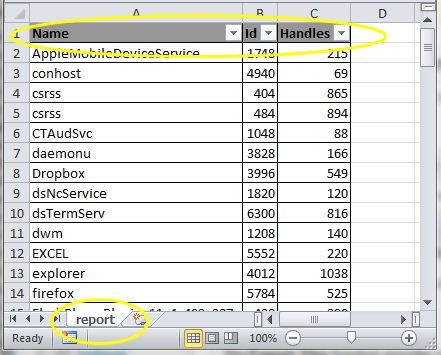
Get-Process | Select Name,Id,Handles | Export-Xlsx -Path C:\report.xlsx |
This produces an XLSX file with 1 worksheet, notice the default worksheet name and how Autofit, Autofilter and Borders are selected by default.
Now lets try to add a chart.
|
1 2 3 |
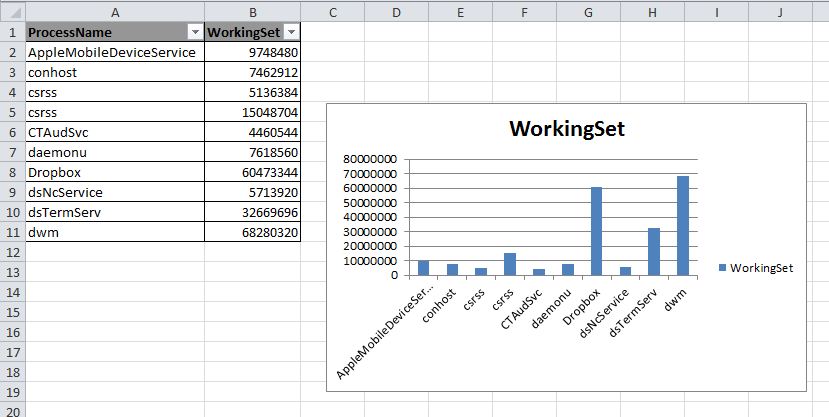
Get-Process | Select ProcessName,WorkingSet -First 10 | Export-Xlsx -Path C:\report.xlsx -ChartType xlColumnClustered |
The result looks like this
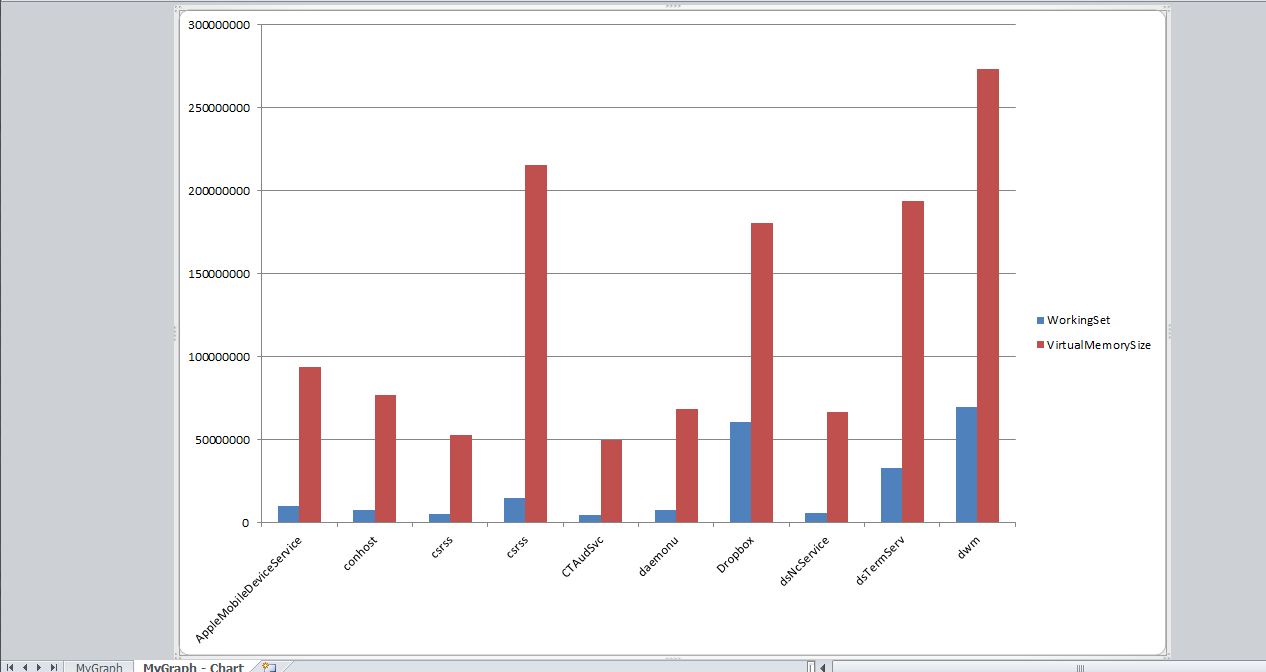
You can also use multiple values in the chart.
|
1 2 3 |
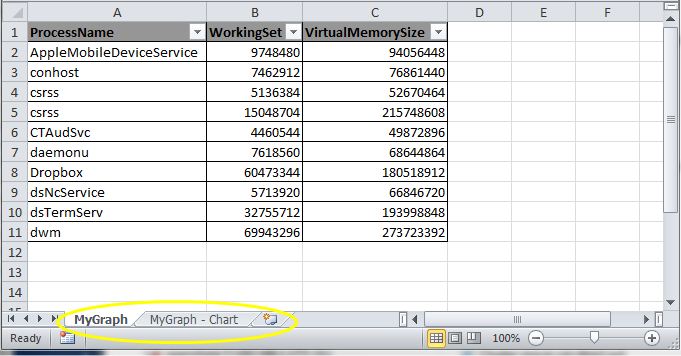
Get-Process | Select ProcessName,WorkingSet,VirtualMemorySize -First 10 | Export-Xlsx -Path C:\report.xlsx -ChartType xlColumnClustered -WorksheetName MyGraph -ChartOnNewSheet |
And this produces an XLSX file with on one worksheet the data
And on a separate worksheet the chart.
Ordered data
With PowerShell v3 the [ordered] cast was made available as an accelerator. The functionality that this brings was something that was asked by many users in the previous PowerShell versions.
To use this accelerator is quite easy. The following code snippet will show you how it is done and what the effect on the results is.
|
1 2 3 4 5 6 7 8 9 10 11 12 13 14 15 16 17 18 19 20 21 |
Get-Process | %{ $object = @{ Name = $_.Name Handles = $_.Handles Id = $_.Id ProcessName = $_.ProcessName } New-Object PSObject -Property $object } | Export-Xlsx -Path C:\report-not-ordered.xlsx Get-Process | %{ $object = [ordered]@{ Name = $_.Name Handles = $_.Handles Id = $_.Id ProcessName = $_.ProcessName } New-Object PSObject -Property $object } | Export-Xlsx -Path C:\report-ordered.xlsx |
Both XLSX files next to each other show the difference, without the [ordered] cast the order in which the properties appear is not controllable.
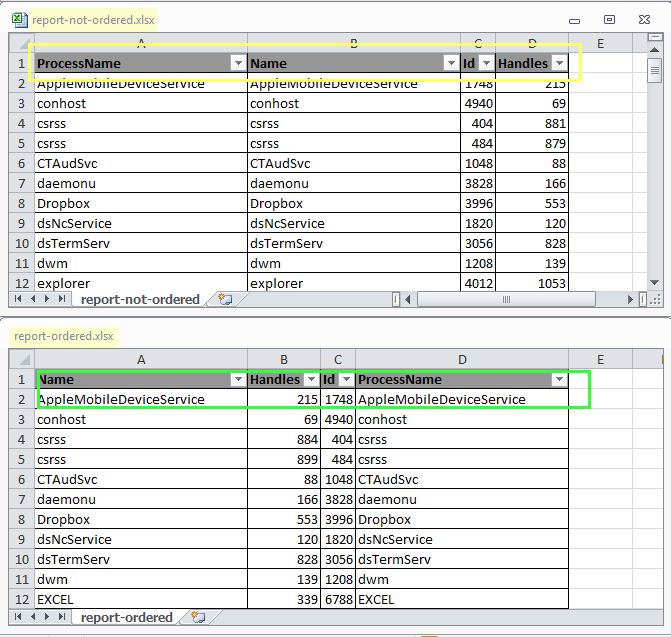
With the [ordered] cast, the properties appear in the same order as we specified them in the script. A great improvement !
Enjoy !
Virtualizer
Need your advice on this.
I have a XLSX file with table, and a bar chart within a sheet.
How should i export the both table & barchart into HTML format and email out?
I have done on CSV files with table on COM objects to HTML without issues, but stuck with XLSX.
LucD
I’m not sure if that is possible at all, especially the charts.
For the data you can read the XLSX worksheet into an array, and then convert that array to a HTML table.
Everton
Great Work!
Question: Is it possible for this to work on a scheduled task?
The same script I run mannualy and it works, but when it runs on a scheduled task, it doesn’t.
LucD
Hi Everton,
Thanks.
Since I wrote that post, there has been a new module, that does working with Excel files a lot better, and has more options.
Have a look at the ImportExcel module.
One of the big advantages in this module is that it doesn’t need Excel to be installed on the station where you use the module.
Also for your scheduled task, I’m sure the ImportExcel module will do a much better job than my function.
Mike Cooper
This is fantastic, I have an old VB script that I can replace and it is 300% faster in powershell. The only problem that I have is that a couple of my columns have leading zeros and it is stripping out those 0 (zeros). Any suggestions.
LucD
Not sure if it’s a PowerShell thing or Excel’s default cell formatting.
Did you already try casting those values explicitly to [string] before you do the Export-Xlsx ?
Jonathan Sinden
Splendid. Just plain splendid! Thank you very much for this!
Kelley
Is there any way to set the header row or column headers to auto wrap or insert a break as you can do with an Alt-Enter. I’d like to shrink the column width to get more data on the screen without side to side scrolling. The actual data in the column takes up much less space that the header.
Kelley
I found a solution to splitting the header row. It not solved in the export-xlsx script but in the script that generates the data that gets piped to this great script. All I had to do to break the heading into more than one rows was insert
n. So to break the text "Total Mailbox Size" I changed it to "TotalnMailbox`nSize”. Worked great.I’m sure everyone else in the world already knows this trick but it took a bit for me to find it.
LucD
Thanks for sharing that Kelley, that is a great tip.
Luis Esteves
Hey, I wanted to add that if anyone is having trouble with Export-Xls running from Task Scheduler as a logged out user, it’s a bug in the Excel COM object but it is easily fixed by creating a couple of folders:
(32Bit, always)
C:\Windows\System32\config\systemprofile\Desktop
(64Bit)
C:\Windows\SysWOW64\config\systemprofile\Desktop
Here’s the thread where I found this little nugget:
https://social.technet.microsoft.com/Forums/windowsserver/en-US/aede572b-4c1f-4729-bc9d-899fed5fad02/run-powershell-script-as-scheduled-task-that-uses-excel-com-object
Jonathan Sinden
Excellent! Spent the last 2 hours trying to fix this issue! Ty very much!
Luis Esteves
Hi! This script is amazing and has let me automate a ton of reports I used to have to do manually. Thank you! I even added a parameter to pass a password to $wb.SaveAs. 🙂
I am having one minor issue with the new version that I can’t figure out. All of my reports include the rows RowError, RowState,Table, ItemArray and HasErrors. I can’t figure out where these are coming from. They didn’t happen with the previous version of this script. Any hints?
Thanks!
LucD
Hi Luis,
Glad you like the function.
Is the data you are exporting by any chance coming from a SQL query ?
Those properties seem to get added in that case.
With an ExcludeProperty you can easily remove those properties.
$array | select * -ExcludeProperty RowError, RowState, HasErrors, Name, Table, ItemArray | Export-Xlsx
Does that fix the issue ?
Luis Esteves
It did work! Thanks for that tip, that was perfect. Thank you! 🙂
A couple of mods that I did to the script that may be handy for others are:
### Freeze the top header row:
# Added to the parameters list
[Switch] $FreezeTopRow = $True
# Inserted at line 240
If ($FreezeTopRow)
{
$ws.Application.ActiveWindow.SplitColumn = 0
$ws.Application.ActiveWindow.SplitRow = 1
$ws.Application.ActiveWindow.FreezePanes=$true
}
### Password Protect the Spreadsheet
# Added to the parameters list
[string] $Password
# Replaced the $wb.SaveAs line with
# Forced to XLSX Format (type 51) as having a variable here causes an error and I’m not sure why yet
$wb.SaveAs($Path,51,$Password)
Hope those are handy for someone. Thanks again LucD!
LucD
Glad it fixed the issue.
Thanks for the mods, they are great.
I will update the function.
Kenneth Jensen
I had a problem where one column of the Excel file I created had the scientific notation (7,31776E+12), because of long numbers.
To avoid this, I inserted this code, just before line 252 (just before saving)
This is hard coded to one column, but can be easily changed to be a parameter instead – I just don’t have the need for that – yet 🙂
#Set column a to number format:
$CurrentColumn=$ws.range(“A:A”)
$CurrentColumn.NumberFormat = “0”
Kenneth Jensen
Hi,
GREAT script, which I have used bofore, but now I have a problem with it.
I extract an itemnumber list, and because of the long numbers, they are written as scientific in the excel(e.g. 7,31776E+12)
I would like it to be written as text in excel. How can I do this?
Best regards
Kenneth Jensen
Jon
Hi Luc, this is very useful, would there be anyway to have the Excel start row as a parameter? e.g import from A3?
Reza
Hi LucD,
Thanks for the script it looks like it can be very handy. Though I’m having trouble plotting some data to a graph using the following. The output of this graphs both Name and Count, when I only want count. I tried casting Name to a string but that didn’t work. Any tips?
Thanks,
(Get-CIVM | group cpucount) | select Name, Count | export-xlsx -path c:\tmp\foo12.xlsx -AppendWorksheet:$true -WorksheetName “CPU Count” -ChartType xlColumnClustered -force:$true
Andy
Great script! I have lots of csv files that I run a convert to xlsx on every day and this has replaced those jobs.
I am in need for the script to overwrite the original *.xlsx file everyday with the ‘AppendWorksheet’ switch applied and the ‘Force’ switch does not apply when using the ‘AppendWorksheet’ switch.
Is there a way to overcome this?
Valentin
Hello ,
I have a problem with Excel System is:
Win2k8R2
Excel 2010 14.0.4760.1000
When I execute:
> Get-Process |
>> Select Name,Id,Handles |
>> Export-Xlsx -Path C:\report.xlsx
I’m getting this error:
Unable to find type [Microsoft.Office.Interop.Excel.XLFileFormat]: make sure that the assembly containing this type is
loaded.
At line:158 char:67
+ $xlFixedFormat = [Microsoft.Office.Interop.Excel.XLFileFormat] <<<< ::xlWorkbookNormal
+ CategoryInfo : InvalidOperation: (Microsoft.Offic…el.XLFileFormat:String) [], RuntimeException
+ FullyQualifiedErrorId : TypeNotFound
The good news are that it is working on my Win 7 64bit system with Excel 2010 14.0.6129.5000 but i want to make it work on my LAB system on which i will test my reports
Can you tell me what are the software requirements to make this work.
I have the same issue with Export-Xls command.
Best Regards
Valentin
Sean McCown
Luc,
Actually, I figured out how to add a worksheet, so my bad…
but is there a way to add data to a worksheet already created?
LucD
Hi Sean, I’m afraid that feature is not available (yet).
As a bypass, for now, you could use Gilbert’s Import-Xlsx function to read the XLSX file, make your changes to 1 or more worksheets, and then use the Export-Xlsx to write the new data to a new XLSX file.
Cumbersome I know, but that’s for now the only way I’m afraid.
Sean McCown
Hey Luc… first, thanks so much for this. I was staring down the barrel of a long assignment until this came along. And like everyone else it seems it’s almost there, but I’ve got some basic issues.
1. I had to go to this current version to get the cols ordered the way I need them. Doing it with the select-object didn’t work for me at all with the previous version. I don’t know why, but it didn’t. That’s fixed now though.
2. Now I have a hard time adding worksheets. I don’t get an error, but before I could just keep writing worksheets to the same file and name them all whatever I wanted. Now I can only use -AppendWorksheet and it doesn’t allow me to give it a name. And if I try to just write the worksheet without that param it creates a new dated file. That’s not what I need at all. I need to run several queries and put the results into different worksheets. And it would be really nice to be able to add rows to a worksheet I’ve already created.
Again, this is excellent work, but if you could just merge the 2 versions you’d really have something here.
JB
Luc,
Trying to combine, your code from:
https://communities.vmware.com/thread/271902?start=0&tstart=0
But i’m always stuck on a null-valued-expression, while the individual stats give value’s back.
It’s seems that when putting data into the excel it fails.
Can you help me pinpoint the problem ?
admin
Hi JB, it looks as if you might be suffering from the problem described in MS KB320369.
Can you check ?
Btw, your script runs fine in my test environment.
Steve
@LucD
Thanks sir that works like a charm!!!
Steve
@Steve
Correction to my previous comments. This creates a new spreadsheet for each data collection I feed to the Export-Xlsx function rather than creating a new worksheet within the base spreadsheet. My guess is that something is amiss with the [Switch] $AppendWorksheet routine but it is strictly a guess at this time.
LucD
@Steve, you should be using the AppendWorksheet switch if you want to create multiple worksheets in the same XLSX file.
See this example
Get-Process |

Select ProcessName,Description,Path |

Export-Xlsx -Path D:\report.xlsx -WorksheetName Sheet1 -AppendWorksheet
Get-Process |
Select ProcessName,VirtualMemorySize,WorkingSet |
Export-Xlsx -Path D:\report.xlsx -WorksheetName Sheet2 -AppendWorksheet -SheetPosition end -ChartType xl3DColumnClustered -ChartOnNewSheet
Steve
@Jules
@LucD
Luc, This certainly is presenting my data in the columnar order i desired however it is not creating a new worksheet for each data collection I am creating as the old Function Export-Xls did. Sorry to be such a pain but this is SO close to being perfect!!! Thanks for all the help!!!
LucD
@Steve, can you send me the script you are using, so I can have a look ?
Send it to lucd (at) lucd (dot) info
Travis Quinnelly
Thanks Luc and Gilbert. I’ve got some usage for this coming up soon.
Jules
A note on the [ordered] cast. If you are, for any reason, not able to use PowerShell v3, you could still pipe through Select-Object to set the column order.
eg.:
Get-Process | %{

$object = @{

Name = $_.Name

Handles = $_.Handles

Id = $_.Id

ProcessName = $_.ProcessName

}

New-Object PSObject -Property $object

} |

Select-Object Name,Handles,Id,ProcessName |

Export-Xlsx -Path C:\report-is-now-ordered.xlsx
LucD
Thanks, that is indeed the fix/bypass one had to use in pre-v3 PowerShell.