
Sometimes announcements tend to disappear in the cracks of time. When the Script Runtime Service for vSphere (SRS) 1.0.0 was announced, I had the feeling just that happened.
When version 1.0.0 of this open-sourced (!) product was released, I had expected much more buzz on social media from VMware PowerCLI users.
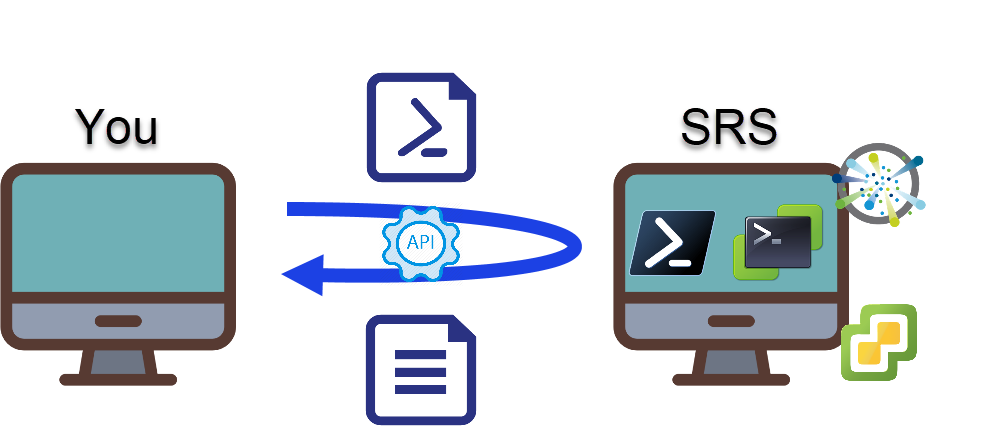
This appliance does in fact bring an answer to a wish that many PowerShell/PowerCLI users have had for years: a “Scripting Host“!
This Hitchhikers Guide to SRS 1.0.0 post will show how I build my own customised SRS appliance, and how I use it to run PowerShell/PowerCLI scripts.
Introduction
When you visit the Script Runtime Service for vSphere (SRS) repository, you’ll notice that this open-sourced project comes with extensive documentation.
Always a great characteristic for an open-sourced project!
The installation as a VM (from the downloadable OVF files) or in a Kubernetes cluster is well documented.
The available documentation in the SRS repo contains instructions on how to build, and customise, your own SRS appliance under the Build and Run page.
This blog post documents how I did exactly that.
I wanted to have a fully automated, self-documenting, and repeatable method, think CI, to roll out my own SRS station.
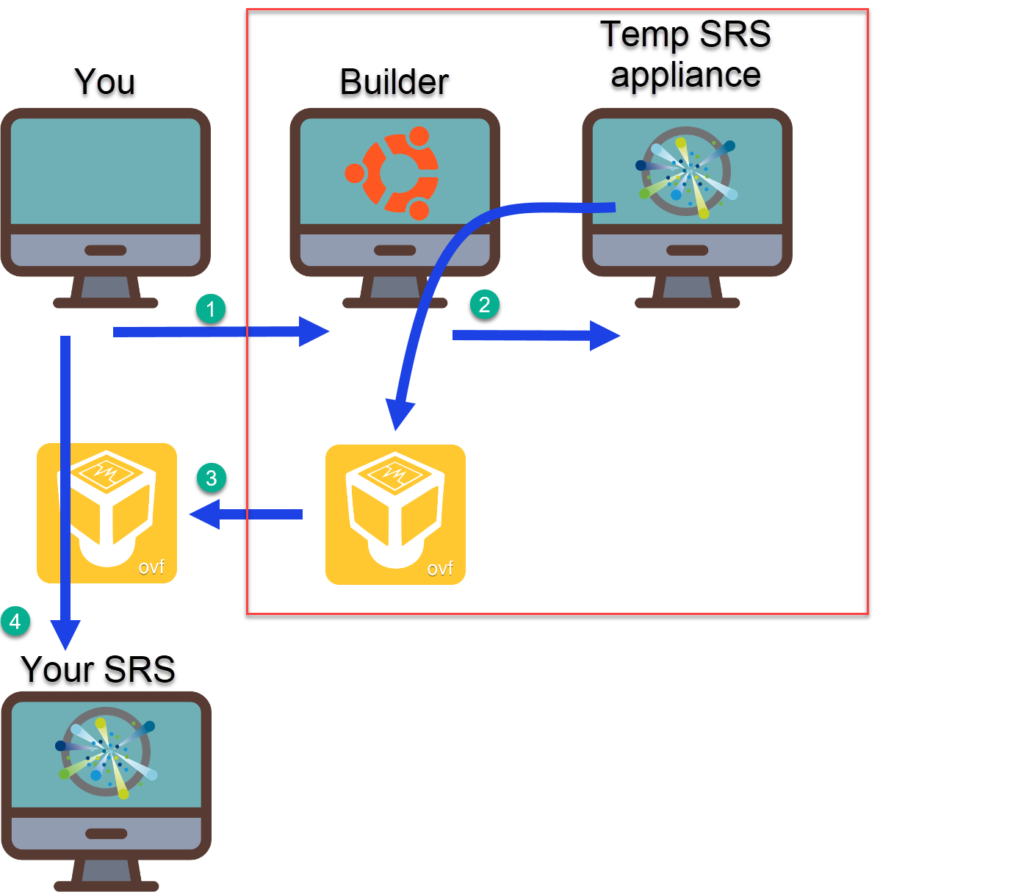
- Roll out the Builder station and install the prerequisites.
- Start the Build of the SRS Appliance on the Builder station
- Retrieve the OVF/OVA files, created from the SRS Appliance, that came out of the build
- Use the OVF/OVA to deploy your SRS station
Creating the SRS Builder
The Prerequisites
To create an SRS OVA/OVF yourself you need a “builder” station. And on that station there need to be a number of packages installed.
I included the installation of these packages in the “build” I describe in the next section.
The buildappliance.sh script, which you will need to run on the builder station, will use the packages to setup and configure an SRS appliance (VMware Photon based), and as the last step will generate an OVA file from the appliance.
That OVA file can then be used to deploy your SRS VM.
This is also the place where you can install extra applications and extra PowerShell modules that will be included in your DIY SRS OVA.
Create the Builder station
Preparation
I used an Ubuntu 18.04 LTS station as the Builder station. As the download of the ISO is also automated, I use the Daily Build.
#region Get the Ubuntu Bionic Cloud Image OVA Daily Build

$uri = 'https://cloud-images.ubuntu.com/bionic/current/'
$ovaName = 'bionic-server-cloudimg-amd64.ova'
$repository = 'D:\Repository\Linux\Ubuntu\'

$currentOVA = Get-ChildItem -Path "$repository\$ovaName" -ErrorAction SilentlyContinue
if (-not $currentOVA -or $currentOVA.LastWriteTime.Date -lt $now.Date) {
  $sWeb = @{
    Uri = "$uri$ovaName"
    OutFile = "$repository$ovaName"
    Verbose = $false
  }
  Invoke-WebRequest @sWeb
  $currentOVA = Get-ChildItem -Path "$repository\$ovaName"
}
#endregion
I also check if the DNS A and PTR records for the Builder station are present in DNS. The Builder station I used has an FQDN of srsbuilder.local.lab with an IP address of 192.168.10.88.
$hostName = 'srsbuilder'
$domain = 'local.lab'
$ipAddress = '192.168.10.88'

$if = Get-Netadapter
$sDns = @{
   AddressFamily = 'IPv4'
   InterfaceIndex = $if.ifIndex
}
$dns = Get-DnsClientServerAddress @sDns
$dnsServer = $dns.ServerAddresses | Get-Random
$ip = $ipAddress.Split('.')
$reverseZone = "$($ip[2]).$($ip[1]).$($ip[0]).in-addr.arpa"

try{
  Write-Verbose (Get-LogText -Text "Check DNS A record for $hostname.$domain with $ipAddress")
  $sQDns = @{
    Name = "$hostName.$domain"
    Server = $dnsServer
    ErrorAction = 'Stop'
    Verbose = $false
  }
  Resolve-DnsName @sQDns  | Out-Null
  Write-Verbose (Get-LogText -Text "DNS A record exists for $hostname.$domain with $ipAddress")
}
catch{
  Write-Verbose (Get-LogText -Text "Create A record for $hostname.$domain with $ipAddress")
  $sADns = @{
    Name = $hostName
    ZoneName = $domain
    IPv4Address = $ipAddress
    A = $true
    CreatePtr = $true
    ComputerName = $dnsServer
  }
  Add-DnsServerResourceRecord @sADns | Out-Null
}
try {
  Write-Verbose (Get-LogText -Text "Check DNS PTR record for $hostname.$domain with $ipAddress")
  $sQdns = @{
    Name = $ipAddress
    Type = 'PTR'
    Server = $dnsServer
    Verbose = $false
    ErrorAction = 'Stop'
  }
  Resolve-DnsName @sQdns | Out-Null
  Write-Verbose (Get-LogText -Text "DNS PTR record exists for $hostname.$domain with $ipAddress")
}
catch {
  Write-Verbose (Get-LogText -Text "Create PTR record for $hostname.$domain with $ipAddress")
  $sADns = @{
    Name = "$($ip[3])"
    PtrDomainName = "$hostname.$domain"
    ZoneName = $reverseZone
    ComputerName = $dnsServer
  }
  Add-DnsServerResourceRecordPtr @sADns | Out-Null
}
Deploy the Builder
For the rollout of this Builder station, I used the Cloud-Init method I described in Cloud-Init – Part 2 – Advanced Ubuntu. I had to make some small changes to the Install-CloudInitVM function from that post, so I was able to specify the memory size and the disk size. The default sizes were insufficient to run the SRS Appliance build.
The updated function now has MemoryGB and DiskGB parameters.
I also had to add a snippet to handle the issue with the $PSScriptRoot parameter when running the code from the Visual Studio Code editor.
function Install-CloudInitVM {
  <#
.SYNOPSIS
  Deploy a VM from an OVA file and use cloud-init for the configuration
  .DESCRIPTION
  This function will deploy an OVA file.
  The function transfer the user-data to the cloud-init process on the VM with
  one of the OVF properties.
.NOTES
  Author:  Luc Dekens
  Version:
  1.0 05/12/19  Initial release
.PARAMETER OvaFile
  Specifies the path to the OVA file
.PARAMETER VmName
  The displayname of the VM
.PARAMETER ClusterName
  The cluster onto which the VM shall be deployed
.PARAMETER DsName
  The datastore on which the VM shall be deployed
.PARAMETER PgName
  The portgroupname to which the VM shall be connected
.PARAMETER CloudConfig
  The path to the YAML file containing the user-data
.PARAMETER Credential
  The credentials for a user in the VM's guest OS
.EXAMPLE
  $sCloudInitVM = @{
    OvaFile = '.\bionic-server-cloudimg-amd64.ova'
    VmName = $vmName
    ClusterName = $clusterName
    DsName = $dsName
    PgName = $pgName
    CloudConfig = '.\user-data.yaml'
    Credential = $cred
  }
  Install-CloudInitVM @sCloudInitVM
#>

  [cmdletbinding()]
  param(
    [string]$OvaFile,
    [string]$VmName,
    [string]$ClusterName,
    [string]$DsName,
    [string]$PgName,
    [string]$CloudConfig,
    [PSCredential[]]$Credential,
    [int]$MemoryGB,
    [int]$DiskGB
  )

#region Bypass for known issue in VSC ()
# See https://github.com/PowerShell/vscode-powershell/issues/633

  if ($psISE) {
    $dir = Split-Path -Path $psISE.CurrentFile.FullPath
  }
  else {
    if ($profile -match "VScode") {
      $dir = Split-Path $psEditor.GetEditorContext().CurrentFile.Path
    }
    else {
      $dir = $PSScriptRoot
    }
  }
#endregion

  $waitJob = (Get-Command -Name "$dir\Wait-Job.ps1").ScriptBlock
  $userData = Get-Content -Path "$dir\$CloudConfig" -Raw

  Write-Verbose "$(Get-Date -Format 'HH:mm:ss.fff') - Starting deployment of $vmName"

  $start = Get-Date

  $vm = Get-VM -Name $vmName -ErrorAction SilentlyContinue
  if ($vm) {
    Write-Verbose "$(Get-Date -Format 'HH:mm:ss.fff') - Cleaning up"
    if ($vm.PowerState -eq 'PoweredOn') {
      Stop-VM -VM $vm -Confirm:$false | Out-Null
    }
    Remove-VM -VM $vm -DeletePermanently -Confirm:$false
  }

  $ovfProp = Get-OvfConfiguration -Ovf $ovaFile
  $ovfProp.Common.user_data.Value = [System.Convert]::ToBase64String([System.Text.Encoding]::UTF8.GetBytes($userData))
  $ovfProp.NetworkMapping.VM_Network.Value = $pgName

  $sApp = @{
    Source = $ovaFile
    Name = $vmName
    Datastore = Get-Datastore -Name $dsName
    DiskStorageFormat = 'Thin'
    VMHost = Get-Cluster -Name $clusterName | Get-VMHost | Get-Random
    OvfConfiguration = $ovfProp
  }
  Write-Verbose "$(Get-Date -Format 'HH:mm:ss.fff') - Importing OVA"
  $vm = Import-VApp @sApp

  if($MemoryGB){
    $vm = Set-VM -VM $vm -MemoryGB $MemoryGB -Confirm:$false
  }
  if($DiskGB){
    $hd = Get-HardDisk -VM $vm | Set-HardDisk -CapacityGB $DiskGB -Confirm:$false
  }

  Write-Verbose "$(Get-Date -Format 'HH:mm:ss.fff') - Starting the VM"
  Start-VM -VM $vm -Confirm:$false -RunAsync | Out-Null

  Write-Verbose "$(Get-Date -Format 'HH:mm:ss.fff') - Waiting for cloud-init to finish"

  $User = $Credential.GetNetworkCredential().UserName
  $Password = $Credential.GetNetworkCredential().Password

  $sJob = @{
    Name = 'WaitForCloudInit'
    ScriptBlock = $waitJob
    ArgumentList = $vm.Name, $User, $Password, $global:DefaultVIServer.Name, $global:DefaultVIServer.SessionId
  }
  Start-Job @sJob | Receive-Job -Wait

  Write-Verbose "$(Get-Date -Format 'HH:mm:ss.fff') - Deployment complete"

  Write-Verbose "nDeployment took $([math]::Round((New-TimeSpan -Start $start -End (Get-Date)).TotalSeconds,0)) seconds"
}
The call to the Install-CloudInitVM functions is rather straightforward.
$vmName = 'SRSBuilder'

# Get credential for logging on to the guest
# Replace with your secrets manager application when
# running this on PSv6 or higher

$viCred = Get-VICredentialStoreItem -Host $vmName
$secPassword = ConvertTo-SecureString -String $viCred.Password -AsPlainText -Force
$cred = [Management.Automation.PSCredential]::new($viCred.User, $secPassword)

$sCloudInitVM = @{
  OvaFile = 'D:\Repository\Linux\Ubuntu\bionic-server-cloudimg-amd64.ova'
  VmName = $vmName
  ClusterName = 'cluster'
  DsName = 'vsanDatastore'
  PgName = 'vdPg1'
  CloudConfig = 'user-data-srsbuilder.yaml'
  Credential = $cred
  MemoryGB = 4
  DiskGB = 25
  Verbose = $true
}
Install-CloudInitVM @sCloudInitVM
Notice how I used the VICredentialStore to store and retrieve the credentials for the Builder station. When you run this from a PowerShell version greater than 5.1, you will have to replace that part with calls to the secrets manager of your choice.
The real strength of using this Cloud-Init method is that one can use a YAML file to specify how the target station, the Builder station, in this case, needs to be configured. And also specify which packages shall be installed on the target station as part of the deployment.
The following extract of my YAML file shows the packages that are required. It also includes pulling down the SRS appliance.
# SRS 1.0
# A) dotnet sdk
# 1) add the Microsoft package signing key
- wget https://packages.microsoft.com/config/ubuntu/18.04/packages-microsoft-prod.deb -O packages-microsoft-prod.deb
# 2) add the package repository
- dpkg -i packages-microsoft-prod.deb
# 3) donet sdk
- apt-get update
- apt-get install -y apt-transport-https
- apt-get update
- apt-get install -y dotnet-sdk-3.1
# B) docker
- curl -fsSL https://get.docker.com -o get-docker.sh
- sh get-docker.sh
# C) PowerShell
- apt-get install -y wget apt-transport-https software-properties-common
- wget -q https://packages.microsoft.com/config/ubuntu/18.04/packages-microsoft-prod.deb
- dpkg -i packages-microsoft-prod.deb
- apt-get update
- add-apt-repository universe
- apt-get install -y powershell
# D) VMware PowerCLI
- pwsh -C '& {Install-Module -Name VMware.PowerCLI -Scope AllUsers -Force -Confirm:$false -AllowClobber}'
# E) OvfTool
- /root/ovftool-ftp.sh
- chmod 744 /root/VMware-ovftool-4.4.1-16812187-lin.x86_64.bundle
- /root/VMware-ovftool-4.4.1-16812187-lin.x86_64.bundle --eulas-agreed --required --console
# F) packer
- curl -fsSL https://apt.releases.hashicorp.com/gpg | apt-key add -
- apt-get update
- apt-add-repository "deb [arch=amd64] https://apt.releases.hashicorp.com $(lsb_release -cs) main"
- apt-get update
- apt-get install packer
# X) Additional modules
- pwsh -C '& {Install-Module -Name ImportExcel -Scope AllUsers -Force -Confirm:$false -AllowClobber}'
- pwsh -C '& {Install-Module -Name Posh-Ssh -Scope AllUsers -Force -Confirm:$false -AllowClobber}'
# Y) Clone SRS repo
- mkdir /root/SRS
- git clone https://github.com/vmware/script-runtime-service-for-vsphere /root/SRS
# End SRS 1.0
Verify the Builder
Once the Builder station is deployed, it is useful to check that everything the creation of the SRS Appliance needs, is present.
A word of warning, the following code includes all versions as hard-coded. This is not ideal, and especially for products that have a daily build, this will require updating the code each time. Since this was, at the time of writing this post, not my top priority, I postponed looking for a more portable solution to a later date.
#region Helper functions
function Get-LogText {
  param([string]$Text)

  $dt = (Get-Date).ToString('yyyyMMdd HH:mm:ss.fff')
  $app = Split-Path -Path $MyInvocation.ScriptName -Leaf
  "$dt - $app - $Text"
}
#endregion

#region Preamble

$vmName = 'SrsBuilder'

$now = Get-Date

$viCredObj = Get-VICredentialStoreItem -Host $vmName
$sObj = @{
  TypeName = 'PSCredential'
  ArgumentList = $viCredObj.User,(ConvertTo-SecureString -String $viCredObj.Password -AsPlainText -Force)
}
$cred = New-Object @sObj

$vm = Get-VM -Name $vmName
#endregion

#region dotnet SDK
$check_dotnet = @'
dotnet --version
'@
$sInvoke = @{
  VM = $vm
  GuestCredential = $cred
  ScriptText = $check_dotnet
  ScriptType = 'bash'
}
$result = Invoke-VMScript @sInvoke
if($result.ScriptOutput.Trim("n") -ne '3.1.404'){
  Write-Host (Get-LoGText -Text "Dotnet SDK installation failure") -ForegroundColor red
}
else{
  Write-Host (Get-LogText -Text "Dotnet SDK $($result.ScriptOutput.Trim("n")) installation OK") -ForegroundColor green
}
#endregion

#region Docker
$check_docker = @'
docker --version
'@
$sInvoke = @{
  VM = $vm
  GuestCredential = $cred
  ScriptText = $check_docker
  ScriptType = 'bash'
}
$result = Invoke-VMScript @sInvoke
if ($result.ScriptOutput.Trim("n") -ne 'Docker version 20.10.1, build 831ebea') {
  Write-Host (Get-LoGText -Text "Docker installation failure") -ForegroundColor red
} else {
  Write-Host (Get-LogText -Text "$($result.ScriptOutput.Trim("n")) installation OK") -ForegroundColor green
}
#endregion

#region PowerShell v7
$check_PSv7 = @'
pwsh -C '& {$PSVersionTable.PSVersion.ToString()}'
'@
$sInvoke = @{
  VM = $vm
  GuestCredential = $cred
  ScriptText = $check_PSv7
  ScriptType = 'bash'
}
$result = Invoke-VMScript @sInvoke
if ($result.ScriptOutput.Trim("n") -ne '7.1.0') {
  Write-Host (Get-LoGText -Text "PowerShell installation failure") -ForegroundColor red
} else {
  Write-Host (Get-LogText -Text "PowerShell $($result.ScriptOutput.Trim("n")) installation OK") -ForegroundColor green
}
#endregion

#region VMware PowerCLI
$check_PowerCLI = @'
pwsh -C '& {(Get-Module -Name VMware.PowerCLI -ListAvailable).Version.ToString()}'
'@
$sInvoke = @{
  VM = $vm
  GuestCredential = $cred
  ScriptText = $check_PowerCLI
  ScriptType = 'bash'
}
$result = Invoke-VMScript @sInvoke
if ($result.ScriptOutput.Trim("n") -ne '12.1.0.17009493') {
  Write-Host (Get-LoGText -Text "VMware PowerCLI installation failure") -ForegroundColor red
} else {
  Write-Host (Get-LogText -Text "VMware PowerCLI $($result.ScriptOutput.Trim("n")) installation OK") -ForegroundColor green
}
#endregion

#region VMware ovftool
$check_ovftool = @'
ovftool --version
'@
$sInvoke = @{
  VM = $vm
  GuestCredential = $cred
  ScriptText = $check_ovftool
  ScriptType = 'bash'
}
$result = Invoke-VMScript @sInvoke
if ($result.ScriptOutput.Trim("n") -ne 'VMware ovftool 4.4.1 (build-16812187)') {
  Write-Host (Get-LoGText -Text "VMware OVFTool installation failure") -ForegroundColor red
} else {
  Write-Host (Get-LogText -Text "$($result.ScriptOutput.Trim("n")) installation OK") -ForegroundColor green
}
#endregion

#region Packer
$check_packer = @'
packer --version
'@
$sInvoke = @{
  VM = $vm
  GuestCredential = $cred
  ScriptText = $check_packer
  ScriptType = 'bash'
}
$result = Invoke-VMScript @sInvoke
if ($result.ScriptOutput.Trim("n") -ne '1.6.6') {
  Write-Host (Get-LoGText -Text "Packer installation failure") -ForegroundColor red
} else {
  Write-Host (Get-LogText -Text "Packer $($result.ScriptOutput.Trim("n")) installation OK") -ForegroundColor green
}
#endregion

#region Additional

#region ImportExcel
$check_ImportExcel = @'
pwsh -C '& {(Get-Module -Name ImportExcel -ListAvailable).Version.ToString()}'
'@
$sInvoke = @{
  VM = $vm
  GuestCredential = $cred
  ScriptText = $check_ImportExcel
  ScriptType = 'bash'
}
$result = Invoke-VMScript @sInvoke
if ($result.ScriptOutput.Trim("n") -ne '7.1.1') {
  Write-Host (Get-LoGText -Text "ImportExcel installation failure") -ForegroundColor red
} else {
  Write-Host (Get-LogText -Text "ImportExcel $($result.ScriptOutput.Trim("n")) installation OK") -ForegroundColor green
}
#endregion

#region Posh-Ssh
$check_PoshSSH = @'
pwsh -C '& {(Get-Module -Name Posh-SSH -ListAvailable).Version.ToString()}'
'@
$sInvoke = @{
  VM = $vm
  GuestCredential = $cred
  ScriptText = $check_PoshSSH
  ScriptType = 'bash'
}
$result = Invoke-VMScript @sInvoke
if ($result.ScriptOutput.Trim("n") -ne '2.3.0') {
  Write-Host (Get-LoGText -Text "Posh-SSH installation failure") -ForegroundColor red
} else {
  Write-Host (Get-LogText -Text "Posh-SSH $($result.ScriptOutput.Trim("`n")) installation OK") -ForegroundColor green
}
#endregion

#endregion
Run the Build
When the Builder station is deployed, and we verified that all prerequisites are in place, we can start the deployment of the SRS Applicance. From which, if all goes well, the OVA file will be generated.
During my experimenting with building the SRS Appliance, I stumbled on two what I suspect are issues.
As a bypass I build the SRS Appliance for now with Photon V3 Rev 2.
I did not succeed in building the SRS Appliance with Photon V3 Rev 3 image. I opened an Issue for that, and I’m curious to know if the issue is a Photon issue or something in my environment.
Another issue, which seems to be a real, known issue, is that you apparently can not use a Distributed Switch Portgroup to build the SRS Appliance. The underlying issue seems to stem from the Packer application, more specifically the VMware-Iso builder. This builder uses VNC to ‘talk’ with the ESXi node on which the SRS Appliance is created.
There are two issues here:
- VNC is not included anymore in ESXi since 6.7
- With the ESXi API you can not interact with a VDS
The VNC issue is resolved by changing some Packer settings. But for the VDS issue, there is no solution besides switching to the vSphere-Iso builder in the Packer step, so I had to build the SRS Appliance on a VSS Portgroup.
I packaged the preparation steps and the start of the SRS Appliance build in a function, named Invoke-SRSBuild.
function Invoke-SRSBuild {
  [CmdletBinding()]
  param(
    [Parameter(Mandatory)]
    [String]$BuilderName,
    [Parameter(Mandatory)]
    [PSCredential]$Credential,
    [Switch]$PrepOnly,
    [Switch]$BuildOnly,
    [Parameter(Mandatory)]
    [ValidateSet('V3Rev2', 'V3Rev3')]
    [String]$PhotonVersion,
    [Parameter(Mandatory)]
    [String]$Portgroup,
    [Switch]$PackerLog
  )

  #region Helper functions
  function Get-LogText {
    param([string]$Text)

    $dt = (Get-Date).ToString('yyyyMMdd HH:mm:ss.fff')
    $app = Split-Path -Path $MyInvocation.ScriptName -Leaf
    "$dt - $app - $Text"
  }

  function Remove-SRSFolder {
    Param(
      [Parameter(Mandatory = $true)]
      [VMware.VimAutomation.ViCore.Types.V1.DatastoreManagement.StorageResource]$Datastore
    )

    $dsBrowser = Get-View -Id $Datastore.ExtensionData.Browser
    $spec = New-Object -TypeName VMware.Vim.HostDatastoreBrowserSearchSpec
    $spec.MatchPattern = 'SRS_Appliance'
    $spec.Query = New-Object -TypeName Vmware.Vim.FolderFileQuery
    $spec.Details = New-Object -TypeName VMware.Vim.FileQueryFlags
    $result = $dsBrowser.SearchDatastore("[$($Datastore.Name)]", $spec)

    if ($result.File.Count -gt 0 -and $result.File[0]) {
      $dc = Get-VMHost -Datastore $Datastore | Get-Datacenter
      $fileMgr = Get-View FileManager
      $fileMgr.DeleteDatastoreFile("[$($Datastore.Name)] $($result.File[0].Path)", $dc.ExtensionData.MoRef)
    }
  }
  #endregion

  #region Bypass for known issue in VSC ()
  # See https://github.com/PowerShell/vscode-powershell/issues/633

  if ($psISE) {
    $dir = Split-Path -Path $psISE.CurrentFile.FullPath
  } else {
    if ($profile -match "VScode") {
      $dir = Split-Path $psEditor.GetEditorContext().CurrentFile.Path
    } else {
      $dir = $PSScriptRoot
    }
  }
  #endregion

  #region Preamble

  $vm = Get-VM -Name $BuilderName
  #endregion

  if (-not $BuildOnly.IsPresent) {

    #region SSH service
    $ssh = Get-VMHostService -VMHost $vm.VMHost | Where-Object { $_.Label -eq 'SSH' }
    if ($ssh.Running) {
      Write-Verbose (Get-LogText -Text "SSH is running on $($vm.VMHost.Name)")
    } else {
      Write-Verbose (Get-LogText -Text "Starting SSH on $($vm.VMHost.Name)")
      $ssh = Start-VMHostService -HostService $ssh -Confirm:$false
      if (-not $ssh.Running) {
        Write-Verbose (Get-LogText -Text "Could not start SSH on $($vm.VMHost.Name)")
        throw "SSH service not started on $($vm.VMHost.Name)"
      }
    }
    #endregion

    #region GuestIPHack
    $esxcli = Get-EsxCli -VMHost $vm.VMHost -V2
    $sOpt = @{
      option = '/Net/GuestIPHack'
    }
    $opt = $esxcli.system.settings.advanced.list.Invoke($sOpt)
    if ($opt.IntValue -eq 1) {
      Write-Verbose (Get-LogText -Text "GuestIPHack setting is correct on $($vm.VMHost.Name)")
    } else {
      Write-Verbose (Get-LogText -Text "GuestIPHack setting is not correct on $($vm.VMHost.Name)")
      $sOpt.Add('intvalue', [long]1)
      if ($esxcli.system.settings.advanced.set.Invoke($sOpt)) {
        Write-Verbose (Get-LogText -Text "GuestIPHack setting corrected on $($vm.VMHost.Name)")
      } else {
        Write-Verbose (Get-LogText -Text "Could not change GuestIPHack setting on $($vm.VMHost.Name)")
        throw "Could net set GuestIPHack"
      }
    }
    #endregion

    #region Make sure folder doesn't exist
    $ds = Get-Datastore -RelatedObject $vm
    Remove-SRSFolder($ds)
    #endregion

    #region Update photon-build.json
    # Suspected issue when using a vdPortgroup

    $jsonFile = New-TemporaryFile
    $photonBuilder = @{
      builder_host = $vm.VMHost.Name
      builder_host_username = $viCredObj.User
      builder_host_password = $viCredObj.Password
      builder_host_datastore = (Get-Datastore -RelatedObject $vm).Name
      builder_host_portgroup = $Portgroup
    }
    $photonBuilder | ConvertTo-Json | Set-Content -Path $jsonFile
    $sCopy = @{
      VM = $vm
      GuestCredential = $Credential
      LocalToGuest = $true
      Source = $jsonFile
      Destination = '/root/SRS/appliance/photon-builder.json'
      Force = $true
      Confirm = $false
    }
    Copy-VMGuestFile @sCopy
    Remove-Item -Path $jsonFile -Confirm:$false
    #endregion

    #region Update photon-version.json
    $photonTab = Get-Content -Path "$dir\Photon-version.json" | ConvertFrom-Json
    $photonSelected = $photonTab.Photon | Where-Object { $_.Label -eq $PhotonVersion }
    $jsonFile = New-TemporaryFile
    $sCopy = @{
      VM = $vm
      GuestCredential = $Credential
      GuestToLocal = $true
      Source = '/root/SRS/appliance/photon-version.json'
      Destination = $jsonFile
      Force = $true
      Confirm = $false
    }
    Copy-VMGuestFile @sCopy
    $photonBuilder = (Get-Content -Path $jsonFile | ConvertFrom-Json)[0]
    if ($photonBuilder.iso_url -ne $photonSelected.Uri -or $photonBuilder.iso_checksum -ne $photonSelected.CheckSum) {
      $photonBuilder.iso_url = $photonSelected.Uri
      $photonBuilder.iso_checksum = $photonSelected.CheckSum
      @($photonBuilder) | ConvertTo-Json | Set-Content -Path $jsonFile
      $sCopy = @{
        VM = $vm
        GuestCredential = $Credential
        LocalToGuest = $true
        Source = $jsonFile
        Destination = '/root/SRS/appliance/photon-version.json'
        Force = $true
        Confirm = $false
      }
      Copy-VMGuestFile @sCopy
      Remove-Item -Path $jsonFile -Confirm:$false

    }
    #endregion

    #region Handle VNC for ESXi 6.7 and later
    if ([Version]$vm.VMHost.Version -ge [Version]'6.7.0') {
      $updateJSON = 'sed' +
      ' -i.bak -e ''/vnc_disable_password/ i \      "vnc_over_websocket": true,''' +
      ' -e ''/vnc_disable_password/ i \      "insecure_connection": true,''' +
      ' -e ''/vnc_disable_password/d'' ~/SRS/appliance/photon.json'

      $sInvoke = @{
        VM = $vm
        GuestCredential = $Credential
        ScriptText = $updateJSON
        ScriptType = 'bash'
      }
      $result = Invoke-VMScript @sInvoke
    }
    #endregion

  }

  if (-not $PrepOnly.IsPresent) {

    #region Get PowerCLI folder path
    $findDir = 'pwsh -C ''& {Split-Path -Path (Split-Path -Path (Get-Module -Name VMware.PowerCLI -ListAvailable).ModuleBase)}'''
    $sInvoke = @{
      VM = $vm
      GuestCredential = $Credential
      ScriptText = $findDir
      ScriptType = 'bash'
    }
    $pcliPath = (Invoke-VMScript @sInvoke).ScriptOutput
    #endregion

    #region Start build
    $sInvoke = @{
      VM = $vm
      GuestCredential = $Credential
      ScriptText = "/root/SRS/build.sh $pcliPath"
      ScriptType = 'bash'
    }
    if ($PackerLog.IsPresent) {
      $packerLogName = 'packer.log'
      $sInvoke.ScriptText = "export PACKER_LOG=1;export PACKER_LOG_PATH='$($packerLogName)';$($sInvoke.ScriptText)"
    }
    $buildResult = Invoke-VMScript @sInvoke
    $buildResult.ScriptOutput > "$dir\Buildlog.txt"
    #endregion

    #region Rettrieve Packer log
    if($PackerLog.IsPresent){
      $sCopy = @{
        VM = $vm
        GuestCredential = $Credential
        GuestToLocal = $true
        Source = "/root/SRS/appliance/$($packerLogName)"
        Destination = "$dir\$($packerLogName)"
        Force = $true
        Confirm = $false
      }
      Copy-VMGuestFile @sCopy
    }
    #endregion

    #region Clean up
    # Packer leaves an orphaned entry in the VCSA behind

    $endpointVM = Get-VM -Name 'SRS_Appliance' -ErrorAction SilentlyContinue
    if($endpointVM){
      while($endpointVM.PowerState -ne 'PoweredOff'){
        sleep2
        $endpointVM = Get-VM -Name 'SRS_Appliance' -ErrorAction SilentlyContinue
      }
      Remove-VM -VM $endpointVM   -DeletePermanently -ErrorAction SilentlyContinue -Confirm:$false
    }
    #endregion
  }
}
The call to the Invoke-SRSBuilder function is again straight-forward.
$vmName = 'SRSBuilder'

#region Credential
# Get the credentials for the SRS Builder station
# Alternative method required when using PSv6 or later

$viCredObj = Get-VICredentialStoreItem -Host $vmName
$sObj = @{
  TypeName = 'PSCredential'
  ArgumentList = $viCredObj.User, (ConvertTo-SecureString -String $viCredObj.Password -AsPlainText -Force)
}
$cred = New-Object @sObj
#endregion

$sBuild = @{
  BuilderName = $vmName
  Credential = $cred
  PhotonVersion = 'V3Rev2'
  Portgroup = 'PG1'
  PackerLog = $true
}
Invoke-SRSBuild @sBuild
The OVA
When the call to the build.sh script completes successfully, there will be OVA/OVF files created on the Builder station.
Since the Builder station is, in my setup, a temporary station, I need to download those files to a more permanent location. The following snippet uses the Get-ScpFile cmdlet from the Posh-Ssh module to do that.
#requires -Modules Posh-Ssh

#region Preamble

$vmName = 'SrsBuilder'

$now = Get-Date

$viCredObj = Get-VICredentialStoreItem -Host $vmName
$sObj = @{
  TypeName = 'PSCredential'
  ArgumentList = $viCredObj.User, (ConvertTo-SecureString -String $viCredObj.Password -AsPlainText -Force)
}
$cred = New-Object @sObj

$vm = Get-VM -Name $vmName

$fqdn = (Resolve-DnsName -Name $vm.ExtensionData.Guest.IpAddress).NameHost
#endregion

#region Download OVA
$sSCP = @{
  ComputerName = $fqdn
  Credential = $cred
  RemoteFile = '/root/SRS/appliance/output-vmware-iso/SRS_Appliance_1.0.0.ova'
  LocalFile = 'D:\OVA\SRS\V1.0.0\Rev2-VSS\SRS_Appliance_1.0.0.ova'
  AcceptKey = $true
}
Get-SCPFile @sSCP
#endregion
Deploy SRS
Once we have the OVA available, it is a piece of cake to deploy our SRS VM with the Get-OvfConfiguration and Import-VApp cmdlets.
Note that deploying the SRS OVA to a Distributed Switch Portgroup is perfectly possible. The VDS issue mentioned earlier only comes into play when Packer with the VMware-Iso builder is involved.
$vmName = 'srs1'
$clusterName = 'cluster'
$numCPU = 2
$memoryGB = 4
$dsName = 'vsanDatastore'
$harddiskGB = 2
$ovaPath = 'D:\OVA\SRS\V1.0.0\Rev2-VSS\SRS_Appliance_1.0.0.ova'
$networkName = 'vdPg1'

$cluster = Get-Cluster -Name $clusterName
$esx = Get-VMHost -Location $cluster | Get-Random
$ds = Get-Datastore -Name $dsName
$ovfProp = Get-OvfConfiguration -Ovf $ovaPath
$ovfProp.Common.guestinfo.hostname.Value = $vmName
$ovfProp.Common.guestinfo.ipaddress.Value = '192.168.10.43'
$ovfProp.Common.guestinfo.netmask.Value = '24'
$ovfProp.Common.guestinfo.gateway.Value = '192.168.10.1'
$ovfProp.Common.guestinfo.root_password.Value = 'Welcome2020!'
$ovfProp.Common.guestinfo.dns.Value = '192.168.10.2'
$ovfProp.Common.guestinfo.domain.Value = 'local.lab'
$ovfProp.Common.srs.vcaddress.Value = 'vcsa7.local.lab'
$ovfProp.Common.srs.vcpassword.Value = 'Welcome2020!'
$ovfProp.Common.srs.vcuser.Value = 'administrator@vsphere.local'
$ovfProp.Common.srs.vcthumbprint.Value = '5bf3246fde90fd3b7ab84144f50105114c2826e1'
$ovfProp.NetworkMapping.PG1.Value = $networkName

$vm = Import-VApp -Name $vmName -Source $ovaPath -VMHost $esx -OvfConfiguration $ovfProp -Datastore $ds
Start-VM -VM $vm -Confirm:$false
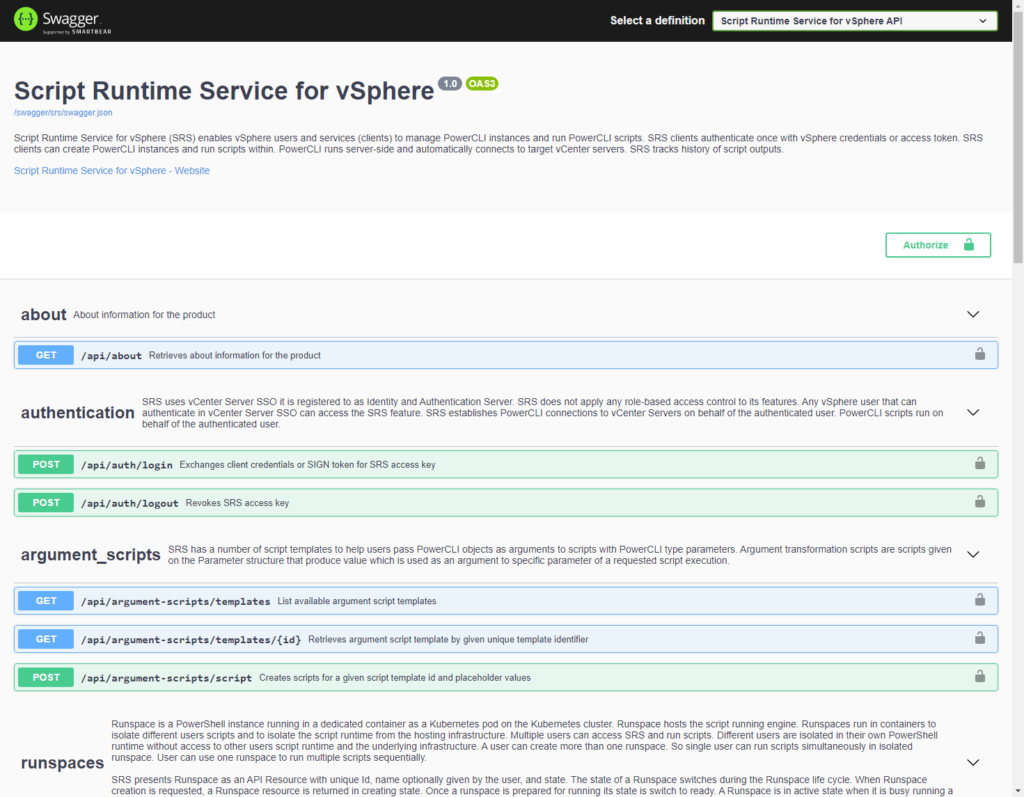
Your first test to see if the deployment went ok, is to try and access the swagger page on your SRS VM. The URI is https://<your-SRS-FQDN>/swagger. When all goes well, you will see a page like this.
Using SRS
Now we can start using the SRS server to run our scripts. The way to do that is quite simple. The complete process is described in the Run Scripts section in the SRS repository.
A Simple Sample
My test installation of SRS is done on a VM that is named SRS1.
A basic REST API call to verify that everything is working, is to call the api/about method.
function Invoke-SrsMethod {
  [cmdletbinding()]
  param(
    [Parameter(Mandatory)]
    [String]$FQDN,
    [Parameter(Mandatory)]
    [String]$API,
    [Parameter(Mandatory)]
    [String]$Method
  )

  $sWeb = @{
    Uri = "https://$($FQDN)/$($API)"
    Method = $Method
  }

  try {
    $result = Invoke-WebRequest @sWeb
  }
  catch [System.Net.WebException] {
    switch ($error[0].Exception.Status) {
      ([System.Net.WebExceptionStatus]::TrustFailure) {
        if ($PSVersionTable.PSVersion.Major -lt 6) {
          if (-not ([System.Management.Automation.PSTypeName]"TrustAllCertsPolicy").Type) {
            Add-Type -TypeDefinition @"
using System.Net;
using System.Security.Cryptography.X509Certificates;
public class TrustAllCertsPolicy : ICertificatePolicy {
    public bool CheckValidationResult(
        ServicePoint srvPoint, X509Certificate certificate,
        WebRequest request, int certificateProblem)
    {
        return true;
    }
}
"@
          }
          if ([System.Net.ServicePointManager]::CertificatePolicy.ToString() -ne "TrustAllCertsPolicy") {
            [System.Net.ServicePointManager]::CertificatePolicy = New-Object TrustAllCertsPolicy
          }
        } else {
          $sWeb.Add('SkipCertificateCheck', $true)
        }
        $result = Invoke-WebRequest @sWeb
      }
      Default {
        Write-Error "Unhandled WebException $($error[0].Exception.Status)"
      }
    }
  }
  catch {
    Write-Error "Unhandled exception code $($error[0].Exception.gettype().Name)"
  }

  switch ($result.StatusCode) {
    200 {
      $result
    }
    Default {
      Write-Error "Unhandled StatusCode $($result.StatusCode)"
    }
  }
}

$vmName = 'srs1'

$vm = Get-VM -Name $vmName
$fqdn = (Resolve-DnsName -Name $vm.ExtensionData.Guest.IpAddress).NameHost

$about = Invoke-SrsMethod -FQDN $fqdn -API 'api/about' -Method 'Get'
$about.Content | ConvertFrom-Json
You notice that I created a function Invoke-SRSMethod instead of just calling the Invoke-WebRequest cmdlet directly. The reason for creating that function is that I needed to be able to bypass invalid certificates.
With PSv6 that has become easy, since the Invoke-WebRequest cmdlet now has the SkipCertificateCheck switch.
But I wanted to have a function that would also work in a PSV5.1 environment, hence the function and the logic in there.
When all goes well, that snippet should return the following.

A PowerCLI example
The full sequence for running code on the SRS station is perfectly explained in the Run Scripts section on the SRS repository.
A full, scripted example, excluding the earlier Invoke-SRSMethod function, could look like this.
#region Preamble
$vmName = 'srs1'

$vm = Get-VM -Name $vmName
$fqdn = (Resolve-DnsName -Name $vm.ExtensionData.Guest.IpAddress).NameHost

# Get credential for logging on to the guest OS
$viCred = Get-VICredentialStoreItem -Host $global:DefaultVIServer.Name
$secPassword = ConvertTo-SecureString -String $viCred.Password -AsPlainText -Force
$cred = [Management.Automation.PSCredential]::new($viCred.User, $secPassword)

$headers = @{
  "accept" = "application/json"
  "content-type" = "application/json"
}
#endregion

#region Login
$sLogon = @{
  FQDN = $fqdn
  API = '/api/auth/login'
  Method = 'Post'
  Credential = $cred
  Headers = $headers
}
$logon = Invoke-SrsMethod @sLogon
$headers.Add('X-SRS-API-KEY', $logon.Headers['X-SRS-API-KEY'])
#endregion

#region Create Runspace
$sRSCreate = @{
  FQDN = $fqdn
  API = '/api/runspaces'
  Method = 'Post'
  Credential = $cred
  Headers = $headers
  Body = @{
    name = 'MyRS'
    run_vc_connection_script = $true
  }
}
$createRS = Invoke-SrsMethod @sRSCreate
$rs = $createRS.Content | ConvertFrom-Json
#endregion

#region Wait till RS is ready
while ($rs.state -eq 'Creating') {
  $sRSGet = @{
    FQDN = $fqdn
    API = "/api/runspaces/$($rs.Id)"
    Method = 'Get'
    Headers = $headers
  }
  $getRS = Invoke-SrsMethod @sRSGet
  $rs = $getRS.Content | ConvertFrom-Json
}
#endregion

#region Run Script
$code = {
  Get-VM
}
$sSCRCreate = @{
  FQDN = $fqdn
  API = '/api/script-executions'
  Method = 'Post'
  Headers = $headers
  Body = @{
    runspace_id = $rs.id
    name = 'MyScript'
    script = $code.ToString()
    script_parameters = @()
  }
}
$createSCR = Invoke-SrsMethod @sSCRCreate
$scr = $createSCR.Content | ConvertFrom-Json
#endregion

#region Wait for Script to end
while($scr.state -eq 'running'){
$sSCRCreate = @{
  FQDN = $fqdn
  API = "/api/script-executions/$($scr.id)"
  Method = 'Get'
  Headers = $headers
}
$getSCR = Invoke-SrsMethod @sSCRCreate
$scr = $getSCR.Content | ConvertFrom-Json
}
#endregion

#region Retrieve Script output
$sSCROut = @{
  FQDN = $fqdn
  API = "/api/script-executions/$($scr.id)/output"
  Method = 'Get'
  Headers = $headers
}
$outSCR = Invoke-SrsMethod @sSCROut
$outSCR.Content | ConvertFrom-Json
#endregion

#region Retrieve Script streams
'information', 'error', 'warning', 'debug', 'verbose' |
ForEach-Object -Process {
  $sSCRStr = @{
    FQDN = $fqdn
    API = "/api/script-executions/$($scr.id)/streams/$($_)"
    Method = 'Get'
    Headers = $headers
  }
  $getStream = Invoke-SrsMethod @sScrStr
  if($getStream.Content -ne '[]'){
    Write-Host "--- $_ ---" -ForegroundColor Green
    $getStream.Content | ConvertFrom-Json | Out-Default
    Write-Host "------------" -ForegroundColor Green
  }
}
#endregion

#region Remove Runspace
$sRSDel = @{
  FQDN = $fqdn
  API = "/api/runspaces/$($rs.id)"
  Method = 'Delete'
  Headers = $headers
}
$rsDel = Invoke-SrsMethod @sRSDel
$rsDel.Content | ConvertFrom-Json
#endregion

#region Logout
$sLogout = @{
  FQDN = $fqdn
  API = "/api/auth/logout"
  Method = 'Post'
  Headers = $headers
}
$srsLogout = Invoke-SrsMethod @sLogout
#endregion
A Function
That turned out to be a whole lot of code to just run a simple Get-VM.
But since we will be using most of the time the same logic, we can easily turn that into a function. That will make submitting code to run on the SRS a lot simpler.
And while we are at it, let’s include an option to run the code from an existing .ps1 file.
Function Invoke-SRSScript {
  [cmdletbinding()]
  param(
    [Parameter(Mandatory = $true)]
    [String]$SRSHost,
    [Parameter(ParameterSetName = 'ScriptBlock', Mandatory = $true)]
    [scriptblock]$Code,
    [Parameter(ParameterSetName = 'ScriptFile', Mandatory = $true)]
    [String]$Path,
    [Parameter(Mandatory = $true)]
    [PSCredential]$VCCredential
  )

  #region Helper functions
  function Invoke-SrsMethod {
    [cmdletbinding()]
    param(
      [Parameter(Mandatory)]
      [String]$FQDN,
      [Parameter(Mandatory)]
      [String]$API,
      [Parameter(Mandatory)]
      [String]$Method,
      [PSCredential]$Credential,
      [PSObject]$Headers,
      [PSObject]$Body
    )

    $sWeb = @{
      Uri = "https://$($FQDN)$($API)"
      Method = $Method
    }
    if ($Credential) {
      $sWeb.Add('Credential', $Credential)
    }
    if ($Headers) {
      $sWeb.Add('Headers', $Headers)
    }
    if ($Body) {
      $sWeb.Add('Body', ($Body | ConvertTo-Json))
    }

    try {
      $result = Invoke-WebRequest @sWeb
    } catch [System.Net.WebException] {
      switch ($error[0].Exception.Status) {
        ([System.Net.WebExceptionStatus]::TrustFailure) {
          if ($PSVersionTable.PSVersion.Major -lt 7) {
            if (-not ([System.Management.Automation.PSTypeName]"TrustAllCertsPolicy").Type) {
              Add-Type -TypeDefinition @"
using System.Net;
using System.Security.Cryptography.X509Certificates;
public class TrustAllCertsPolicy : ICertificatePolicy {
    public bool CheckValidationResult(
        ServicePoint srvPoint, X509Certificate certificate,
        WebRequest request, int certificateProblem)
    {
        return true;
    }
}
"@
            }
            if ([System.Net.ServicePointManager]::CertificatePolicy.ToString() -ne "TrustAllCertsPolicy") {
              [System.Net.ServicePointManager]::CertificatePolicy = New-Object TrustAllCertsPolicy
            }
          } else {
            $sWeb.Add('SkipCertificateCheck', $true)
          }
          $result = Invoke-WebRequest @sWeb
        }
        Default {
          Write-Error "Unhandled WebException $($error[0].Exception.Status)"
        }
      }
    } catch {
      Write-Error "Unhandled exception code $($error[0].Exception.gettype().Name)"
      $error[0].Exception | Format-Custom
    }

    switch ($result.StatusCode) {
      200 {
        $result
      }
      202 {
        $result
      }
      401 {
        Write-Error "Unauthorized $($result.StatusCode)"
      }
      500 {
        Write-Error "Server error $($result.StatusCode)"
      }
      Default {
        Write-Error "Unhandled StatusCode $($result.StatusCode)"
      }
    }
  }
  #endregion

  #region Preamble

  $vm = Get-VM -Name $SRSHost
  $fqdn = (Resolve-DnsName -Name $vm.ExtensionData.Guest.IpAddress).NameHost

  switch ($PSCmdlet.ParameterSetName){
    'ScriptBlock' {
      $strCode = $Code.ToString()
    }
    'ScriptFile' {
      $strCode = Get-Content -Path $Path | Out-String
    }
  }

  $headers = @{
    "accept" = "application/json"
    "content-type" = "application/json"
  }
  #endregion

  #region Login
  $sLogon = @{
    FQDN = $fqdn
    API = '/api/auth/login'
    Method = 'Post'
    Credential = $VCCredential
    Headers = $headers
  }
  $logon = Invoke-SrsMethod @sLogon
  $headers.Add('X-SRS-API-KEY', $logon.Headers['X-SRS-API-KEY'])
  #endregion

  #region Create Runspace
  $sRSCreate = @{
    FQDN = $fqdn
    API = '/api/runspaces'
    Method = 'Post'
    Credential = $cred
    Headers = $headers
    Body = @{
      name = 'MyRS'
      run_vc_connection_script = $true
    }
  }
  $createRS = Invoke-SrsMethod @sRSCreate
  $rs = $createRS.Content | ConvertFrom-Json
  #endregion

  #region Wait till RS is ready
  while ($rs.state -eq 'Creating') {
    $sRSGet = @{
      FQDN = $fqdn
      API = "/api/runspaces/$($rs.Id)"
      Method = 'Get'
      Headers = $headers
    }
    $getRS = Invoke-SrsMethod @sRSGet
    $rs = $getRS.Content | ConvertFrom-Json
  }
  #endregion

  #region Run Script
  $sSCRCreate = @{
    FQDN = $fqdn
    API = '/api/script-executions'
    Method = 'Post'
    Headers = $headers
    Body = @{
      runspace_id = $rs.id
      name = 'MyScript'
      script = $strCode
      script_parameters = @()
    }
  }
  $createSCR = Invoke-SrsMethod @sSCRCreate
  $scr = $createSCR.Content | ConvertFrom-Json
  #endregion

  #region Wait for Script to end
  while ($scr.state -eq 'running') {
    $sSCRCreate = @{
      FQDN = $fqdn
      API = "/api/script-executions/$($scr.id)"
      Method = 'Get'
      Headers = $headers
    }
    $getSCR = Invoke-SrsMethod @sSCRCreate
    $scr = $getSCR.Content | ConvertFrom-Json
  }
  #endregion

  #region Retrieve Script output
  $sSCROut = @{
    FQDN = $fqdn
    API = "/api/script-executions/$($scr.id)/output"
    Method = 'Get'
    Headers = $headers
  }
  $outSCR = Invoke-SrsMethod @sSCROut
  $outSCR.Content | ConvertFrom-Json
  #endregion

  #region Retrieve Script streams
  $streams = 'information','error','warning','debug','verbose'

  $streams | ForEach-Object -Process {
    $sSCRStr = @{
      FQDN = $fqdn
      API = "/api/script-executions/$($scr.id)/streams/$($_)"
      Method = 'Get'
      Headers = $headers
    }
    $getStream = Invoke-SrsMethod @sScrStr
    if ($getStream.Content -ne '[]') {
      $out = ($getStream.Content | ConvertFrom-Json).message | Out-String
      switch($_){
        'information' {
          Write-Information -MessageData $out
        }
        'error' {
          Write-Error -Message $out
        }
        'warning' {
          Write-Warning -Message $out
        }
        'debug' {
          Write-Debug -Message $out
        }
        'verbose' {
          Write-Verbose -Message $out
        }
      }
    }
  }
  #endregion

  #region Remove Runspace
  $sRSDel = @{
    FQDN = $fqdn
    API = "/api/runspaces/$($rs.id)"
    Method = 'Delete'
    Headers = $headers
  }
  $rsDel = Invoke-SrsMethod @sRSDel
  $rsDel.Content | ConvertFrom-Json
  #endregion

  #region Logout
  $sLogout = @{
    FQDN = $fqdn
    API = "/api/auth/logout"
    Method = 'Post'
    Headers = $headers
  }
  $srsLogout = Invoke-SrsMethod @sLogout
  #endregion

}
This Invoke-SRSScript function can be used in two variations (parametersets). With the Code parameter, you pass a ScriptBlock.
$sScript = @{
  SRSHost = 'srs1'
  Code = { Get-VM }
  VCCredential = $cred
}
Invoke-SRSScript @sScript
With the Path parameter, you point to a .ps1 file.
$sScript = @{
  SRSHost = 'srs1'
  Path = 'D:\Git\SRS-Explore\Use\Sample.ps1'
  VCCredential = $cred
}
Some Administration
The SRS comes with a number of preset values, see the Initial Configuration documentation. In some situations, you might want to change one or more of these settings.
The obvious solution is to rebuild your SRS OVA with the desired settings, and re-deploy your SRS VM.
But you can also change these settings on the fly on an existing and running SRS. The following snippet is just an example where I change the script-runtime-service setting from the default 10 minutes to 20 minutes.
$vmName = 'srs1'

# Get the SRS credentials

$viCred = Get-VICredentialStoreItem -Host $vmName
$secPassword = ConvertTo-SecureString -String $viCred.Password -AsPlainText -Force
$cred = [Management.Automation.PSCredential]::new($viCred.User, $secPassword)

$vm = Get-VM -Name $vmName

#region Change SRS setting

$code = @'
kubectl get cm service-settings -n script-runtime-service -o yaml | sed -e 's/\("MaxRunspaceIdleTimeMinutes": \).*/\120,/' | kubectl apply -f -
'@

$sInvoke = @{
  VM = $vm
  GuestCredential = $cred
  ScriptType = 'bash'
  ScriptText = $code
}
Invoke-VMScript @sInvoke
#endregion

#region Check new SRS settings

$code = @'
kubectl get cm service-settings -n script-runtime-service -o yaml
'@

$sInvoke = @{
  VM = $vm
  GuestCredential = $cred
  ScriptType = 'bash'
  ScriptText = $code
}
Invoke-VMScript @sInvoke

#endregion
Note that such a change will not be applied immediately, it might take some time (we are talking minutes).
Epilogue
This concludes, for now, my somewhat lengthy Hitchhikers Guide to SRS 1.0.0, which resulted from my playing/testing/exploring the Script Runtime Service for vSphere (SRS) 1.0.0.
Is this something to should have gotten more attention when it was released?
Definitely!
I will surely be doing some more experimenting with the new and shining tool.
Enjoy!
Jeroen Buren
Hi Luc, I agree with you that there wasn’t much noise about this initiative. But personally, I don’t see the added value. At least, not yet. Yes, you can run a script remotely but you would still need a central location for your scripts. And a shared Windows server with PowerCLI gives me the same functionality. Or am I missing something?
LucD
Hi Jeroen,
I agree that there are many ways to run your PowerCLI scripts.
Personally, I do see the value of the SRS solution especially in long(er)-running, scheduled scripts.
Instead of having a dedicated server, be it Windows or Linux, you can now run those scripts from a pipeline.
The advantages (in my opinion)
– the entire process can easily be implemented in a pipeline (deploy VM – run script – remove VM)
– always a fresh (no tattooing risk) server to run the scripts
– that server is only there when you actually need it (not another of those permanent <5% CPU VMs)
- vCenter connectivity and running multiple instances is integrated
- makes it very easy to run against different versions of PowerShell and PowerCLI
- the central script location (should be some kind of repository by now, think source control) can easily be 'pulled' in the pipeline I mentioned earlier
It all depends of course on your specific environment and needs, but I definitely see advantages in the SRS solution.
Also, the SRS solution is a basic framework, and I'm pretty sure VMware themselves will use it as the basis for future other solutions.
Think PowerActions or an LCM proxy for the VMware DSC Resources.
Jeroen Buren
Hi Luc, I can see your point. I have to treat my script host more as cattle and not as a pet 😉 And start to think more as a developer.
Thanks!