
In a comment on my Events, Dear Boy, Events – Part 2 post, Sham was wondering if it was possible to find out which device was actually changed on a guest.
Sham was able to find out who did a change, at what time and on which machine, but he also wanted to know what exactly was changed.
Since this is the kind of audit information that I would like to have as well I had a closer look. And luckily the VmReconfiguredEvent object had all the required information in the configSpec property.
The configSpec property contains a VirtualMachineConfigSpec object. This is the same object that you use when you call the CreateVM_Task or ReconfigVM_Task method.
That means that all the device information is stored under the deviceChange property as an array of VirtualDeviceConfigSpec objects.
Using my standard Task & Event script it was rather simple to generate a basic report on device changes.
Update May 20th 2010:
- introduce task- and event-reader loops to handle high numbers of tasks and events in the requested time period
- add code to monitor CPU and memory changes on guests
|
1 2 3 4 5 6 7 8 9 10 11 12 13 14 15 16 17 18 19 20 21 22 23 24 25 26 27 28 29 30 31 32 33 34 35 36 37 38 39 40 41 42 43 44 45 46 47 48 49 50 51 52 53 54 55 56 57 58 59 60 61 62 |
$hours = 36 # Number of hours back $tasknumber = 999 # Windowsize for task collector $eventnumber = 100 # Windowsize for event collector $report = @() $taskMgr = Get-View TaskManager $eventMgr = Get-View eventManager $tFilter = New-Object VMware.Vim.TaskFilterSpec $tFilter.Time = New-Object VMware.Vim.TaskFilterSpecByTime $tFilter.Time.beginTime = (Get-Date).AddHours(-$hours) $tFilter.Time.timeType = "startedTime" $tCollector = Get-View ($taskMgr.CreateCollectorForTasks($tFilter)) $dummy = $tCollector.RewindCollector $tasks = $tCollector.ReadNextTasks($tasknumber) while($tasks){ $tasks | where {$_.Name -eq "ReconfigVM_Task"} | % { $task = $_ $eFilter = New-Object VMware.Vim.EventFilterSpec $eFilter.eventChainId = $task.EventChainId $eCollector = Get-View ($eventMgr.CreateCollectorForEvents($eFilter)) $events = $eCollector.ReadNextEvents($eventnumber) while($events){ $events | % { $event = $_ switch($event.GetType().Name){ "VmReconfiguredEvent" { $event.ConfigSpec.DeviceChange | % { if($_.Device -ne $null){ $report += New-Object PSObject -Property @{ VMname = $task.EntityName Start = $task.StartTime Finish = $task.CompleteTime Result = $task.State User = $task.Reason.UserName Device = $_.Device.GetType().Name Operation = $_.Operation } } } } Default {} } } $events = $eCollector.ReadNextEvents($eventnumber) } $ecollection = $eCollector.ReadNextEvents($eventnumber) # By default 32 event collectors are allowed. Destroy this event collector. $eCollector.DestroyCollector() } $tasks = $tCollector.ReadNextTasks($tasknumber) } # By default 32 task collectors are allowed. Destroy this task collector. $tCollector.DestroyCollector() $report | Sort-Object -Property Start | Export-Csv "C:\VM-device-operations.csv" -NoTypeInformation -UseCulture |
Annotation
Line 1: define how far back in time you want the report to go
Line 2-3: these values limit the windows of the Task and the Event collectors. For me these values produce the best result, but depending on the size of your environment, you might have to change them to get a better performance from the script
Line 10-13: configure the filter for the Task collector
Line 21: we’re only interested in ReconfigVM_Task tasks
Line 24: find all events related to the task
Line 33: report on all devices under the DeviceChange property
Line 54 & 60: there is a limit of 32 Task and 32 Event collectors per session. Clean up the collectors otherwise your next run of the script might fail
Result
The CSV file that is produced by the script looks like this.
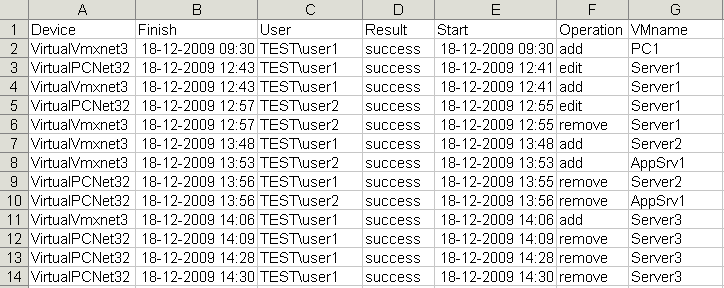
This version of the script only looked superficially at the device changes, but since we have access to the complete VirtualMachineConfigSpec object, the script can go a lot farther.
For each device it can report the actual settings (depending of course on the device type).
And besides the devices, we can also produce reports on subjects like
- changes in CPU masks
- hot add and remove of CPUs and memory
- changes in network traffic shaping
- changes in the VMware Tools configuration
- addition or removal of the guest to a vApp
- …
Let me know if you have any other suggestions for reporting on changes made to the guests.
CPU and memory changes
Skywalker (see comments) wanted to know how to monitor for memory changes.
This is in fact quite straightforward since the information is available in the ConfigSpec property of the VmReconfiguredEvent object. The only “trick” is that you need to know how the system indicates what is changed. For the NumCPUs and MemoryMB properties, if they are not equal to zero the value has been changed.
Unfortunately the task nor event keeps track of what the original value was.
To adapt the script to report on number of CPUs and memory size changes, replace lines 33-45 with the following code.
|
1 2 3 4 5 6 7 8 9 10 11 12 13 |
$event.ConfigSpec | % { if($_.NumCPUs -ne 0 -or $_.MemoryMB -ne 0){ $report += New-Object PSObject -Property @{ VMname = $task.EntityName Start = $task.StartTime Finish = $task.CompleteTime Result = $task.State User = $task.Reason.UserName Memory = &{if($_.MemoryMB -ne 0){$_.MemoryMB}else{""}} NumCPU = &{if($_.NumCPUs -ne 0){$_.NumCPUs}else{""}} } } } |
This produces a CSV file like this:

Alexander
Hello LucD. Thanks for the great script!
I have a question. What do you think, is there a way to query the related event for reconfiguration change task? The thing is, that reconfiguration task has related event wich has a description that tells us what and how was exactly changed. It would be much useful if we could add this description into the exported csv file.
Example:
Reconfigured VM on HOST in Datacenter. Modified: config.hardware.numCoresPerSocket: 2 -> 4; config.hardware.memoryMB: 4096 -> 8192;
LucD
Hi,
Not sure what you mean.
The script retrieves all ReconfigVM_Task tasks, and then per Task, via the EventChainId property retrieves all related events.
Macleud
Hi LucD.
I run the script but the result is no luck.
MethodInvocationException: /Users/mac/Documents/Redirect/TaskVM.ps1:26
Line |
26 | $eCollector = Get-View ($eventMgr.CreateCollectorForEvents($e …
| ~~~~~~~~~~~~~~~~~~~~~~~~~~~~~~~~~~~~~~~~~~~~~~~~~~~~~~~~~~~~~
| Exception calling “CreateCollectorForEvents” with “1” argument(s): “A specified parameter was not correct: ”
InvalidOperation: /Users/mac/Documents/Redirect/TaskVM.ps1:27
Line |
27 | $events = $eCollector.ReadNextEvents($eventnumber)
| ~~~~~~~~~~~~~~~~~~~~~~~~~~~~~~~~~~~~~~~~~~~~~~~~~~
| You cannot call a method on a null-valued expression.
InvalidOperation: /Users/mac/Documents/Redirect/TaskVM.ps1:52
Line |
52 | $ecollection = $eCollector.ReadNextEvents($eventnumber)
| ~~~~~~~~~~~~~~~~~~~~~~~~~~~~~~~~~~~~~~~~~~~~~~~~~~~~~~~
| You cannot call a method on a null-valued expression.
InvalidOperation: /Users/mac/Documents/Redirect/TaskVM.ps1:54
Line |
54 | $eCollector.DestroyCollector()
| ~~~~~~~~~~~~~~~~~~~~~~~~~~~~~~
| You cannot call a method on a null-valued expression.
LucD
Are you sure you are connected to a vCenter?
Were there any errors before the 1st one (CreateCollectorForEvents) you listed here?
Macleud
It looks like a problem in one the vcenter.
Others the vcenter are fine.
Thanks!
Erwin
Hi Lucd,
First of all, thanks for the scripts that make our automation life easier.
I have a query, I want to work with the events of the vm to know which servers were modified in memory and cpu, but I still cannot finish it, it only works with cpu but when I add the memory it no longer works.
$servers=get-cluster -name LIM-SANFER | get-vm
$i=1
$Total=@()
$TotalServer=$servers.Count
foreach($server in $servers){
Write-Progress -Activity “Getting Info Please wait……” -Status “Server $server ($i/$TotalServer)” -PercentComplete ($i/$TotalServer*100)
$event=Get-VIEvent -Entity $server | Where { $_.FullFormattedMessage -like “*config.hardware.numCPU*” }
$event3=Get-VIEvent -Entity $server | Where { $_.FullFormattedMessage -like “*config.hardware.memoryMB*”}
$i=$i+1
if($event){
$event2=$event | select @{N=’user’;E={$_.UserName}}, @{N=’detalle’;E={$_.FullFormattedMessage}}, @{N=’VM’;E={$server}}
echo $event2
$Total+=$event2
}
else{
if($event3){
$event4=$event3 | select @{N=’user’;E={$_.UserName}}, @{N=’detalle’;E={$_.FullFormattedMessage}}, @{N=’VM’;E={$server}}
echo $event4
$Total+=$event4
}
else{
}
}
}
$Total |Export-Csv ./Output.csv -NoTypeInformation
LucD
Instead of calling the Get-VIEvent cmdlet multiple times, you better do something like this.
$servers=Get-Cluster -name LIM-SANFER | Get-VM
Get-VIEvent -Entity $servers -MaxSamples ([int]::MaxValue) -Start (Get-Date).AddHours(-1) |
where{$_ -is [VMware.Vim.VmReconfiguredEvent] -and $_.ConfigChanges.Modified -match "config.hardware.numCPU|config.hardware.memoryMB"} |
Group-Object -Property {$_.VM.Name} -PipelineVariable group |
ForEach-Object -Process {
$group.Group |
Select @{N='VM';E={$group.Name}},
@{N='User';E={$_.UserName}},
@{N='Details';E={$_.FullFormattedMessage}}
}
Vladimir
Hello, Luc and thank you for great article, it’s helped me alot. But i have a question. Is it’s possible to retrieve Disk UUID from event if disk was created during such event (“add” – operation)? If disk was edited or removed it is easy, i can just add a line to the script: UUID = $_.Device.backing.uuid and script will return me disk UUID. But if disk was created during operation i will just receive null result.
I there any way to retrieve UUID of the disk from the event of disk creation. If it’s not possible then may be we cant retrieve some other info which can help us to identify disk that was created?
Bernie
Hello Luc, this script is very interresting for our needs but we have a little problem here. Since we do VM backup with EMC Avamar, 2 reconfigure events for each VM are generated with a specific user when a backup run.
So if we run the script as is, first it takes a long time, second it generates over 4k lines in the CSV. I tried to add a filter in the line 40 of the script:
User = $task.Reason.UserName | Where {$_ -notlike “USERNAME”}.
Good news, the cell is filtered but the line remains. Since I’m not really good at scripting and Powershell syntax. Do you think there’s a way to get rid of the entire line when a specific user is present in the Username column?
Thanks in advance!
LucD
Hi Bernie,
Unfortunately, the Get-VIEvent is rather slow.
The following code uses an additional filter setting (the type of the event we are looking for) and it adds a user to exclude from the results.
See if this improves the runtime a bit.
$hours = 36 # Number of hours back
$tasknumber = 999 # Windowsize for task collector
$eventnumber = 100 # Windowsize for event collector
$excludeUser = 'domain\user'
$report = @()
$taskMgr = Get-View TaskManager
$eventMgr = Get-View eventManager
$tFilter = New-Object VMware.Vim.TaskFilterSpec
$tFilter.Time = New-Object VMware.Vim.TaskFilterSpecByTime
$tFilter.Time.beginTime = (Get-Date).AddHours(-$hours)
$tFilter.Time.timeType = "startedTime"
$tCollector = Get-View ($taskMgr.CreateCollectorForTasks($tFilter))
$dummy = $tCollector.RewindCollector
$tasks = $tCollector.ReadNextTasks($tasknumber)
while($tasks){
$tasks | where {$_.Name -eq "ReconfigVM_Task"} | % {
$task = $_
$eFilter = New-Object VMware.Vim.EventFilterSpec
$eFilter.eventChainId = $task.EventChainId
$eFilter.EventTypeId = 'VmReconfiguredEvent'
$eCollector = Get-View ($eventMgr.CreateCollectorForEvents($eFilter))
$events = $eCollector.ReadNextEvents($eventnumber)
while($events){
$events | where{$_.UserName -ne $excludeUser} | % {
$event = $_
$event.ConfigSpec.DeviceChange | % {
if($_.Device -ne $null){
$report += New-Object PSObject -Property @{
VMname = $task.EntityName
Start = $task.StartTime
Finish = $task.CompleteTime
Result = $task.State
User = $task.Reason.UserName
Device = $_.Device.GetType().Name
Operation = $_.Operation
}
}
}
}
$events = $eCollector.ReadNextEvents($eventnumber)
}
$ecollection = $eCollector.ReadNextEvents($eventnumber)
# By default 32 event collectors are allowed. Destroy this event collector.
$eCollector.DestroyCollector()
}
$tasks = $tCollector.ReadNextTasks($tasknumber)
}
# By default 32 task collectors are allowed. Destroy this task collector.
$tCollector.DestroyCollector()
$report | Sort-Object -Property Start | Export-Csv "C:\VM-device-operations.csv" -NoTypeInformation -UseCulture
Joy M
Luc,
Is there any way the extended events can capture those vms that were actually deleted from disk? A vmotion shows a ‘Removed /vmfs/volumes …/…vmx’ event executed by User (correlates to a vmotion done by DRS/system)?
Get-VIEvent -MaxSamples ([int]::MaxValue) -Start (Get-Date).AddDays(-90) | where {$_.Gettype().Name -eq “V
mRemovedEvent”} | %{“{0} removed by {1}” -f $_.VM.Name,$_.UserName}
jeetnix
Please help me with script to get the data who edited/modified the HDD on a Particular VM some 10 days ago as the Task does not show much, except VM is Reconfigured
Your help will be much appreciated as we have a issue
Raj
Hi Luc,
I am trying to write a script where I query for tasks and events of a specific VM and check the total CPU/Memory added to the VM in the last 24 hours (there could be more than 1 iteration of adding resources ), hence need to find the total CPU/Memory added for a VM.
scott
hi luc am looking for a script that can show me all the changes made to luns and who made them.
thanks
Nathan Kulas
Adapted for use in vCheck script:
# Start of Settings
# Set the number of days to show VMs modified for
$VMsModifiedAge = 2
# End of Settings
$events = @(Get-VIEventPlus -Start ((get-date).adddays(-$VMsModifiedAge)) -EventType “VmReconfiguredEvent”)
$report = @()
ForEach ($event in $events){
ForEach ( $ConfigSpec in $event.ConfigSpec ) {
ForEach ( $DeviceChange in $ConfigSpec.DeviceChange ) {
$report += New-Object PSObject -Property @{
VMname = $event.vm.Name
Start = $event.CreatedTime
Operation = $DeviceChange.Operation
Device = $DeviceChange.Device.GetType().Name
User = $event.UserName
Memory = else{“”}}
NumCPU = else{“”}}
Disk = else{“”}}
Detail = ($DeviceChange | select -expand Device).DeviceInfo.Summary
}
}
}
}
$report | select VMname, User, Start, Operation, Device, Detail, Memory, NumCPU, Disk
$Title = “Modified VMs”
$Header = “VM Modified Events (Last $VMsModifiedAge Day(s)) : [count]”
$Comments = “The following VMs modifications were made over the last $($VMsModifiedAge) days”
$Display = “Table”
$Author = “Nathan Kulas”
$PluginVersion = 1.0
$PluginCategory = “vSphere”
decniner
It looks like there are some information missing from below line. Can you share what are those?
Memory = else{“”}}
NumCPU = else{“”}}
Disk = else{“”}}
LucD
Hi,
No, there is nothing missing.
When there is no value for any of these present in the event, their value was not changed.
Hence the empty string.
bcsbrown
I’d like to be able to track the growth of vCPU and vRAM each month. I see that you can find the total amount of CPU or RAM that a VM has after it has been changed, but is there a way to figure out just the amount that was added?
LucD
Hi bcsbrown, nice idea.
We could collect all events in the lifetime of a VM, and then make differences between event n-1 and n.
I’ll see if I can come up with something
Naren
@ LucD: Were you able to find the code for auditing the VMs vHW…?
g0mez
Hi all,
is there way, for reporting snapshots? i need output as:
09:25 user1 server3 snapshot created
09:40 user1 server3 snapshot deleted
11:00 user1 server1 snapshot created
11:30 user1 server1 snapshot deleted
?
or another way? thanks all…
LucD
Have a look at Alan’s SnapReminder script.
I think it brings all the properties you are looking for.
You can leave out the check for the snapshot’s age, that way you will get all the snapshots.
Luveshen
Hi Luc,
Is there a way for me to retrieve the ConfigSpec for a CloneVM_Task? It seems I’m looking for the VirtualMachineCloneSpec but this is passed as a parameter to the CloneVM_Task and I’m not sure how to access it.
My aim is to identify differences in CPU & RAM configuration for the target VM.
Thanks
LucD
@Luveshen, yes that is possible.
But instead of looking at the tasks, the outer loop will look at “cloned” events.
Something like this
$hours = 1 # Number of hours back

$eventnumber = 100 # Windowsize for event collector
$report = @()
$eventMgr = Get-View eventManager
$e1Filter = New-Object VMware.Vim.EventFilterSpec
$e1Filter.Time = New-Object VMware.Vim.EventFilterSpecByTime
$e1Filter.Time.beginTime = (Get-Date).AddHours(-1)
$e1Collector = Get-View ($eventMgr.CreateCollectorForEvents($e1Filter))
$events1 = $e1Collector.ReadNextEvents($eventnumber)
while($events1){
$events1 | where {$_.GetType().Name -eq "VmClonedEvent"} | %{
$event1 = $_
$e2Filter = New-Object VMware.Vim.EventFilterSpec
$e2Filter.eventChainId = $event1.ChainId
$e2Collector = Get-View ($eventMgr.CreateCollectorForEvents($e2Filter))
$events2 = $e2Collector.ReadNextEvents($eventnumber)
while($events2){
$events2 | % {
$event2 = $_
switch($event2.GetType().Name){
"VmReconfiguredEvent" {
$report += New-Object PSObject -Property @{
VMname = $event1.Vm.Name
VMsource = Get-View $event1.SourceVm.VM | Select -ExpandProperty Name
Finish = $event1.CreatedTime
User = $event1.UserName
Cpu = $event2.ConfigSpec.NumCPUs
MemoryMB = $event2.ConfigSpec.MemoryMB
}
}
Default {}
}
}
$events2 = $e2Collector.ReadNextEvents($eventnumber)
}
$e1collection = $e1Collector.ReadNextEvents($eventnumber)
# By default 32 event collectors are allowed. Destroy this event collector.
$e2Collector.DestroyCollector()
}
$events1 = $e1Collector.ReadNextEvents($eventnumber)
}
# By default 32 event collectors are allowed. Destroy this event collector.
$e1Collector.DestroyCollector()
$report | Sort-Object -Property Start | Export-Csv "C:\VM-clone-cpumem.csv" -NoTypeInformation -UseCulture
jkb5054
Is there a way to tell whether the resource was added or subtracted from the VM?
I want to be able to track who is adding and who is deleting how much of CPU and memory.
any ideas?
LucD
Hi jkb5054, sort of 🙂
The event only has the new value, not the original value.
So you’ll be able to see who changed CPU and/or memory, but you will not be able to tell what the original value was.
Try this
$hours = 24 # Number of hours back

$tasknumber = 999 # Windowsize for task collector

$eventnumber = 100 # Windowsize for event collector
$report = @()
$taskMgr = Get-View TaskManager
$eventMgr = Get-View eventManager
$tFilter = New-Object VMware.Vim.TaskFilterSpec
$tFilter.Time = New-Object VMware.Vim.TaskFilterSpecByTime
$tFilter.Time.beginTime = (Get-Date).AddHours(-$hours)
$tFilter.Time.timeType = "startedTime"
$tCollector = Get-View ($taskMgr.CreateCollectorForTasks($tFilter))
$dummy = $tCollector.RewindCollector
$tasks = $tCollector.ReadNextTasks($tasknumber)
while($tasks){
$tasks | where {$_.Name -eq "ReconfigVM_Task"} | % {
$task = $_
$eFilter = New-Object VMware.Vim.EventFilterSpec
$eFilter.eventChainId = $task.EventChainId
$eCollector = Get-View ($eventMgr.CreateCollectorForEvents($eFilter))
$events = $eCollector.ReadNextEvents($eventnumber)
while($events){
$events | % {
$event = $_
switch($event.GetType().Name){
"VmReconfiguredEvent" {
$report += New-Object PSObject -Property @{
VMname = $task.EntityName
Start = $task.StartTime
Finish = $task.CompleteTime
Result = $task.State
User = $task.Reason.UserName
NumCPU = $event.ConfigSpec.NumCPUs
NumCoresPerSocket = $event.ConfigSpec.NumCoresPerSocket
MemoryMB = $event.ConfigSpec.MemoryMB
}
}
Default {}
}
}
$events = $eCollector.ReadNextEvents($eventnumber)
}
# By default 32 event collectors are allowed. Destroy this event collector.
$eCollector.DestroyCollector()
}
$tasks = $tCollector.ReadNextTasks($tasknumber)
}
# By default 32 task collectors are allowed. Destroy this task collector.
$tCollector.DestroyCollector()
$report | Sort-Object -Property Start
Suresh
How do use this script against one VM alone? i.e. want to see all the “reconfigure” events for one VM alone.
Kayser Soze
Hi Luc,
Is it possible to also detect hard disk changes? i.e. increasing the existing disk size, or adding another disk to a VM?
thanks.
Johannes
Would interest me also.. is it possible Luc?
Pcli
Hi LucD,
when i run the first script i get a 0 Kb output file. i did make a few changes to cpu and memory before i ran the script
Skywalker
@LucD
Luc,
It seems that the column “Numcpu” is empty when I made 2 changes (more than 1 change) at a time. For instance, removed virtual floppy, and added 1 vCPU to the VM.
LucD
Hi Skywalker, just did a similar test myself and it looks indeed as if the event generated by such an action is missing the memory change.
This looks like a bug. I’ll open an SR.
Luc.
Skywalker
@Skywalker
brilliant!!
Skywalker
Hi Luc,
This script can’t report on memory change to guest OS. How to modify the script to get this done? Thanks in advance.
LucD
Yes it can. See the updates.
sham
Luc,
Just wanted to say a big thanks for posting this.
My script was called via a virtualcenter alarm when a vmreconfigured event was initiated and so I was relying on the environment variables that the alarm passed back to provide this information.
The code youve written clearly demontrates its possible to get the information out if you have the vmreconfigured event object so I guess Im going to have to authenticate back into VC to get the relevant event object to identify the change.
Hopefully this will allow for the reporting of changes in real time.
Ill let you know how I get on…
Ian
Is there a way to report on who started a VM? Currently the GUI doesn’t match who did the power on of a VM.
LucD
Yes, you can. Even dedicated a new post to the reply.
See Events – Part 4 : Who started that VM ?