
I know there are already numerous scripts to report on virtual hard disks and most of them without a doubt much better then what I came up with for this post.
The reason I started with this script was a question in the PowerCLI Community from Alan in his Thin Provisioned Disks post. He wanted to know if you could get the provisioned and the allocated disk size for a thin provisioned virtual disk.
From past experience I knew that the answer was to be found in the layoutEx property of the VirtualMachine object.
But while I was writing the script I saw opportunities to expand the script to make the produced report the “mother of all virtual disk reports”. Or at least an attempt to include much more information in the produced report 😉
The layoutEx property
The layoutEx property, that came with API 4.0, contains a wealth of information concerning the virtual disks connected to your guests.
Since you can find back the mapping to all individual files that constitute a virtual disk, it is the ideal property to show the actual storage used by each virtual disk and the snapshots.
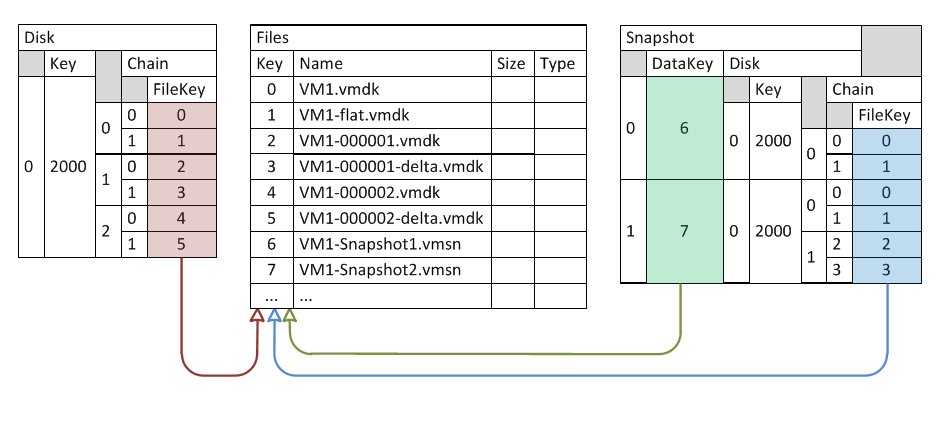
The following graphic shows how the three major properties in the VirtualMachineFileLayoutEx object are organised. The values in the graphic are from a virtual machine, with one virtual hard disk, and two snapshots.
Handling of snapshots
I assume that most of you know what happens in the background with a virtual disk when you take a snapshot of a virtual machine. The following graphic is small aide-mémoire for understanding the basics.
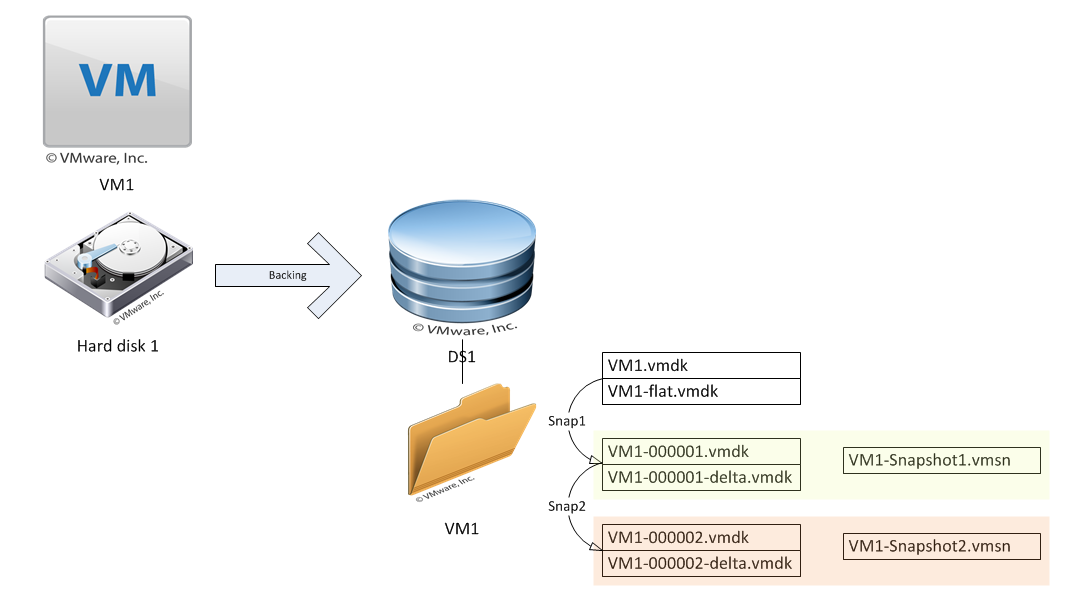
If you look closely at the Snapshot table (first graphic) you will notice that an entry points to the files, or chain of files, before the snapshot was taken.
For example, Snapshot 2 results in the FileKey sequence 0, 1, 2 and 3. While the actual new files that are created for Snapshot 2, are those with FileKey 4 and 5.
Since I wanted to know how much datastore space Snapshot 2 was taking, I decided to let the script look for the files linked to Snapshot 2. In this case that would be the files with FileKey 4 and 5.
The script
There were a few problems to be solved:
- Not all virtual machines have the same number of snapshots. If the data needs to be exported to a CSV file this poses a problem with the Export-Csv cmdlet. The solution I took:
- For all guests determine the number of snapshots, if any, they have and take the maximum of these numbers.
- Define a new object, I called it DiskInfo in the script, and define a sufficient number of snapshot-related properties (Name and Size) so that the guest with the highest number of snapshots can be represented.
- Define the new object in C# and use the Add-Type cmdlet to create the new type.
- Like I mentioned earlier, I wanted to display the actual datastore space a specific snapshot takes. For that I had to find the FileKey values that are not in the Snapshot table. My reasoning for this was that I wanted to know how much datastore space would become free when a specific snapshot is removed.
|
1 2 3 4 5 6 7 8 9 10 11 12 13 14 15 16 17 18 19 20 21 22 23 24 25 26 27 28 29 30 31 32 33 34 35 36 37 38 39 40 41 42 43 44 45 46 47 48 49 50 51 52 53 54 55 56 57 58 59 60 61 62 63 64 65 66 67 68 69 70 71 72 73 74 75 76 77 78 79 80 81 82 83 84 85 86 87 88 89 90 91 92 93 94 95 96 97 |
$DiskInfoDef = @" public struct DiskInfo { public string VMname; public string Label; public string Path; public bool Thin; public bool RDM; public string Used; public string CapacityMB; public string AllocatedMB; "@ $vms = Get-View -ViewType VirtualMachine $maxSnapshot = ($vms | %{$_.LayoutEx.Snapshot.Count} | Measure-Object -Maximum).Maximum 1..$maxSnapshot | %{ $DiskInfoDef += ("`n`tpublic string Snap" + $_ + "MB;") $DiskInfoDef += ("`n`tpublic string Snap" + $_ + "Name;") } $DiskInfoDef += "`n}" Add-Type -Language CsharpVersion3 -TypeDefinition $DiskInfoDef $snapHash = @{} filter Get-SnapHash{ $snapHash[$_.Snapshot.Value] = $_.Name if($_.ChildSnapshotList){ $_.ChildSnapShotList | Get-SnapHash } } $vms | %{ $vm = $_ if($vm.Snapshot){ $vm.Snapshot.RootSnapshotList | Get-SnapHash } $_.Config.Hardware.Device | where {$_.DeviceInfo.Label -like "Hard disk *"} | %{ $hd = $_ $vm.LayoutEx.Disk | where {$_.Key -eq $hd.Key} | %{ $diskFiles = $_.Chain | %{$_.FileKey} | %{$_} } $diskAllocated = 0 $vmdkName = $vm.LayoutEx.File[$diskFiles[0]].Name $vm.LayoutEx.File | where {$diskFiles -contains $_.Key} | %{ $diskAllocated += $_.Size } $used = "na" if($hd.Backing.ThinProvisioned){ $used = ("{0:P1}" -f ($diskAllocated / 1KB/$hd.CapacityInKB)) } $diskInfo = New-Object DiskInfo $diskInfo.VMname = $vm.Name $diskInfo.Label = $hd.DeviceInfo.Label $diskInfo.Path = $vmdkName $diskInfo.Thin = $hd.Backing.ThinProvisioned $diskInfo.RDM = $hd.Backing.GetType().Name.Contains("RawDisk") $diskInfo.Used = $used $diskInfo.CapacityMB = ("{0:N1}" -f ($hd.CapacityInKB/1KB)) $diskInfo.AllocatedMB = ("{0:N1}" -f ($diskAllocated / 1MB)) $snapNr = 1 if($vm.Snapshot){ $vm.LayoutEx.Snapshot | %{ $_.Disk | where {$_.Key -eq $hd.Key} | %{ $prevFiles = $_.Chain | %{$_.FileKey} | %{$_} } $vm.LayoutEx.Disk | where {$_.Key -eq $hd.Key} | %{ foreach($chain in $_.Chain){ if($prevFiles -notcontains $chain.FileKey[0] -and $prevFiles -notcontains $chain.FileKey[1]){ break } } } $snapFiles = $chain.FileKey | %{$_} $snapSize = "" $snapName = "" if($snapFiles){ $snapAllocated = 0 $vm.LayoutEx.File | where {$snapFiles -contains $_.Key} | %{ $snapAllocated += $_.Size } $snapSize = ("{0:N1}" -f ($snapAllocated / 1MB)) $snapName = $snapHash[$_.Key.Value] } $diskInfo.("Snap" + $snapNr + "MB") = $snapSize $diskInfo.("Snap" + $snapNr + "Name") = $snapName $snapNr++ } } $diskInfo } } | Export-Csv "C:\Yadr-report.csv" -UseCulture -NoTypeInformation |
Annotations
Line 1-11: The “static” part of the C# code that defines the DiskInfo type.
Line 13: Get all the virtual machines. I used the Get-View cmdlet for speed and also because the script only needs properties from the VirtualMachine object.
Line 14: Determine the highest number of snapshot present on any guest.
Line 15-18: The “dynamic” part of the C# code. For each snapshot this adds two properties, SnapiName and SnapiMB,
Line 19: The “newline” character is not really. Just gives a better view when you dump the content of the $DiskInfoDef variable.
Line 21: The new type is created. Note that when you change anything in the definition, you will most probably have to restart your PS environment, otherwise you will get a message that the type already exists. There is, afaik, no way to get rid of a type definition in the .Net environment.
Line 23-30: This filter will recursively run through the snapshot tree and will create a hash table. The table will later be used to find the snapshot name.
Line 32-98: The main loop.
Line 35-37: Create a hash table from the snapshot tree.
Line 39: Loop through all the virtual disks connected to this virtual machine.
Line 41-43: Get all the FileKeys for this specific virtual disk
Line 46: Get the name of the first disk file.
Line 48-50: Summarise the size of each file that comprises the virtual hard disk.
Line 52-55: Check if the virtual hard disk is Thin Provisioned. If it is, calculate the percentage of storage that is actually allocated on the datastore.
Line 57: Create a new object based on the DiskInfo type.
Line 58-65: Start filling in the values for the properties of the DiskInfo object.
Line 66-94: Handle the snapshots (if present) for this virtual hard disk.
Line 67: Start by checking if there is at least one snapshot for this virtual hard disk.
Line 68: Loop through all the snapshots.
Line 69-71: Get the FileKey for all the files for this virtual hard disk before the snapshot was taken. Store these FileKey values in the $prevFiles array.
Line 72-78: Find the first pair of FileKeys in the chain that is not in the $prevFiles array. These are the files that constitute the snapshot.
Line 79: Store the pair of FileKeys in the array $snapFiles.
Line 82-89: Calculate the total size of the snapshot files and get the name of the snapshot from the hash table created in the beginning of the main loop.
Line 90-91: Store the values in the correct properties in the DiskInfo object.
Line 97: Export the array to a CSV file.
Result
The following screenshot shows a sample run of the script.
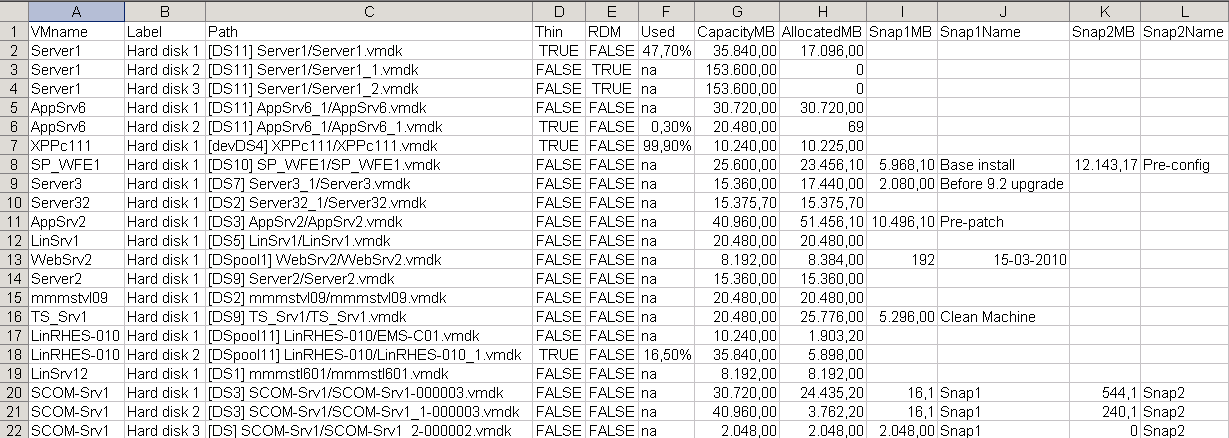
There are some interesting results in this sample run.
- The maximum snapshots any guest has is two.
- Server1 (row 2-5) has three virtual hard disks. The first one is thin provisioned and uses currently 47.7% of it’s capacity.
- The other two hard disks of Server1 are RDM disks. Notice that the AllocatedMB column says “zero” because there is not really a point in talking about allocated space for RDM disks.
- The guest in row 8 has two snapshots.
And last but not least, I suspect there is a bug in the VirtualMachineFileLayoutEx object, more specifically in the Size property of some entries in the Files array.
Have a look at row 20, this disk is not a thin provisioned disk but the AllocatedMB value is less then the CapacityMB value. I would have expected the same value in those two columns.
When I investigate from the console with a simple “ls -l” I see the correct value.
For one reason or another, there are some (very few) virtual disks that have an incorrect size values in the Files table. I couldn’t find out in which cases this seems to happen.
PS: yadr stands for yet another disk reporter
Will
Hello! For some reason, my comments are not being moderated.
If the snapshot was taken with virtual machine memory (Powered on), can the amount of memory (.vmem file size) be included in the snapshot report ?
LucD
Your comments are received but I need to approve them.
Concerning the memory question.
I’ll have a look if that can be done.
Will
Thank you in advance.
WILL
Hello, LucD. Did you have free time for my question about memory size?
Will
Hey! Is it possible to include vmem size information ?
LucD
What exactly do you mean by ‘vmem size’?
The allocated memory of the VM?
Pragg
Hi LucD,
Thank you for this yadr. While running this code on a Windows Server 2016, I get below error. Please check and update the script. Thank you in advance.
Add-Type : Cannot add type due to the following exception: Compiler executable file csc.exe cannot be found.. Verify that Microsoft .NET Framework 3.5 is installed. On x64-based versions of Windows, you must also install the WOW64 feature.
LucD
Hi,
Can you try changing this line
Add-Type -Language CsharpVersion3 -TypeDefinition $DiskInfoDef
into
Add-Type -Language CSharp -TypeDefinition $DiskInfoDef
If that fixes your issue, I will update the code in the post.
Mario EDUARDO
H@i,
I think you have an error in Line 46. This error is the cause for erroneously counted file sizes. You must replace this line by code similar to:
foreach ($di in $vm.LayoutEx.File)
{
if ($di.Key -eq $diskFiles[0])
{
$vmdkName = $di.Name
break
}
}
This change countes in my environment the file sizes correct.
Mario
jonathan lackman
props for using “aide-mémoire” properly in a technical article!
Ed Z
Luc,
It looks like there is a curly bracket missing at the end of this section – i have added it below.
$DiskInfoDef = @”
public struct DiskInfo {
public string VMname;
public string Label;
public string Path;
public bool Thin;
public bool RDM;
public string Used;
public string CapacityMB;
public string AllocatedMB;}
“@
Westsider
Am on Vsphere 4.1 and using powerCLI 5….there was no error…it went fine.but no output on the CSV@LucD
Westsider
Hey LucD, Thanks for the script.
I am new to powerCLI, ran ur script, it generates a CSV, however there was empty..Please help, Thanks in advnce..
LucD
@Westsider, the script will only work when you are at least on vSphere 4.x.
Did you get any error messages ?
Shannon
Hi LucD,
As per other posters have highlighted, great script as always –
I do however have an issue whereby for some VM’s it seems to have some discrepencies;
I am seeing this:
FLP-TS002_DR Hard disk 1 [P2_T1R6_vmfs_lun06] FLP-TS002_DR/vmware-2.log FALSE FALSE na 40,960.00 40,960.00
FLP-TS002_DR Hard disk 1 [P2_T1R6_vmfs_lun06] FLP-TS002_DR/vmware-2.log FALSE FALSE na 40,960.00 40,960.00
Where 40,960.00 is not the log size, it is the size of the VMDK file. Looking at the datastore itself, there is only 1 VMDK (40,960.00) and 1 vmware-2.log file (a few kb, certainly not 40GB).
Any idea why this is happening?
Thanks,
Shannon
SAL
thanks @LucD
it gives those errors but still runs 🙂
thanks again
SAL
LucD
when I run this script it returns this error?
can you help? thanks!
Add-Type : Cannot add type. The type name ‘DiskInfo’ already exists.
At C:\Program Files (x86)\VMware\Infrastructure\vSphere PowerCLI\diskinfo.ps1:2
1 char:9
+ Add-Type <<<< -Language CsharpVersion3 -TypeDefinition $DiskInfoDef
+ CategoryInfo : InvalidOperation: (DiskInfo:String) [Add-Type],
Exception
+ FullyQualifiedErrorId : TYPE_ALREADY_EXISTS,Microsoft.PowerShell.Command
s.AddTypeCommand
LucD
@SAL, that is a problem with the object types you add with the Add-Type cmdlet. These types can not be removed nor renamed.
There are 2 solutions, you stop/start your PowerShell session, or you add a random number to the typename.
That last option is the one I took in LUN report – datastore, RDM and node visibility.
In this script you can change these lines
$DiskInfoDef = @"
public struct DiskInfo {
public string VMname;
public string Label;
public string Path;
public bool Thin;
public bool RDM;
public string Used;
public string CapacityMB;
public string AllocatedMB;
"@
by something like this
$rndNum = Get-Random -Maximum 99999
$DiskInfoDef = @"
public struct DiskInfo {
public string VMname;
public string Label;
public string Path;
public bool Thin;
public bool RDM;
public string Used;
public string CapacityMB;
public string AllocatedMB;
"@
$DiskInfoDef = "public struct DiskInfo" + $rndNum + "{`n" + $DiskInfoDef
Martin
Hi LucD, Many thanks for a great site!
I’m new to PowerCLI but is possible to also report on the space used even if the disk is thick provisioned (rather than na)? This would show the potential disk savings you couls get by converting to thin provisioned.
(I realise that this script is a couple of years old now but assume it hasn’t been superseded by something better)?
Amit Patange
Hi Luc, thanks for the script, it fantastic, I was wondering – is there a way to get the output in one line per vm like:
VMname, vmhost, HardDisk1, Path, all other details, HardDisk2, path, all other details
txolson
Hello — Ran script yesterday no problem. Today, it only shows max. of one snapshot on any VM although I have several with 2. I added 2 snapshots to another VM and it reports it properly, but still only reports one on the others.
Any ideas?
I am testing by using lines 13 & 14 (have also run entire script with same results)
Robert
Thank you for this great script
Replacing line 13 with:
$vms = Get-Datacenter $datacenter| Get-VM | Get-View | sort name
makes more sense as it will not get templates. If you have any template in the collection you get an error as mentioned in some comments here.
LucD
Thanks Robert. That is a great tip.
I’ll update the script.
MikeP
Is there a way to get snapshot info for VMs that are experiencing snapshot problems, i.e. Broken child parent CID or snapshots not showing up in SnapShot Manager?
Thanks!!
MikeP
LucD
@MikeP, I’m afraid not. The script uses the Snapshot property in the VirtualMachine object to find the snapshots.
If the chain of snapshots is not correct, the script will not show these broken snapshots.
I suspect you will have to have a look at the headers of some of the .vmdk files to retrieve “broken” snapshots.
Simon
Hi Luc
Any idea about what the problem is here ?
Cannot index into a null array.
At :line:52 char:32
+ $vmdkName = $vm.LayoutEx.File[ <<<< $diskFiles[0]].Name
(line 52 is line 46 in your script – but all I've added is viserver connect and snapin etc)
Regs
Simon
LucD
@Simon, could it be that you run the script against a pre-ESX(i) 4.x server ?
The LayoutEx property was introduced with ESX(i) 4.x
steve
Luc,
I am trying to use your script to return the guest.disk.diskpath and it keeps coming up empty. I defined “public string Drive” in the Diskinfo and added $diskinfo.Drive = $vm.Guest.Disk.DiskInfo and it did not work. I should note that the machine I am testing on has multiple drives.
LucD
@Steve. The yadr script looks at the virtual disks as they are seen by the ESX(i) host for a specific guest.
The DiskPath you mention is the path to the partition defined inside the OS running in the guest. This information is provided through the VMware Tools but there is no link to the virtual disks. To make that link the script would need to find a method to link these OS partitions to virtual disks. That is currently not possible with the PowerCLI cmdlets nor by any of the SDK methods.
Arnim did an excellent write-up on this in his PowerCLI: Match VM and Windows harddisks – Part 2 post.
Paulo Aguiar
@LucD
Thank you ver much man…
I envy you btw for be in VMworld I bet is amazing as always
cheers =)
Paulo Aguiar
Hello LucD:
After see this amazing script I immediatly try it and worked pretty fine but I am in a need to only use the part where you do the RDM analysis and merge it with my script I am trying to do it but I have been failing could you give me a hand with this buddy?
This is the script I am actually using:
Get-VM | Get-VMGuest | ForEach-Object {
$VMGuest = $_
$VMGuest.Disks | ForEach-Object {
$Report = “” | select-Object Hostname,Volume,”Allocated MB”,”Used MB”,”Free MB”
$Report.Hostname = $VMGuest.VmName
$Report.Volume = $_.Path
$Report.”Allocated MB” = (“{0:N1}” -f ($_.Capacity / 1MB))
#$Report.”Allocated MB” = int $Report.”Allocated MB”
$Report.”Used MB” = (“{0:N1}” -f (($_.Capacity – $_.FreeSpace)/1MB))
#$Report.”Used MB” = int $Report.”Used MB”
$Report.”Free MB” = (“{0:N1}” -f ($_.FreeSpace / 1MB))
$Report
}
}
LucD
@Paulo. Thanks. I’ll have a look how we can incorporate the RDM part in your script.
First I’m going to sleep of the VMworld fatigue 😉
MasterPi
@LucD
Hi LucD,
yes, i start the PowerCli promt, type Connect-VIServer vcenter
then i type c:\report.ps1
there is no errormessage/output on the console and the script finishes in about 10 sec.
And yes, Get-View -ViewType VirtualMachine works fine
MasterPi
Hi LucD,
I have a Problem with your script.
When i run it i get no output. the csv file is created but empty. Any obvius reason why this could happen?
LucD
@MasterPi How did you run the script ? From the PowerCLI prompt ? Any error messages ? Does ‘Get-View -ViewType VirtualMachine’ return anything ?
Sathya
@LucD anyway no issues, let me try installing PS2.0 and try again.
Thank you.
Sathya
Hi LucD, now i’m using on vSphere network. i’m getting the below error.
The term ‘Add-Type’ is not recognized as a cmdlet, function, operable program,
or script file. Verify the term and try again.
At D:\yadr.ps1:21 char:9
+ Add-Type <<<< -Language CsharpVersion3 -TypeDefinition $DiskInfoDef
Export-Csv : A parameter cannot be found that matches parameter name 'UseCultur
e'.
At D:\yadr.ps1:97 char:48
+ } | Export-Csv "D:\Yadr-report.csv" -UseCulture <<<< -NoTypeInformation
LucD
@Sathya, that indicates you’re using PowerShell v1. The Add-Type cmdlet, which is essential for this script, requires PowerShell v2. Sorry, should have been indicated in the post.
Sathya
@LucD u r right. i’m running this script against ESX 3.5 Hosts.
Sathya
Hi LucD, i’m having hard time to run this script, getting the below error.
Cannot index into a null array.
At C:\yadr.ps1:46 char:44
+ $vmdkName = $vm.LayoutEx.File[$diskFiles[ <<<< 0]].Name
+ CategoryInfo : InvalidOperation: (0:Int32) [], RuntimeException
+ FullyQualifiedErrorId : NullArray
LucD
@Sathya, I suspect you’re running this against ESX 3.x servers ?
The LayoutEx property is only available since API 4, which means vSphere 4.x
Dennis
Hi Luc, I´ve encountered an error if the vCenter Installation is localized (i. e. German), so the Hard disk gets back as Festplatte.
There is an easy change to run the script in any localized VMware environment, I wanna share.
Just change the line 39
$_.Config.Hardware.Device | where {$_.DeviceInfo.Label -like “Hard disk *”}
to
$_.Config.Hardware.Device | where {$_ -is [VMware.Vim.VirtualDisk]}
LucD
Thanks Dennis. This is a very useful tip.
Vuong Pham
This is a fantastic YADR!!
calculations:
Trying to decipher the data to see how much disk is actually saved via thin disk ..
I sort out the thin= false
…
or figure out what the over-allocated value is.
—
Do a rollup report to management.. “with thin disk prov.. we’ve now saved X disk space and this month.. etc” and “translates to $$ saving”
— more interesting would be to trend this as a rate to calculate how much disk usage is happening even under thin provisioning..
LucD
Thanks, glad you like it. And that you could put it to good use.
Tim Bernhardson
Need info like in Perl Scripts…
requires PowerShell V2.0
requires VMwareVI Toolkit
requires vSphere 4.0
LucD
You’re absolutely right.
I’ll check how this can be done and I’ll amend the posts accordingly.
Thanks.
Andrea
This is great LucD!
Interestingly I got the following error, looped 7 times in my environment the first time I tried your script:
“Cannot index into a null array.
At C:\yadr.ps1:46 char:33
+ $vmdkName = $vm.LayoutEx.File[ <<<< $diskFiles[0]].Name
+ CategoryInfo : InvalidOperation: (2:Int32) [], RuntimeException
+ FullyQualifiedErrorId : NullArray
"
I had some templates that had not been labeled as VMs since moving to vSphere. Their "provisioned" and "used" values in VIC were n/a. converting to VMs filled in these values and switching them back to templates kept the values, no more script errors.
I'm sure there's a quick error check you could do for null values coming in. I just thought I would pass back this info.
LucD
Thanks for the info.
Do you still have one of those templates ?
It would be interesting to know if $vm.LayoutEx was equal to $null or if $vm.LayoutEx.File was equal to $null.
If you still have such a template could you do
$templateName = "your-template-name"

Get-View -ViewType "VirtualMachine" -Filter @{"Name"=$templateName} | Select -ExpandProperty LayoutEx
You may send the result to lucd(at)lucd(dot)info
Brian
Do you have this script that I can download complete? I did a copy/past and have lots of errors. I might be doing something very simple…. just not sure what is wrong.
LucD
When you hover over the box that contains the script, there should appear 4 icons in the top-right of the box. The 2nd icon copies the script.
vmachine
Thanks Luc, awesome work!!
Ollfried
regarding line #20: The other way is dangerous! If you have a vmdk that sais 10GB and a flat-file with 20GB in size, it will work fine – as long as you don’t do svmotion or sometimes snapshots.
LucD
Would you happen to know what could cause these discrepancies ?