
I recently received an interesting question in my mailbox. Someone wanted to know if it was possible to enable/disable the logging for a Virtual Machine through PowerCLI. These Virtual Machine logs can be a handy resource when analysing problems.
This logging option is available through the vSphere client when you select Edit Settings and then Options-Advanced-General. In that form there is a checkbox that allows you to enable/disable the virtual machine logging.

Afaik, this feature is not yet available through a PowerCLI cmdlet. But it is easily accessible through the VirtualMachine object.
Enable/disable logging
|
1 2 3 4 5 6 7 8 9 10 11 12 13 14 15 16 17 18 19 20 21 22 23 24 25 26 27 28 29 30 31 32 33 34 35 36 37 38 39 40 41 42 43 44 45 46 47 48 49 50 51 52 53 54 55 56 57 58 59 60 61 62 63 64 |
#requires -version 2 #requires -pssnapin VMware.VimAutomation.Core -version 4.1 function Set-VMLogging{ <# .SYNOPSIS Activate or deactivate logging on a virtual machine .DESCRIPTION The function activates or deactivates logging on a virtual machine. The function allows toggling of the current setting through the .NOTES Author: Luc Dekens .PARAMETER VM The virtual machine .PARAMETER Logging A switch that indicates if logging should be activated or deactivated .PARAMETER Toggle A switch that indicates if the current logging setting should be toggled .EXAMPLE PS> Set-VMLogging -VM $vm -Logging:$true .EXAMPLE PS> Get-VM | Set-VMLogging -Logging:$false .EXAMPLE PS> Set-VMLogging -VM $vm -Toggle:$true #> [CmdletBinding(DefaultParametersetName="OnOff")] param( [parameter(Mandatory=$true,ValueFromPipeline=$true)] [PSObject[]]$VM, [Parameter(ParameterSetName="OnOff")] [switch]$Logging, [Parameter(ParameterSetName="Toggle")] [switch]$Toggle ) begin{ $spec = New-Object VMware.Vim.VirtualMachineConfigSpec $spec.Flags = New-Object VMware.Vim.VirtualMachineFlagInfo if($psCmdlet.ParameterSetName -eq "OnOff"){ $spec.Flags.enableLogging = $Logging } } process{ foreach($obj in $VM){ if($obj.GetType().Name -eq "string"){ $obj = Get-VM -Name $obj } if($psCmdlet.ParameterSetName -eq "OnOff"){ $obj | where {$_.Extensiondata.Config.Flags.enableLogging -eq (!$Logging)} | %{ $_.Extensiondata.ReconfigVM($spec) } } else{ $spec.Flags.enableLogging = !$VM.Extensiondata.Config.Flags.enableLogging $obj.Extensiondata.ReconfigVM($spec) } } } } |
Annotations
Line 34-37: To avoid that the Logging and Toggle switch be used together, I placed both of them in different parameter sets.
Line 41-45: The VirtualMachineConfigSpec object that we need to change the logging setting is constant for all calls. Except if the function is called with the Toggle parameter.
Line 33,49: The function defines the VM parameter as an array, that way the script can use a foreach loop. Even if the function is called with only 1 virtual machine, the $VM variable will still be an array, albeit with only 1 element.
Line 50-52: An simple emulation of the OBN (Object By Name) feature that the PowerCLI cmdlets offer. The virtual machines can be passed as string or as an object returned by the Get-VM cmdlet.
Line 53-61: The actual change of the logging flag is done with the ReconfigVM_Task. The function handles the Logging and the Toggle switch with the if-then-else construct.
While I was writing the above function I realised that it would also be handy to have a function to retreive these logs. With the help of the Copy-DatastoreItem it turns out that this is also a trivial task.
Retrieve the logs
|
1 2 3 4 5 6 7 8 9 10 11 12 13 14 15 16 17 18 19 20 21 22 23 24 25 26 27 28 29 30 31 32 33 34 35 36 37 38 39 40 41 42 43 44 45 46 47 48 |
#requires -version 2 #requires -pssnapin VMware.VimAutomation.Core -version 4.1 function Get-VMLog{ <# .SYNOPSIS Retrieve the virtual machine logs .DESCRIPTION The function retrieves the logs from one or more virtual machines and stores them in a local folder .NOTES Author: Luc Dekens .PARAMETER VM The virtual machine(s) for which you want to retrieve the logs. .PARAMETER Path The folderpath where the virtual machines logs will be stored. The function creates a folder with the name of the virtual machine in the specified path. .EXAMPLE PS> Get-VMLog -VM $vm -Path "C:\VMLogs" .EXAMPLE PS> Get-VM | Get-VMLog -Path "C:\VMLogs" #> param( [parameter(Mandatory=$true,ValueFromPipeline=$true)] [PSObject[]]$VM, [parameter(Mandatory=$true)] [string]$Path ) process{ foreach($obj in $VM){ if($obj.GetType().Name -eq "string"){ $obj = Get-VM -Name $obj } } $logPath = $obj.Extensiondata.Config.Files.LogDirectory $dsName = $logPath.Split(']')[0].Trim('[') $vmPath = $logPath.Split(']')[1].Trim(' ') $ds = Get-Datastore -Name $dsName $drvName = "MyDS" + (Get-Random) New-PSDrive -Location $ds -Name $drvName -PSProvider VimDatastore -Root '\' | Out-Null Copy-DatastoreItem -Item ($drvName + ":" + $vmPath + "*.log") -Destination ($Path + "\" + $obj.Name + "\") -Force:$true Remove-PSDrive -Name $drvName -Confirm:$false } } |
Annotations
Line 35-37: An simple emulation of the OBN (Object By Name) feature that the PowerCLI cmdlets offer. The virtual machines can be passed as string or as an object returned by the Get-VM cmdlet.
Line 43: The function creates a PSDrive to map the datastore where the virtual machine logs are located. To avoid/minimise collisions with existing PSDrives, the script adds a random number to the name.
Line 45: The actual copy of the log files is done with the Copy-DatastoreItem cmdlet. Note that the function always uses the Force parameter, this means that any existing files will be overwritten.
Sample runs
To activate logging for a virtual machine, you can call the function like this
|
1 |
Set-VMLogging -VM MyVM -Logging:$true |
To deactivate logging for a series of virtual machines, you can do something like this
|
1 2 |
$vm = Get-VM -Name MyVM Set-VMLogging -VM $vm -Logging:$false |
The function also provides a ‘toggle’ switch. This parameter will change the actual setting for logging.
|
1 |
Get-VM My* | Set-VMLogging -Toggle |
To retrieve the logs for a virtual machine, you do
|
1 |
Get-VMLog -VM MyVM -Path "C:\VMLogs" |

Note that the script assumes that the folder VMLogs already exists.
And you can do this for a number of virtual machines as well
|
1 |
Get-VM PC* | Get-VMLog -Path "C:\VMLogs" |
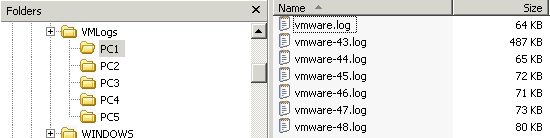
You will find the virtual machine logs in the subfolders under C:\VMLogs
Eric
@Vyas Murt
you can just run one of the obove three sections from within your PowerCLI, you dont need the other script.
RGDS Eric
Eric
I have done it based on folder name or on Computername with a wild card or all computers.
based on folder name I do it like this where the foldername in this case is windows7VDI:
——————
$vm =Get-Folder windows7VDI | Get-VM | Get-View
$spec = New-Object VMware.Vim.VirtualMachineConfigSpec
$spec.flags = New-Object VMware.Vim.VirtualMachineFlagInfo
$spec.flags.enableLogging = $false
$vm.ReconfigVM($spec)
——————
based on Computer name I do it like this where the computername in this case starts with W7PC00:
——————
$vm =Get-VM | Where-Object {$_.Name -like “W7PC00*”} | Get-View
$spec = New-Object VMware.Vim.VirtualMachineConfigSpec
$spec.flags = New-Object VMware.Vim.VirtualMachineFlagInfo
$spec.flags.enableLogging = $false
$vm.ReconfigVM($spec)
——————
and this is to do it for all computers:
——————
$vm =Get-VM | Get-View
$spec = New-Object VMware.Vim.VirtualMachineConfigSpec
$spec.flags = New-Object VMware.Vim.VirtualMachineFlagInfo
$spec.flags.enableLogging = $false
$vm.ReconfigVM($spec)
——————
Good luck, dont forget to test first.
Vyas Murt
Awesome post.
Noob question – in your script you have used ReconfigVM, but you refer to ReconfigVM_Task (Line 55 and Line 60). I suppose there is a difference. Could you please elaborate.
Thanks.
LucD
Most of the API methods are available in two formats, through PowerCLI.
One is the method name without the _Task suffix, when you call the method this way, the script will wait till the method call returns.
The format with the _Task suffix is similar to the use of the RunAsync switch. The method call will start a Task, and the script will continue immediately.
See also the about_runasync help page.
David Mays
I seem to not be able to get this script working with cli v5 and vsphere 4.1. Has something changed in 5? There is no error generated, just nothing happens.
LucD
@David, both scripts have a line at the top that says
#requires -pssnapin VMware.VimAutomation.Core -version 4.1
Try removing that line.
The requirement will fail since you are using PowerCLI 5.