
The Invoke-VMScript cmdlet can be a very useful cmdlet, but sometimes it will fail against one or more of your VMs. And it is not always immediately clear why the Invoke-VMScript cmdlet will not work against that specific VM.
The cmdlet help contains a number of prerequisites, but how do you verify if all the prerequisites are fulfilled?
I decided to create a function that would verify the prerequisites, and that would, if requested, which of the prerequisites was missing.
The prerequisites
Official
The official prerequisites are all documented in the help for the Invoke-VMScript cmdlet. The following table is a summary.
| PowerCLI | 4.1 | 4.1U1 | 5 |
| only 32-bit engine | x | x | x |
| VMware Tools installed | x | x | x |
| read access to VM folder | x | x | x |
| Virtual Machine.Interaction.Console privilege | x | x | x |
| VM powered on | x | x | x |
| port 902 to ESX(i) hosting the VM | x | x | x |
| VIX 1.6.2 | x | x | |
| VIX 1.10 | x | ||
| Windows XP, Windows 7, Windows 2003 Server, Windows 2008 Server,Redhat Enterprise 5 | x | x | x |
Unofficial
From my own experience and from several posts in the PowerCLI Community, I have 2 additional prerequisites.
- The cmdlet seems to work most of the time when the guest OS is Windows 2008 R2. Note that there have been reports about errors with this OS. In the current PowerCLI build Windows 2008 R2 is not in the list of supported guest OS.
- When you use the hostname in the Connect-VIServer cmdlet, the Invoke-VMScript doesn’t seem to work. When you do the Connect-VIServer with the FQDN or the IP address, the cmdlet works. The error message looks like this

The list of my 2 non-official prerequisites
| PowerCLI | 4.1 | 4.1U1 | 5 |
| Windows 2008 R2 Server | x | ||
| Connected with FQDN or IP | x | x | x |
The Script
|
1 2 3 4 5 6 7 8 9 10 11 12 13 14 15 16 17 18 19 20 21 22 23 24 25 26 27 28 29 30 31 32 33 34 35 36 37 38 39 40 41 42 43 44 45 46 47 48 49 50 51 52 53 54 55 56 57 58 59 60 61 62 63 64 65 66 67 68 69 70 71 72 73 74 75 76 77 78 79 80 81 82 83 84 85 86 87 88 89 90 91 92 93 94 95 96 97 98 99 100 101 102 103 104 105 106 107 108 109 110 111 112 113 114 115 116 117 118 119 120 121 122 123 124 125 126 127 128 129 130 131 132 133 134 135 136 137 138 139 140 141 142 143 144 145 146 147 148 149 150 151 152 153 154 155 156 157 158 159 160 161 162 163 164 165 166 167 168 169 170 |
function Test-InvokeVMScript{ <# .SYNOPSIS Test if Invoke-VMScript will work .DESCRIPTION The function verifies if all prerequisites are present to use the Invoke-VMScript cmdlet. .NOTES Author: Luc Dekens .PARAMETER VM The virtual machine for which you want to test the prerequisites. You can pass the name of the virtual machine or the VM object .PARAMETER Official This switch specifies if only the official prerequistes should be verified or not. The default value is $True, so only the official prerequisites .PARAMETER Detail Switch that specifies if all the prerequisite details should be returned or not. The default is $False .EXAMPLE PS> Test-InvokeVMScript -VM $vm -Detail .EXAMPLE PS> Get-VM VM* | Test-InvokeVMScript -Official:$false #> param( [CmdletBinding()] [parameter(Mandatory = $true, ValueFromPipeline = $true)] [PSObject]$VM, [switch]$Official = $True, [switch]$Detail ) begin{ $pCLIMajor,$pCLIMinor = Get-PowerCLIVersion | %{$_.Major,$_.Minor} $apiMajor,$apiMinor = (Get-View ServiceInstance).Content.About.ApiVersion.Split('.') } process{ if($VM.GetType().Name -eq "string"){ $VM = Get-VM -Name $VM } $condPoweredOn = $condCpu = $condTools = $condPort = $condRead = $condRole = $condOS = $False # Common prerequisites # Powered on if($vm.PowerState -eq "PoweredOn"){ $condPoweredOn = $True } # 32-bit engine if ($env:Processor_Architecture -eq "x86"){ $condCpu = $true } # Tools installed if($VM.Guest.State -eq "Running" -and $VM.ExtensionData.Summary.Guest.ToolsVersionStatus -eq "guestToolsCurrent"){ $condTools = $True } # Port 902 open $originalEA = $ErrorActionPreference $ErrorActionPreference = “SilentlyContinue” $socket = New-Object Net.Sockets.TcpClient $socket.Connect($VM.Host.Name,902) if($socket.Connected){ $condPort = $True $socket.Close() } Remove-Variable -Name socket -Confirm:$false $ErrorActionPreference = $originalEA # Folder read access $datastore,$file = $VM.ExtensionData.Config.Files.VmPathName.Split(']') $datastoreName = $datastore.Trim('[') $fileName = $file.Split('/')[1] $file = $file.TrimStart(' ') $ds = Get-Datastore -Name $datastoreName New-PSDrive -Location $ds -Name DS -PSProvider VimDatastore -Root '\' | Out-Null $currentProgPref = $ProgressPreference $ProgressPreference = 'SilentlyContinue' Copy-DatastoreItem -Item ('DS:\' + $file) -Destination $env:Temp -ErrorAction SilentlyContinue $ProgressPreference = $currentProgPref Remove-PSDrive -Name DS $path = $env:Temp + '\' + $fileName $condRead = Test-Path -Path $path if($condRead){ Remove-Item -Path $path -Confirm:$false } # Privilege $authMgr = Get-View AuthorizationManager $role = $authMgr.RoleList | where {$vm.ExtensionData.EffectiveRole -eq $_.RoleId} $condRole = $role.Privilege -contains "VirtualMachine.Interact.ConsoleInteract" # Supported OS $supportedOS = "winLonghornGuest", # Windows 2008 "winLonghorn64Guest", # Windows 2008 (64 bit) "windows7Guest", # Windows 7 "windows7_64Guest", # Windows 7 (64 bit) "windows7Server64Guest", # Windows Server 2008 R2 (64 bit) "winXPProGuest", # Windows XP Professional "winXPPro64Guest", # Windows XP Professional Edition (64 bit) "winXPHomeGuest", # Windows XP Home Edition "rhel5Guest", # Red Hat Enterprise Linux 5 "rhel5_64Guest", # Red Hat Enterprise Linux 5 (64 bit) "rhel6Guest", # Red Hat Enterprise Linux 6 "rhel6_64Guest" # Red Hat Enterprise Linux 6 (64 bit) $guestId = $VM.ExtensionData.Summary.Guest.GuestId if($guestId -like "winNet*" -or $supportedOS -contains $guestId){ $condOS = $true } # Version dependent prerequisites $propertiesVix =[System.Diagnostics.FileVersionInfo]::GetVersionInfo($env:programfiles + '\VMware\VMware VIX\VixCOM.dll') $majorVix = $propertiesVix.FileMajorPart $minorVix = $propertiesVix.FileMinorPart $buildVix = $propertiesVix.FileBuildPart $versionVix = ([string]$majorVix + '.' + [string]$minorVix + '.' + [string]$buildVix) if(($pCLIMajor -eq 5 -and $versionVix -eq '1.10.0') -or ($pCLIMajor -eq 4 -and $versionVix -eq '1.6.2')){ $condVix = $true } # Unofficial conditions if(!$Official){ $condFQDN_U = $condOS_U = $False # OS that seems to work (most of the time) if($guestId -like "windows7Server64Guest"){ # Windows Server 2008 R2 (64 bit) $condOS_U = $True } # Short name $condFQDN_U = $global:DefaultVIserver.Name.Contains('.') } # Result if($Official){ $result = $condPoweredOn -and $condCpu -and $condTools -and $condPort -and $condRead -and $condRole -and $condOS } else{ $result = $condPoweredOn -and $condCpu -and $condTools -and $condPort -and $condRead -and $condRole -and ($condOS -or $condOS_U) -and $condFQDN_U } $resultObj = New-Object PSObject -Property @{ VM = $VM.Name OK = $result } if($Detail){ $resultObj = $resultObj | Add-Member -Name PoweredOn -Value $condPoweredOn -MemberType NoteProperty -PassThru | Add-Member -Name X86Engine -Value $condCpu -MemberType NoteProperty -PassThru | Add-Member -Name ToolsInstalled -Value $condTools -MemberType NoteProperty -PassThru | Add-Member -Name Port902Open -Value $condPort -MemberType NoteProperty -PassThru | Add-Member -Name FolderReadAccess -Value $condRead -MemberType NoteProperty -PassThru | Add-Member -Name PrivilegeConsoleInteraction -Value $condRole -MemberType NoteProperty -PassThru | Add-Member -Name SupportedOS -Value $condOs -MemberType NoteProperty -PassThru if(!$Official){ $resultObj = $resultObj | Add-Member -Name FQDNorIPConnection -Value $condFQDN_U -MemberType NoteProperty -PassThru } } $resultObj } } |
Annotations
Line 32-35: Retrieve some properties the script will use later.
Line 38-40: My poor man’s Object By Name (OBN) implementation.
Line 42: Set all prerequisites to $false
Line 73-89: To test if the caller has read access to the VM folder, the script will copy the VMX file to local storage.
Line 82: This is the major bottleneck in the function. The Copy-DatastoreItem cmdlet is quite slow compared to the other PowerCLI cmdlets.
Line 110: All Windows Server 2003 variations have a guestId that starts with “winNet”. See the VirtualMachineGuestOsIdentifier enumeration.
Line 131-133: Chekc if the guest OS is Windows 2009 R2. If you don’t want this test, just comment out these lines.
Line 136: By testing if there any dots in the name, we can verify if it is a Fully Qualified Domain Name or an IP address.
Sample use
A very straightforward example
|
1 2 |
$vm = Get-VM -Name MyVM Test-InvokeVMScript -VM $vm |
This will return a simple object, where the OK property will say if the prerequisites are met or not.

If we want to know which of the prerequisites failed, we can do
|
1 2 |
$vm = Get-VM -Name MyVM Test-InvokeVMScript -VM $vm -Detail |
From the output we can immediately see why the Invoke-VMScript cmdlet would fail.
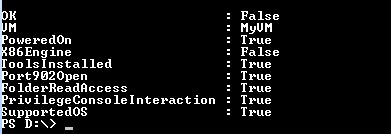
Looks like we are not running this in a 32-bit engine.
To also see my non-official prerequisites, we can do
|
1 |
Get-VM MyVM2 | Test-InvokeVMScript -Official:$false -Detail |
This produces the following
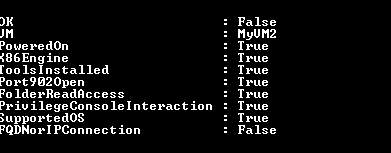
All the official prerequisites are fulfilled, but it looks as if our Connect-VIServer might have been done with a short hostname.
Let me know if you know of any other prerequisites, and I will add them to the function.
Enjoy the function.
sravan
Hi LUCD,
AM may be writing to different concern here
I have F5 bigip vm which is on centos base kernel. I want to assign an ip for eth0.
I have tried with Specfile creation. but it’s not working & tried with invoke-vm script goves error supplied credentials wrong. But those credentials i can able to login.
Can [you able to give any hint here. it would be helpful to me
LucD
Hi,
Sending scripts to some Linux distros might have issues.
Can you give it a try with my Invoke-VMScriptPlus function?
Ashok Sharma
Hi LucD,
I want to verify the following things on a windows VMware machine after build. Please can you help me here.
1. Verification of System Properties:
1.1 OS Version : Yes
1.2 Server Name : Yes
1.3 Server Domain : Yes
1.4 Server OU : Yes
1.5 IP Details : Yes
2. Verify the Region and Language dialog box from the Server Management console.
2.1 Location : Yes
2.2 Format for Date and Time : Yes
2.3 Keyboard : Yes
2.4 Language : Yes
3. Verify the VLAN details
3.1 VLAN ID : Yes
4. Verify the antivirus agent is installed with the latest definitions are updated.
5. Verify that the partitions C:\ and D:\ are available
5.1 C Drive: : Yes
5.2 D Drive: : Yes
Alexander Witt
Hi Luc,
Do you know if the remote connection to the VM uses network stack, or if the hypervisor is able to talk to the VM through VMware tools exclusively?
I am asking because my VM is not on the network — in fact the reason I am trying
Invoke-VMScriptis because I want to remotely iniate an IP-address reset.I am able to locate the Vm with
Get-VM, have saved a credential object withGet-Credentialinto a variable$credbut trying something likeGet-VM | Invoke-VMScript 'ls' -GuestCredential $credgives me:> A general system error occured: vix error codes = (1, 0).
I am trying your script to see to debug a connection to a VM. Attempting to then use
Invoke-VMScriptI getLucD
Hi Alexander,

The ESXi host “talks” to the VMware Tools through the VMX process on the ESXi server.
In section Benefits of the New API Set in Transporting VIX Guest Operations to the vSphere API, there is a great schematic that shows the process.
In fact the script needs to be updated. For example port 902 is not required anymore.
Sergg
Thank you so much!
dj
Hi LucD,
When I run it, it does not do anything…I must be missing something.
I copied your script to E:\tmp
PowerCLI E:\tmp>
PowerCLI E:\tmp>
PowerCLI E:\tmp> $vm = get-vm -name vmname2
PowerCLI E:\tmp> .\Test-InvokeVMScript -vm $vm
PowerCLI E:\tmp>
ken
Hi LucD. In looking at your test script, I don’t see anything pertaining to 32bit guestOS in it, so am I correct in assuming that Invoke-VMscript doesn’t support 32bit guestOS? such as w2003 or vista 32bit?
If 2003 32bit is NOT supported it would explain why I can’t get my script to produce against these VMs in my test lab..
admin
Hi Ken, as a matter of fact the 32-bit versions of the supported guest OSs are included in the test, see lines 110-112
Dan Meier
I found that I did need WinRM installed to perform just a simple “dir” script.
My server passed with -Official:$false. My server is Win2003 Enterprise SP2. I installed .Net 2.0 SP1 and KB968930 and then the script worked. I’m using PowerCLI 5.0 build 768137 and I’m only using Guest credentials and not Host credentials.
LucD
Hi Dan, interesting.
Although I can’t see why WinRM would make a difference.
Did you run the ‘dir’ with ScriptType Bat or PowerShell ? The default is PowerShell.
E. Jacob Hayes
Luc,
Did you forget this in your details section?
Add-Member -Name VIXVersion -Value $condVix -MemberType NoteProperty -PassThru
LucD
Hi Jacob, no I just didn’t think of including it 🙂
Good suggestion, I’ll plan an update.
chittra
i had used invoke-vmscript to execute perl scripts within a guestos. copied the perl script into VM using copy-vmguestfile and then would invoke it.
What i find is, every time the script completes execution, it prints below on the powercli window,
ScriptOutput
—————————————————————————————————
—————————————————————————————————
how do i avoid this? or how do i hide this?
LucD
Hi Chittra,
Did you try piping the output of the Invoke-VMScript cmdlet to Out-Null ?
Invoke-VMScript .... | Out-Null
JJ_Cain
@LucD- First time post, long time fan. Thanks for this script – great time saver. I am doing a mass migration of Windows guests (~50 a week) to upgrade to pvscsi and vmxnet3. I have a large number of 2k8R2 VMs coming up and during my testing, 1 line from my .ps1 is not passed. I use Invoke-VMscript several times throughout the .ps1 but this 1 liner to remove the e1000 is not playing nice. It does not like the “@” even when in the “double quotes”. Any ideas to get this passed? single quotes? Here-string?
#$remove1 = C:\Devcon64 -r remove “@PCI\VEN_8086&DEV_100F&SUBSYS_075015AD&REV_01\4&B70F118&0&0888”
#Invoke-VMScript -vm $vm -ScriptType bat -ScriptText $remove1 -GuestCredential $vmcredentials
Ed Grigson
I’ve just discovered that the PowerCLI cmdlets for guest OS integration (including Invoke-VMScript) aren’t backwards compatible. Presumably the VIX change is the reason for this? I just put up a quick blogpost – https://www.vexperienced.co.uk/2012/01/06/powercli-v5-gotcha-if-you-use-guest-os-cmdlets/.
I can see the script checks that the VIX version is correct, but does it check the version of the host running the VM? Otherwise it’ll give the all clear to a PC with PowerCLI 5 installed but if the VM runs on an ESX4 host the scripts will still fail.
LucD
@Ed, you are right. I’ll update the script to reflect what is stated in KB2010065
Benj Starratt
Thanks again for another great script. You helped me out with a script a year ago when I was doing a mass migration of Windows guests with an upgrade to pvscsi and vmxnet. As a different part of that project I did use invoke-vmscript against about 500 Windows VM with about 80% Windows 2003 SP2. I didn’t have any problem getting the invoke-vmscript to work on the 2003 VMs. I did ensure that PowerShell 2.0 and all the WinRM management components were installed prior to that project so that may be why it worked so well. The only weird issue I remember is that I would have to connect with host credentials instead of vCenter credentials.
LucD
@Benj, thanks.
Afaik WINRM is not needed for the Invoke-VMScript cmdlet, it uses the VMware Tools to execute commands inside the guest OS. When you do PowerShell Remoting, which is another possibility to execute commands inside a guest OS, you do need WINRM.
In PowerCLI 4.0 you did have to pass the hosts credentials, when your Connect-VIServer was executed against a vCenter. That requirement was dropped in recent PowerCLI builds.