
After my yadr – A vdisk reporter post I received an email from Dennis Zimmer, known from VMachine blog and as the IcomaSoft CTO. He pointed me to the yUML website and suggested that I could perhaps use part of the yadr script to produce an UML diagram.
As it happended there were already some PowerShell scripts that used the functionality offered by the yUML website to produce UML diagrams. Have a look for example at Use PowerShell and yUML to Create Diagrams by Doug Finke and Create Database Diagrams with Powershell + yUML by Chad Miller.
As you probably guessed by now I was sold to the idea.
The script
|
1 2 3 4 5 6 7 8 9 10 11 12 13 14 15 16 17 18 19 20 21 22 23 24 25 26 27 28 29 30 31 32 33 34 35 36 37 38 39 40 41 42 43 44 45 46 47 48 49 50 51 52 53 54 55 56 57 58 59 60 61 62 63 64 65 66 67 68 69 70 71 72 73 74 75 76 77 78 79 80 81 82 83 84 85 86 87 88 89 90 91 92 93 94 95 96 97 98 99 100 101 102 103 104 105 106 107 108 109 110 111 112 113 114 115 116 117 118 119 120 121 122 123 124 125 126 127 128 129 130 131 132 133 134 135 136 137 138 139 |
function Get-UMLDiagram{ param($vmName) function Set-ULMFromTo{ param($from, $to, $attrib) $result = "[" + $from + "]->[" + $to if($attrib){ $result += "|" $attrib | %{ $result += ([string]$_ + ";") } $result = $result.TrimEnd(";") } $result += "],`n" $result } filter Get-SnapHash{ param($parent) $snapHash[$_.Snapshot.Value] = @($_.Name,$parent) if($_.ChildSnapshotList){ $newparent = $_ $_.ChildSnapShotList | Get-SnapHash $newparent } } $vms = Get-View -ViewType VirtualMachine -Filter @{"Name"=$vmName} $snapHash = @{} $vms | %{ $ulmStr = "" $vm = $_ if($vm.Snapshot){ $vm.Snapshot.RootSnapshotList | Get-SnapHash $vm } $firstHD = $true $_.Config.Hardware.Device | where {$_.DeviceInfo.Label -like "Hard disk *"} | %{ $hd = $_ $hdNr = $hd.DeviceInfo.Label.Split(" ")[-1] $exDisk = $vm.LayoutEx.Disk | where {$_.Key -eq $hd.Key} $diskFiles = @() $exDisk.Chain | %{$_.FileKey} | %{$diskFiles += $_} $totalDiskAllocated = 0 $vm.LayoutEx.File | where {$diskFiles -contains $_.Key} | %{ $totalDiskAllocated += $_.Size } $hdProp = @() if($hd.Backing.ThinProvisioned){ $hdProp += "Thin" $hdProp += ("AllocatedGB=" + ("{0:N0} GB" -f ($totalDiskAllocated / 1GB))) $hdProp += ("Used=" + ("{0:P0}" -f ($totalDiskAllocated / 1KB /$hd.CapacityInKB))) } elseif($hd.Backing.GetType().Name.Contains("RawDisk")){ $hdProp += "RDM" } else{ $hdProp += "Thick" $hdProp += ("Allocated=" + ("{0:N0} GB" -f ($totalDiskAllocated / 1GB))) } $ulmStr += (Set-ULMFromTo ($vm.Name + "{bg:orange}") ($hd.DeviceInfo.Label) $hdProp) $exDisk.Chain[0].FileKey | %{ $ulmStr += (Set-ULMFromTo ($hd.DeviceInfo.Label + "{bg:green}") $vm.LayoutEx.File[$_].Name.Split("/")[-1] $vm.LayoutEx.File[$_].Size) } $snapHash.GetEnumerator() | %{ $key = $_.Key $value = $_.Value $vm.LayoutEx.Snapshot | where {$_.Key.Value -eq $key} | %{ $vmsnId = $_.DataKey $_.Disk | where{$_.Key -eq $hd.Key} | %{ if($diskFiles -notcontains $_.Chain[-1].FileKey[0] -and $diskFiles -notcontains $_.Chain[-1].FileKey[1]){ $chain = $_.Chain[-1] } else{ $preSnapFiles = $_.Chain | %{$_.FileKey} | %{$_} $vm.layoutEx.Disk | where {$_.Key -eq $hd.Key} | %{ foreach($chain in $_.Chain){ if($preSnapFiles -notcontains $chain.FileKey[0] -and $preSnapFiles -notcontains $chain.FileKey[1]){ break } } } } if($firstHD){ $ulmStr += (Set-ULMFromTo ($value[1].Name + "{bg:yellow}") ($value[0] + "{bg:yellow}")) $ulmStr += (Set-ULMFromTo $value[0] $vm.LayoutEx.File[$vmsnId].Name.Split("/")[-1] $vm.LayoutEx.File[$vmsnId].Size) } $ulmStr += (Set-ULMFromTo $value[0] ($value[0] + "-HD" + $hdNr + "{bg:blue}")) $chain.FileKey | %{ $ulmStr += (Set-ULMFromTo ($value[0] + "-HD" + $hdNr) $vm.LayoutEx.File[$_].Name.Split("/")[-1] $vm.LayoutEx.File[$_].Size) } } } } $firstHD = $false } $ulmStr.TrimEnd(",`n") } } # Based on Doug Finke's original Get-yUMLDiagram function. # See: https://dougfinke.com/blog/index.php/2009/05/06/use-powershell-and-yuml-to-create-diagrams/ # Added the "scruffy" switch and rearranged some of the lines # function Get-yUMLDiagram { param( $yUML, $diagramFileName = "C:\yUML.jpg", [switch]$show, [switch]$pdf, [switch]$scruffy ) $scruffyPath = "" if($scruffy){ $scruffyPath = "scruffy/" } $base = "https://yuml.me/diagram/" + $scruffyPath + "class/" $address = $base + $yUML $wc = New-Object Net.WebClient if($pdf){ $diagramFileName = $diagramFileName.Replace($diagramFileName.Split(".")[-1],"pdf") $address += ".pdf" } $wc.DownloadFile($address, $diagramFileName) if($show) { Invoke-Item $diagramFileName } } $vmName = "MyVM1" $diagram = Get-UMLDiagram $vmName Get-yUMLDiagram $diagram "D:\yULM.jpg" -show |
Annotations
Line 1: The Get-UMLDiagram function does the hard work of analysing the data in the VirtualMachineFileLayoutEx object. The LayoutEx property in each VirtualMachine object points to this VirtualMachineFileLayoutEx object. The function takes one parameter, the name of the virtual machine for which you want to produce the UML diagram.
Line 4-17: The Set-ULMFromTo is an internal function that produces the correct text to draw a box-to-box diagram.
Line 19-27: This internal filter stores how the snapshots are related in a hash table. The filter has been expanded with extra data compared to the filter with the same name in the yadr script.
Line 33: The main loop of the Get-ULMDiagram function.
Line 34: The text that is passed to the yUML website is collected in this variable.
Line 37-39: Read the snapshot tree and store it in a hash table.
Line 41: Loop through all the virtual machine’s devices but only take the hard disks for further processing.
Line 44: Get the correct hard disk, if there are more than one.
Line 48-50: Calculate the total storage allocated to this hard disk. This will be displayed as an attribute in the UML diagram.
Line 52-63: Determine what type of hard disk we are dealing with. The script can distinguish Thick, Thin and RDM disks.
Line 69: If there are snapshots, this is the loop through all them. The script will extract the information for the c urrent hard disk.
Line 88: To avoid double lines in the UML diagram when we have more than one hard disk, I use the switch $firstHD. The lines between the snapshots are only drawn for the first hard disk.
Line 109-134: The Get-yUMLDiagram function was originally written by Doug Finke. I expanded it to support the “scruffy” option.
Usage
The function, called Get-yUMLDiagram, does the actual call to the yUML website and receives the requested output.
This function’s parameters allow you to select which type of output you want, the style of the diagram and if the diagram should be displayed on screen.
| yUML | A string containing the text that the yUML site will convert into a diagram |
| diagramFileName | The name of the file into which the diagram will be saved |
| show | A switch where you can specify if the script should show the diagram |
| A switch where you can specify if the yUML website should produce a PDF file instead of a JPG file | |
| scruffy | A switch where you can specify if the diagram should be produced in a less formal style |
Samples
VM with 1 hard disk
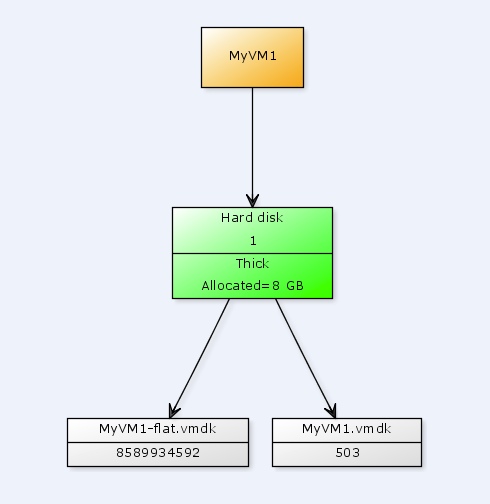
Notice the attributes for Hard disk 1. It’s a Thick provisioned disk and 8 Gb have been allocated.
The Hard disk 1 box points to the two actual files on the datastore. They each have as attribute the size (in bytes) of the file.
VM with 3 hard disks

Notice that Hard disk 1 is a Thin provisioned disk.
VM with 1 hard disk and 1 snapshot
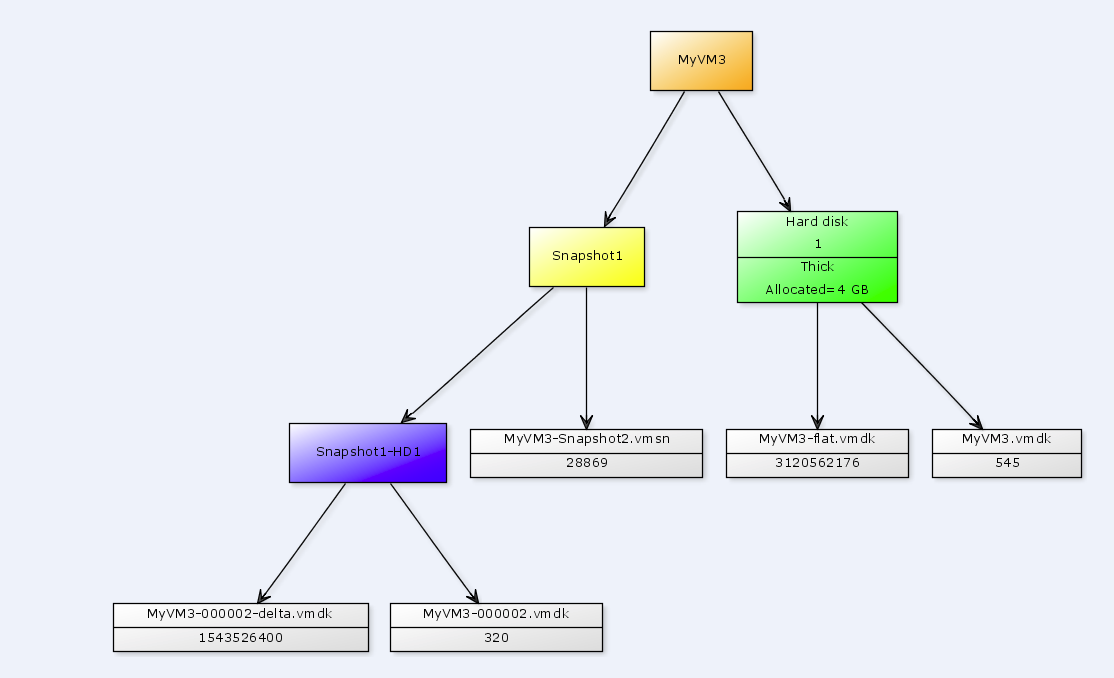
The Snapshot1 branch connects to the .vmsn file and the files for Hard disk 1 that were created due to the snapshot.
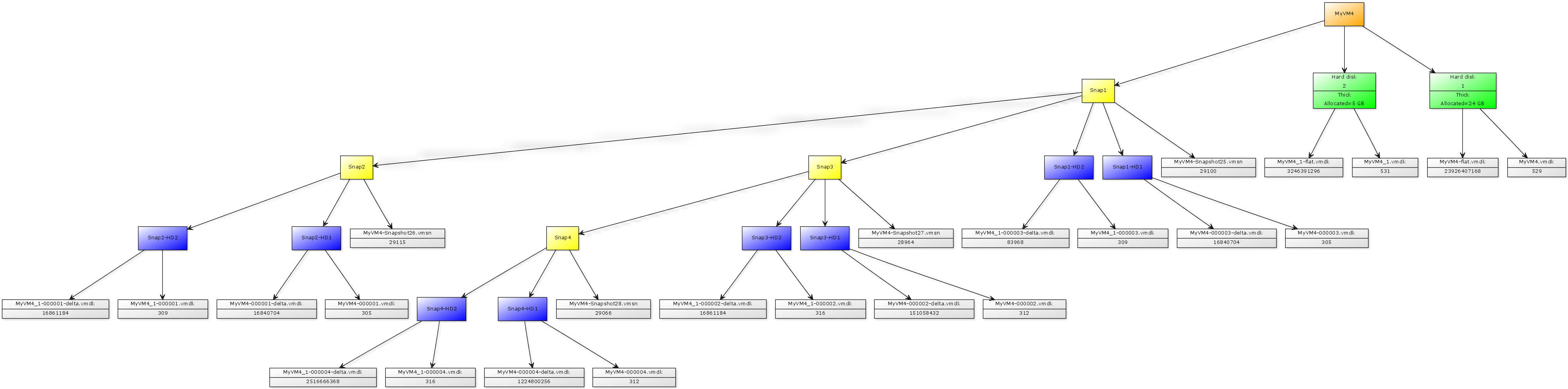
Extravaganza
This is something you probably shouldn’t see in real life 😉
But I included it to show you how the snapshot tree is represented in the UML diagram.
Will E
Hey there,
I’m currently trying to use your Get-UMLDiagram to create diagrams for my VMs. I simply wanted to know running that function should return a value other than null most of the time. Currently, when trying to run this line in PowerCLI:
$diagram = Get-UMLDiagram $vmName ($vmName having the value “dc_fqu7y”)
The variable $diagram contains nothing, which I’m assuming is the reason why the rest of the calls aren’t working.
So should your function Get-UMLDiagram contain the input required by yUML to create it’s diagram,, or am I missing something?
Thanks in advance,
Will
Rick
Hi Lucd, I have 2 bladeservers running ESXi4 with about 15 VMservers each. I have some diskspace available for snapshots, but some VMservers are way bigger than that. I am looking for away to predict the size of snapshots so I won’t bring down a server by making a snapshot that maxes out the available diskspace.
In understand the basic logic of snapshots, what happens in the background, but I do not have the experience to be able to estimate their size. Is there a ratio behind it?
Regarding the UML script, I tried to run it with my network cable unplugged, but I just saw a blackbox with a blinking cursor. I have some questions before using it in the real world.
What am I expected to see?
Can I run it in business hours?
How does the script adopt to my specific situation? I have zero PowerShell skills, so I can’t “read” the script in order to recognize where to put in specific information.
LucD
@Rick, the UML script generates 1 UML diagram for 1 specific VM. The script needs connectivity to your vCenter.
If you want to see the sizes of the snapshots per hard disk you could have a look at my yadr – A vdisk reporter post.
There is also a good snapshot reporiting script that was created by the PowerCLI Development Team. See their Snapshot Size post.
I would encourage you to start playing with PowerShell and PowerCLI. It’s really simple to start with and the possibilities are enormous.
Luc.
Brian Bambrick
@LucD
Hey Luc,
Really useful script, thanks for putting it together. Unfortunately, some of our customers have VMs even worse than the Extravaganza example, grr!
Made a small modification which changes the colour of the disk based on whether it’s Thick or Thin allocated, and if a Thin allocated volume goes over a warning or critical level it changes to a yellow or red block instead of the standard green 🙂
I can definately see me making use of this – I’ve been meaning to get into powershell scripting for ages and now I’m intrigued at the possibilities 😀
stuart
Hi
Would somebody be able to help..I am new to Powershell and I having a some issue getting the script to work as it is behind a proxy server and thus when i run the script i get the following error
“remote server returned an error: (407) Proxy Authentication Required”
Can someone provide some code so as i can get this script running .
Many thanks
LucD
I’ve been looking at the same problem for some time now and I have a solution that works when you know the proxy. If you use a PAC file I haven’t found a solution 🙁
Replace the Get-yUMLDiagram function with this code
function Get-yUMLDiagram {

param(

$yUML,

$diagramFileName = "C:\yUML.jpg",

[switch]$show,

[switch]$pdf,

[switch]$scruffy,

$proxy

)

$scruffyPath = ""

if($scruffy){

$scruffyPath = "scruffy/"

}

$base = "https://yuml.me/diagram/" + $scruffyPath + "class/"

$address = $base + $yUML

$wc = New-Object Net.WebClient

if($proxy){

$cred = Get-Credential

$proxyObj = New-Object System.Net.WebProxy($proxy)

$proxyObj.credentials = $cred.GetNetworkCredential();

$wc.proxy = $proxyObj

}

if($pdf){

$diagramFileName = $diagramFileName.Replace($diagramFileName.Split(".")[-1],"pdf")

$address += ".pdf"

}

$wc.DownloadFile($address, $diagramFileName)

if($show) {

Invoke-Item $diagramFileName

}

}
You can now call the function with the new -Proxy parameter like this
Get-yUMLDiagram $diagram "D:\yULM.jpg" -show -proxy "192.168.111.1:8080"
I hope this helps to get the UML diagrams behind your proxy.
Luc.
Joerg Lew
Even if I had no time to test it yet, this script look very promising.
Have you already tried to run it against Linked Clones, like in View or Lab Manager environments?
LucD
No, not yet.
But I’ll give it go.
duncan
Wow, I missed out on this completely while it should have been part of the top 5 articles! great script Luc.
LucD
Thanks Duncan.
Such a comment from you is just as good as a Top 5 entry 🙂
Steve Jin
Great job Luc!
It’s nice to visualize the vm/disk/snapshot with these static diagrams. Want to show us Flash output someday?
Steve
LucD
Thanks Steve. That sounds like a great idea.
But unfortunately I’m a complete Flash noob. So don’t hold your breath 😉
Robert van den Nieuwendijk
Awesome script Luc. This script has a lot of potential to create other nice diagrams also.
The script works ok if I connect to a VMware vCenter Server version 4.0.0. Even if the ESX servers are version 3.5 update 5. But if I connect to a VMware VirtualCenter Version 2.5.0 server or an ESX 3.5 server directly, the script has a problem with snapshots. For every snapshot I get the following error:
[vSphere PowerCLI] C:\users\robert> ./get-UmlDiagram.ps1
Cannot index into a null array.
At C:\users\robert\Get-UmlDiagram.ps1:66 char:18
+ $exDisk.Chain[ <<<< 0].FileKey | %{
+ CategoryInfo : InvalidOperation: (0:Int32) [], RuntimeException
+ FullyQualifiedErrorId : NullArray
Then the diagram is created without showing the snapshots. I haven't figured out where it is going wrong yet.
LucD
Robert, the script is primarily based on the LayoutEx property in the VirtualMachine object.
And that property is only available since vSphere API 4.0.
So I’m afraid it won’t work against a Virtual Center 2.5 which is API 2.5.
Troy Clavell
Thank you again! Either way, the script is very useful!!
LucD
Thanks, glad you like it.
And feel free to ask if some points are not clear.
Troy Clavell
Sorry for the continued questions. I do get .jpg for each quest. Is there a way to do this to get a single .jpg for the entire vCenter, or what that already answered? I’m still learning 🙂
LucD
I’m afraid that the script in it’s current format can’t produce a correct UML diagram for an entire vCenter (or even multiple virtual machines).
The reason is that the all hard disks follow the same naming convention, Hard disk n.
So each virtual machine would, for example, point to the same Hard disk 1 block and that block would point to all the underlying files.
Also note that the yUML website, like most websites, has a limitation on the length of the text you can pass to it in the URI.
For example, yesterday @lamw tried to map a virtual machine that had 31 snapshots and the yUML website returned an error 414 “Request-URI Too Large“.
But it’s a good idea.
In fact I’m looking at providing a similar script to map ESX/ESXi hosts, clusters, vCenters…
But that won’t be for the near future I’m afraid.
Troy Clavell
Brilliant! Anyway to do this against a single vCenter instead of a single guest? 🙂
LucD
Sure, have a look at my reply on the previous comment.
It shows how to pass the name of the virtual machine to the script.
When we add a second parameter we can also pass the name of the resulting JPG or PDF file as an argument.
The last 3 lines become something like this
$vmName = "NameOfYourVM"

$diagram = Get-UMLDiagram $args[0]
Get-yUMLDiagram $diagram $args[1]
Notice that I left off the -Show parameter !
You can use use something like the following to run through all the VMs in your vCenter and produce an UML diagram for each of them.
Connect-VIServer -Server

Get-VM | %{

.\UMLdiagram.ps1 $_.Name ("C:\MyFolder\" + $_.Name + ".jpg")

}
vAntMet
Ah, cool, that works.
Thanks.
Now to work out how to make it accept the vm-name as a parameter so I can script it to run over all vms… 😀
LucD
That is not too difficult.
In a script you can address the argument(s) you pass with the $args variable.
In line 136 you change the line into
$vmName = $args
And now you can call the script with
.\UMLdiagram.ps1 "MyVMName"
Have a look at Dr Tobias Weltner’s excellent (free) Master-PowerShell book.
More specifically the section Passing Arguments to Scripts.
vAntMet
I may be being extreamly thick here, but what are the steps to make this work?
I have the vSphere PowerCLI installed, I saved the script to a .ps1 file. I connect to a vCenter server, call the script with a vm name, and get errors….
Any hints? Or an example session running it?
LucD
In the script you replace the name in line 136 with the name of your virtual machine.
Then you save the file and run the file (after you have connected with Connect-VIServer) from the PowerCLI prompt.
You can also change the name of the JPG file in line 139.
The last 3 lines:
$vmName = "NameOfYourVM"

$diagram = Get-UMLDiagram $vmName
Get-yUMLDiagram $diagram "C:\MyDiagram.jpg" -show
Alan Renouf
Absolutly Amazing, you continue to amaze the world with our PowerCLI skills. Pure Brilliance !
vmachine
I couldn´t wish more
Awesome work – useful for any Report or Healthcheck